

This Canvas Knowledge Base article is a helpful video from the 60ish Second How-Tos series.
Open Canvas and navigate to the MarkBook page by clicking on Marks in the Left-hand menu
To Change the way ākonga names are displayed
- Hover over the student name column so that the three dots option appears, then click on the three dots
- select the ‘Display as >’ option
- select ‘Last, First Name’
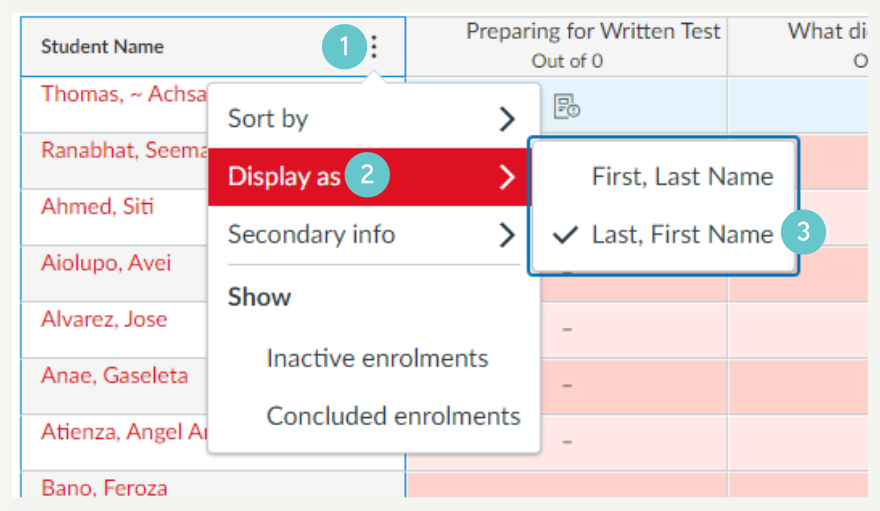
This will display the ākonga list as Last Name First Name.
NOTE: If ākonga have a family name that has two words separated by a space (e.g. Juan de Silva) Canvas only recognises the second part of the name (e.g. if sorting by last name Juan de Silva would show as Silva Juan de)
To Sort By Student ID number
- Hover over the student name column so that the three dots option appears, then click on the three dots
- select the ‘Secondary Info >’ option
- select ‘Integration ID’ option
- Ākonga will now have their ID number displayed next to their names

- Hover over the student name column so that the three dots option appear, click on the three dots
- Select the ‘Sort by >’ option
- Select Integration ID option
- Ākonga will be sorted by the Student ID number in numeric order (this defaults from lowest ID number to highest)
