

A quick guide on how to use Microsoft Stream to trim a video
Stream’s trimming feature is instant way to trim your videos without having to use a different app. Trim is a great way to clean up Microsoft Teams meeting recordings, live event recordings, or any other video where you need to hide a few parts of your video. It also gives you the option to undo or adjust what’s hidden anytime. When you trim a video, the original file remains unchanged. This means that all the information associated with the video, such as the title, description, chapters, comments, expiration date, and more will remain after trimming.
How to trim your video
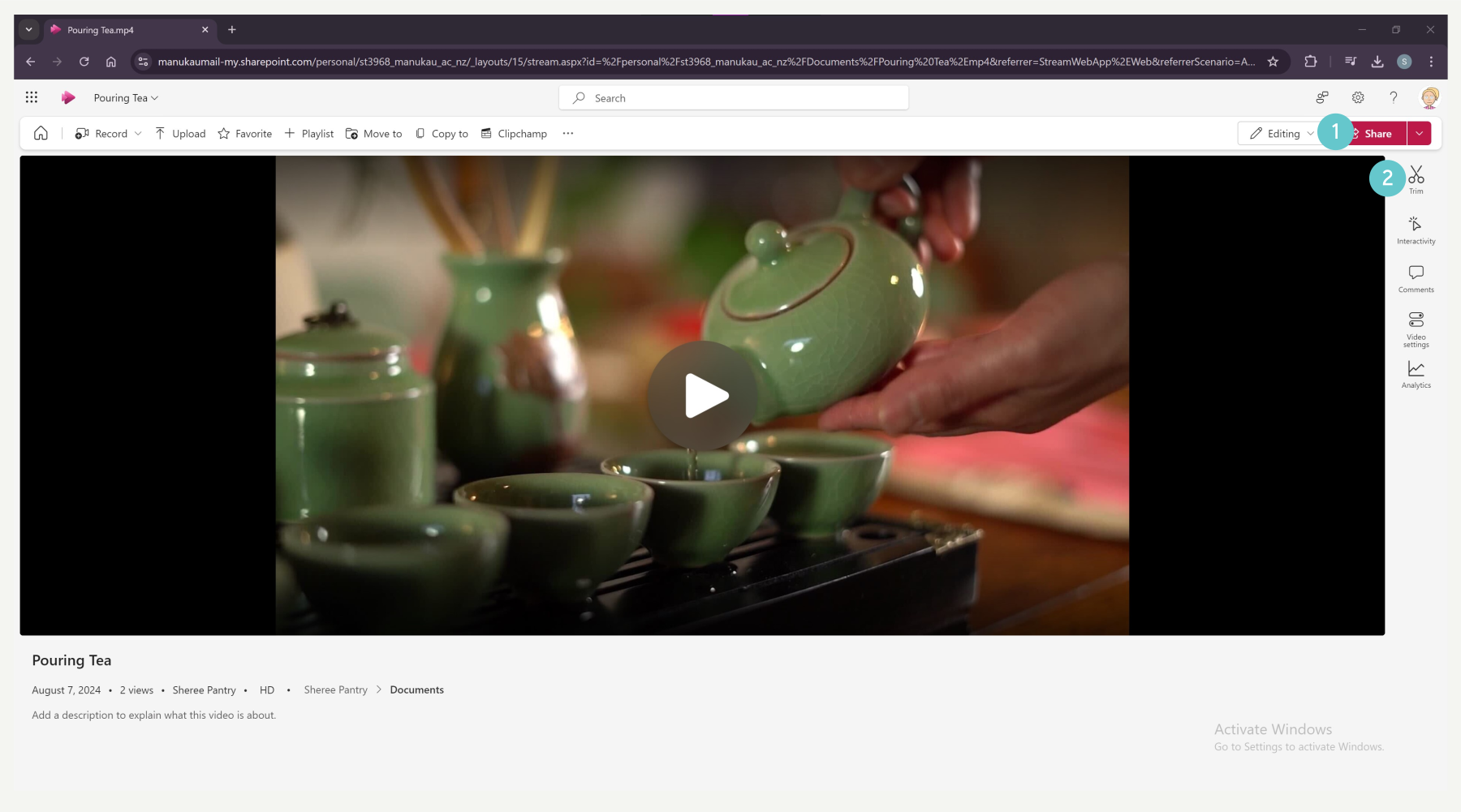
- Select Edit, to enter edit mode.
- Select the Trim panel, in the right pane
Trim the start or end of a video
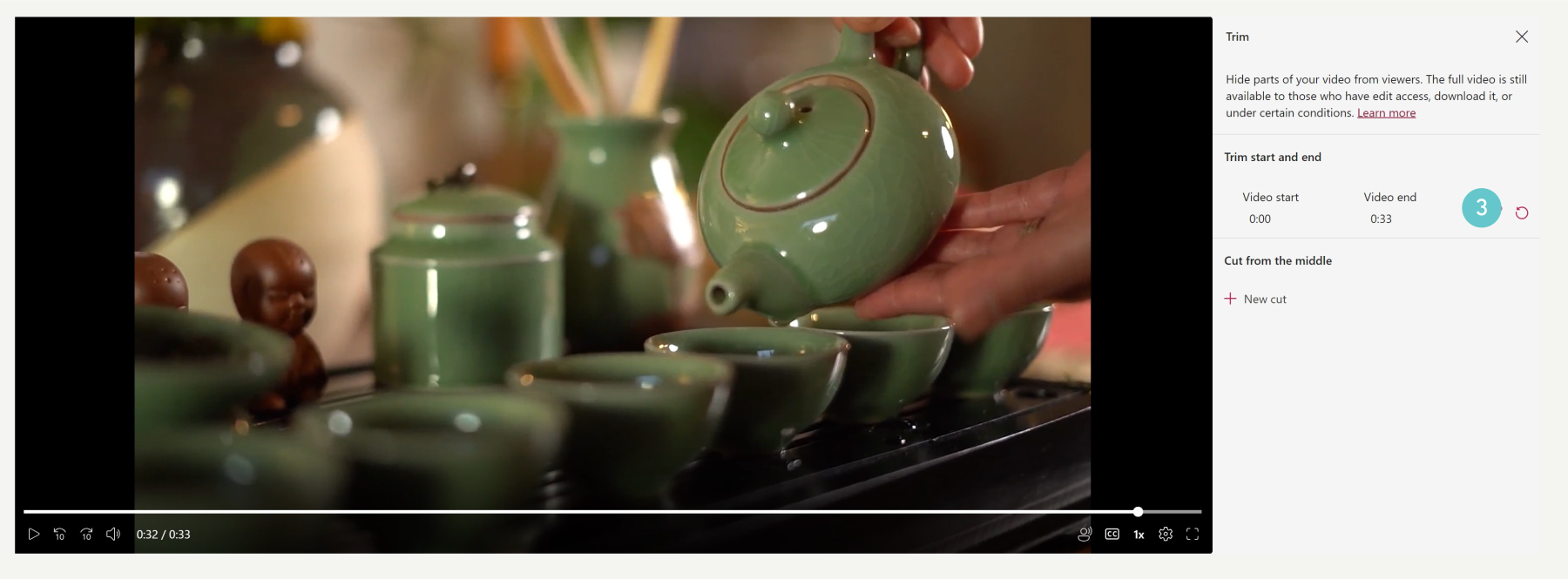
- In the Trim start and end section of the pane, select the pencil icon to edit the video’s start and end time
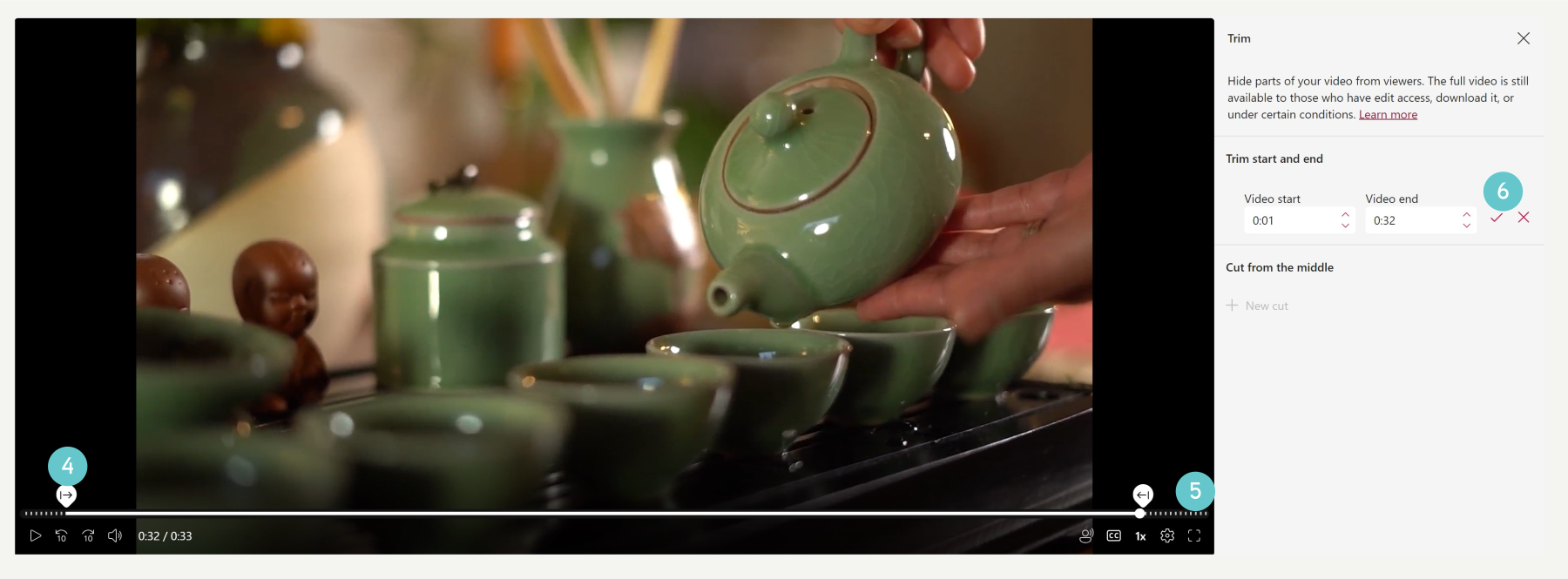
- On the video player timeline, drag the trim handles to set where the video should start and where it should end.
- The dashed lines on the video timeline indicate which parts of the video will be hidden
- When you are done, select the check mark in the trim panel, to save your new video start and end time
Cut from the middle of a video
- In the Cut from the middle section, select + New cut, to hide middle parts of the video
- On the video player, drag the cut handles on the video timeline to set the cut’s start and end time. You can also change the cut start and end times directly in the trim panel.
- You can only cut from the middle when the video’s play head isn’t already inside or too close to a previous cut or trim
- The dashed lines on the video timeline indicate the part of the video that will be hidden.

Preview how the video will look to students
- If you want to see how the video will look to your viewers, select the Viewing button at the top of the page to switch to view mode. In view mode, the parts you trimmed or cut won’t be shown to viewers.

Currently, you can only hide 5 parts of your video with Stream’s trim.