

An introduction to the procedures to use Canvas sub-account temporary enrolment as a school admin
This feature allows Canvas site and school admins to quickly, easily, and temporarily enrol users such as moderators, substitute teachers, designers, and other roles into a series of sub-account courses that another user enrolled.
This is useful when a teacher is unavailable and needs another teacher to temporarily teach the Canvas course(s) instead.
You must be a Canvas School Admin or a site-wide admin to manage this enrolment.
Below are the steps to enrol a user on a series of Canvas courses that another user is enrolled in.
Note: Primary User is the person who normally teaches the course; Temporary User is the person who will be added to the course(s) for a limited time period.
- Go to your Canvas account/sub-account that you are managing and click on People from the Navigation menu.
- Find the Primary user you want. Then click on the icon as indicate below.

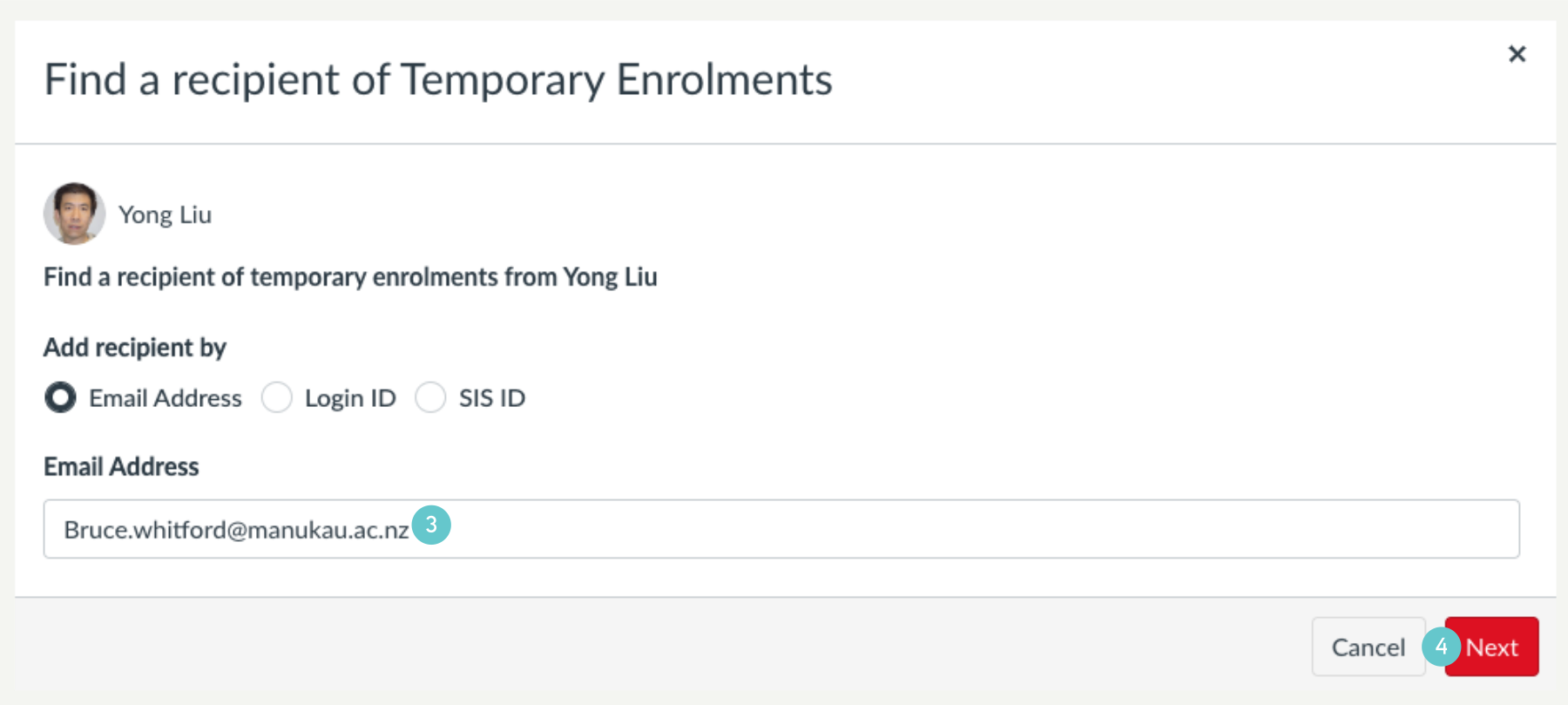
- Add the Temporary user’s email address.
- Then click Next.
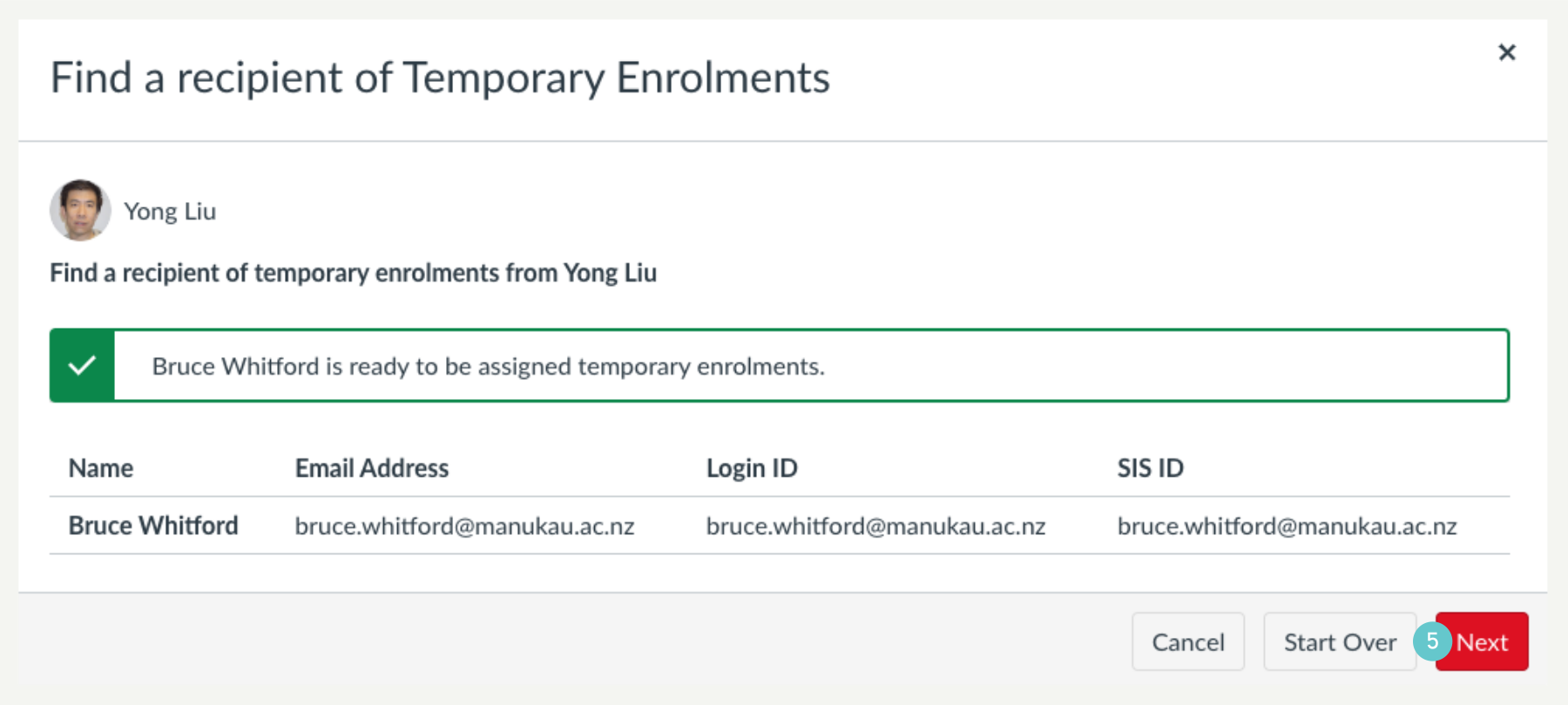
- Confirm that the added Temporary user is correct, and then click on Next.
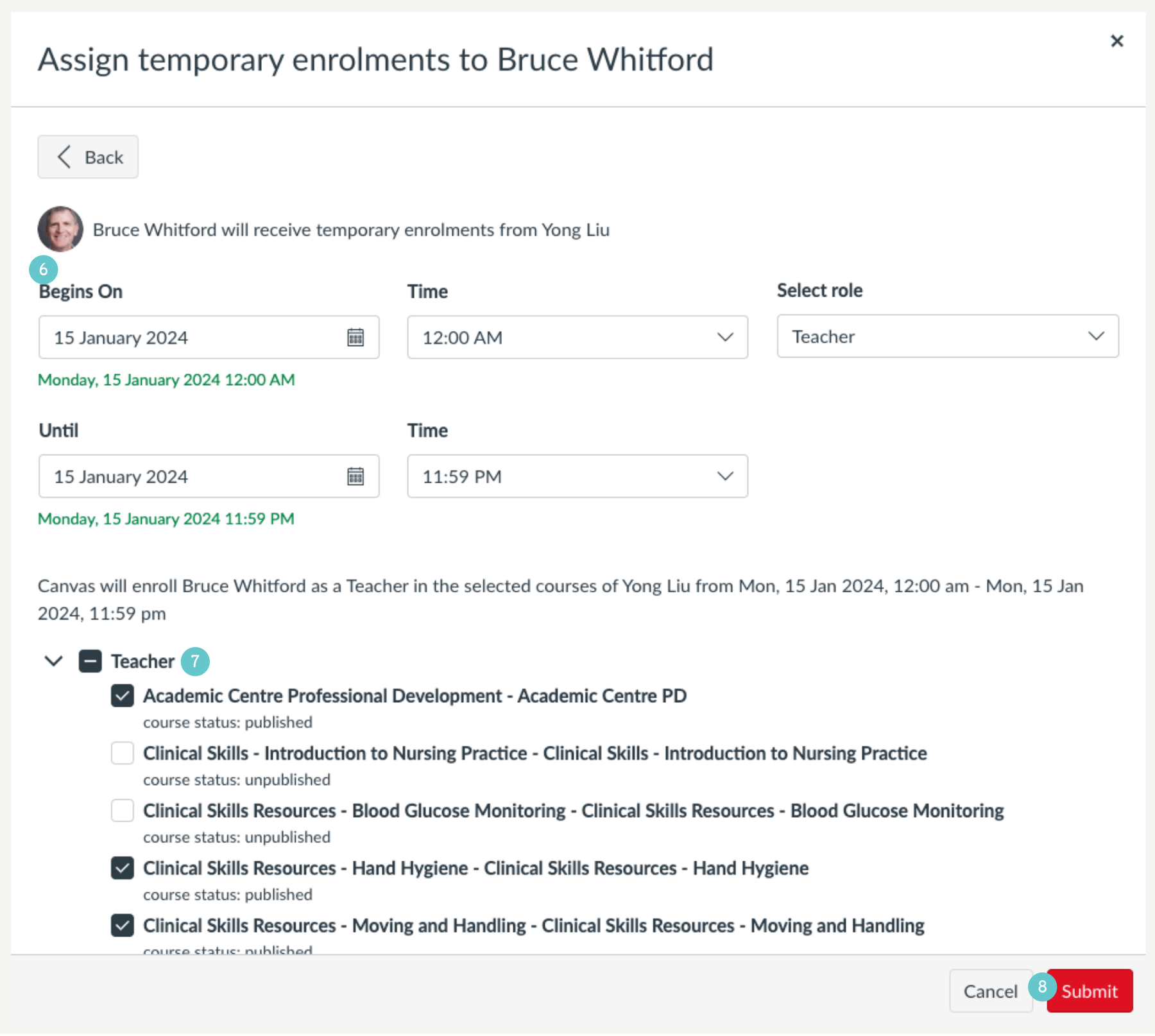
- In the new pop-up window, add the enrolment period and the role you want to assign to this Temporary user.
- Select the courses you want this user to be enrolled.
- Click on Submit.
Now you’ve completed this temporary enrolment.