

A guide to using Turnitin Coach on online Word Documents
- On a Word online document, click Turnitin on the top menu bar
- Click Draft Coach

- A sidebar will open on the right. To use Turnitin Draft Coach, click I agree to the terms and conditions.
- Then click Continue to Draft Coach

- When a paper has been typed and is ready to be checked, choose Similarity Check, then Go to Similarity on the right.

- The next page will display, Choose Run Similarity Check.
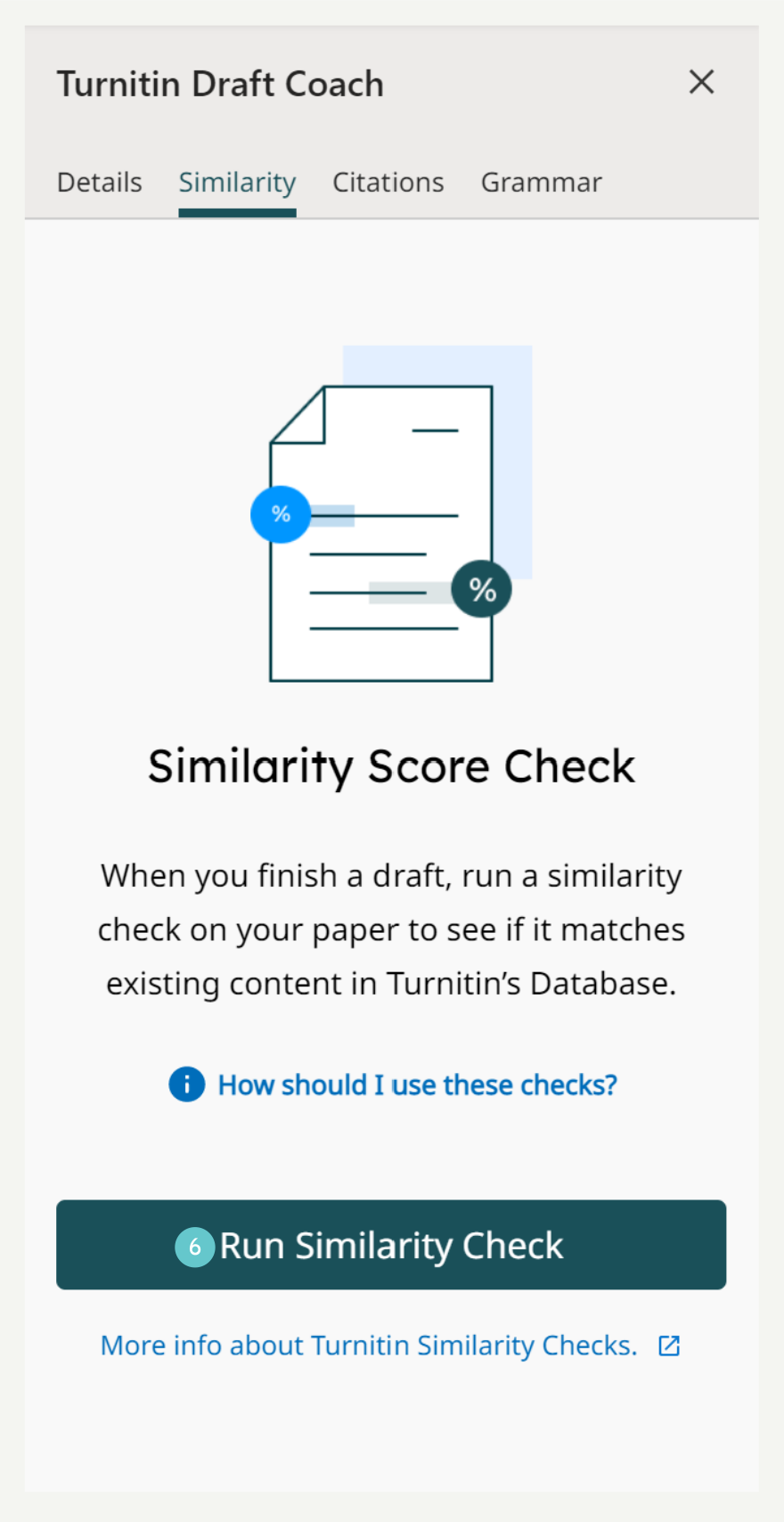
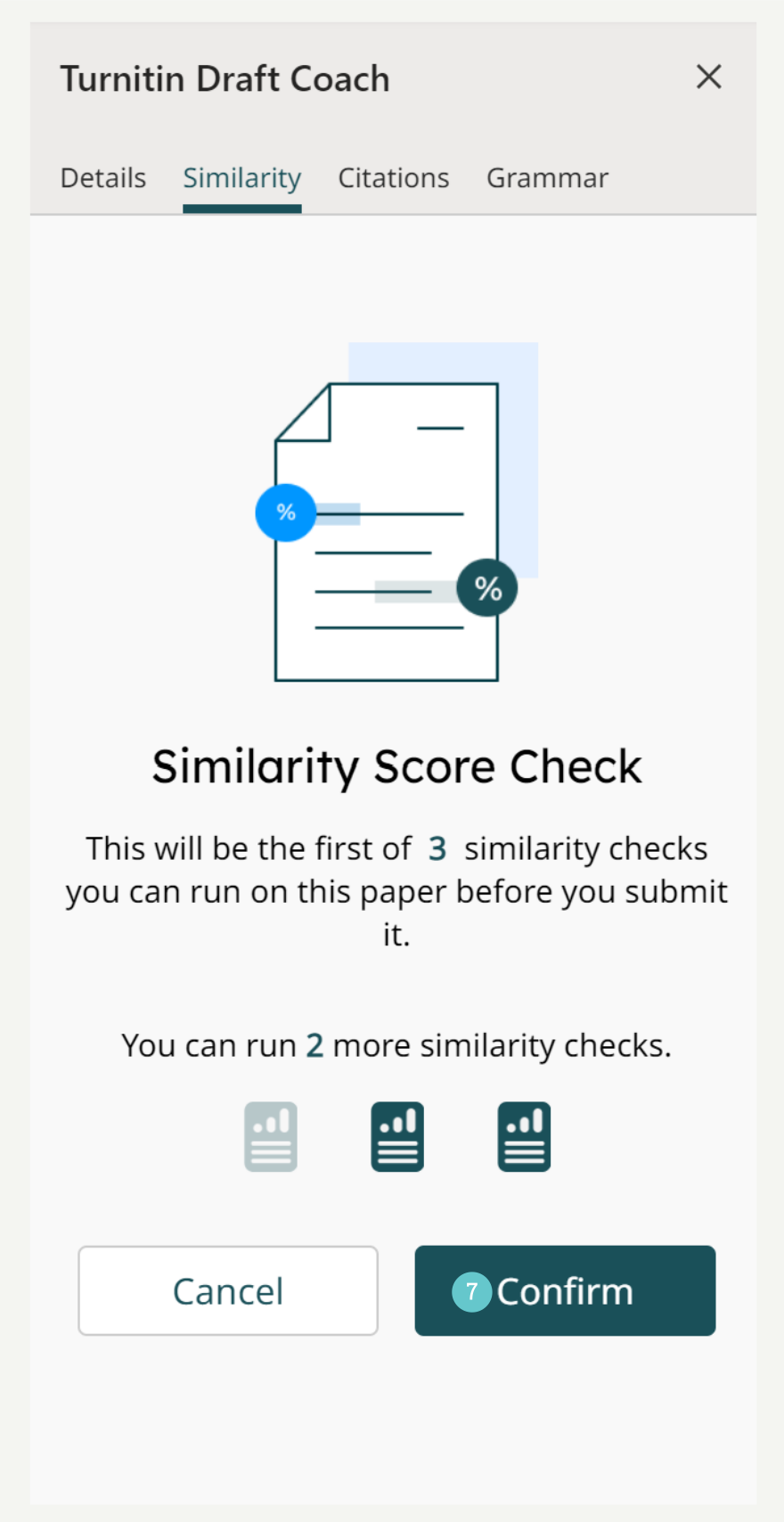
- Draft Coach allows 3 Similarity Checks on a paper. It will display which of the 3 similarity checks are being used and how many are left. To use one of the checks, choose Confirm.
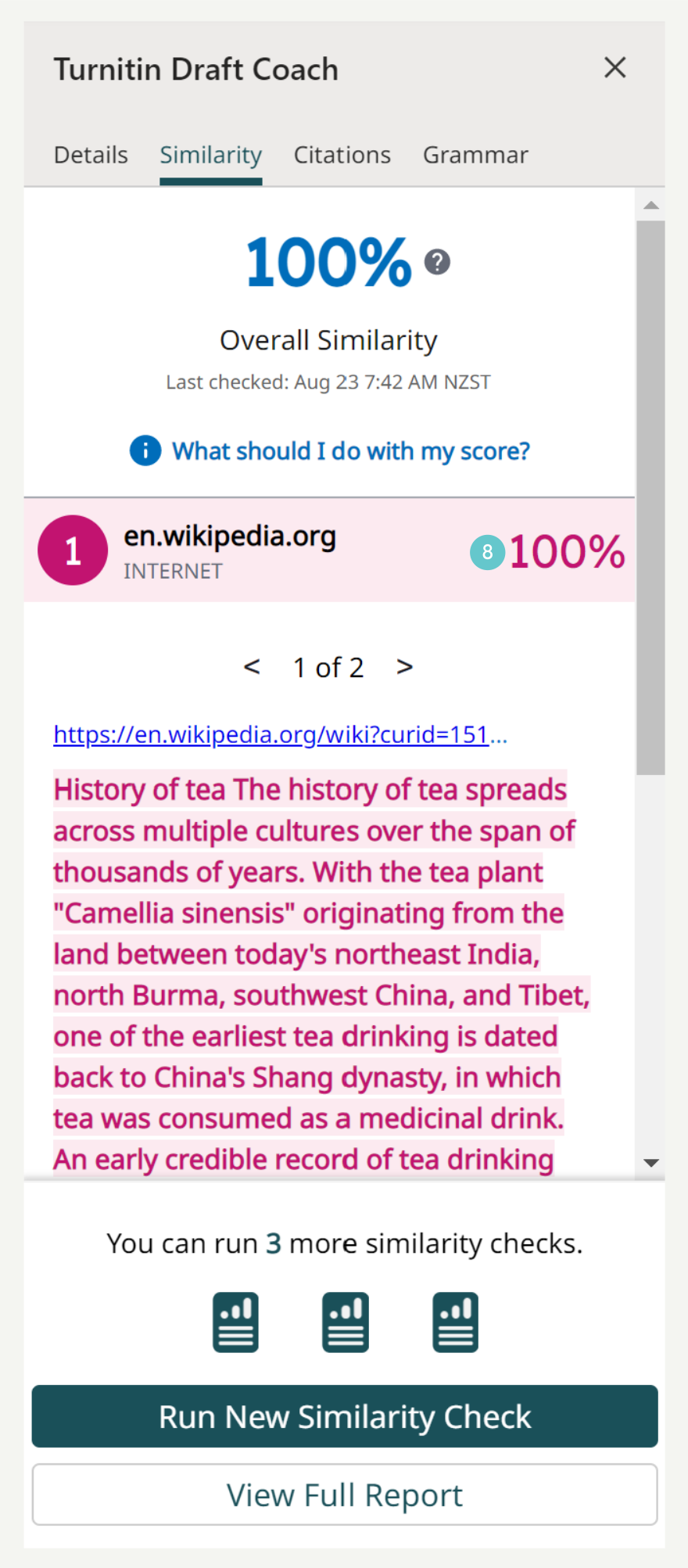
- Wait for the similarity report to give the results. The results will show the percentage in the Turnitin panel on the right. Clicking on the individual results will show where the information was found.
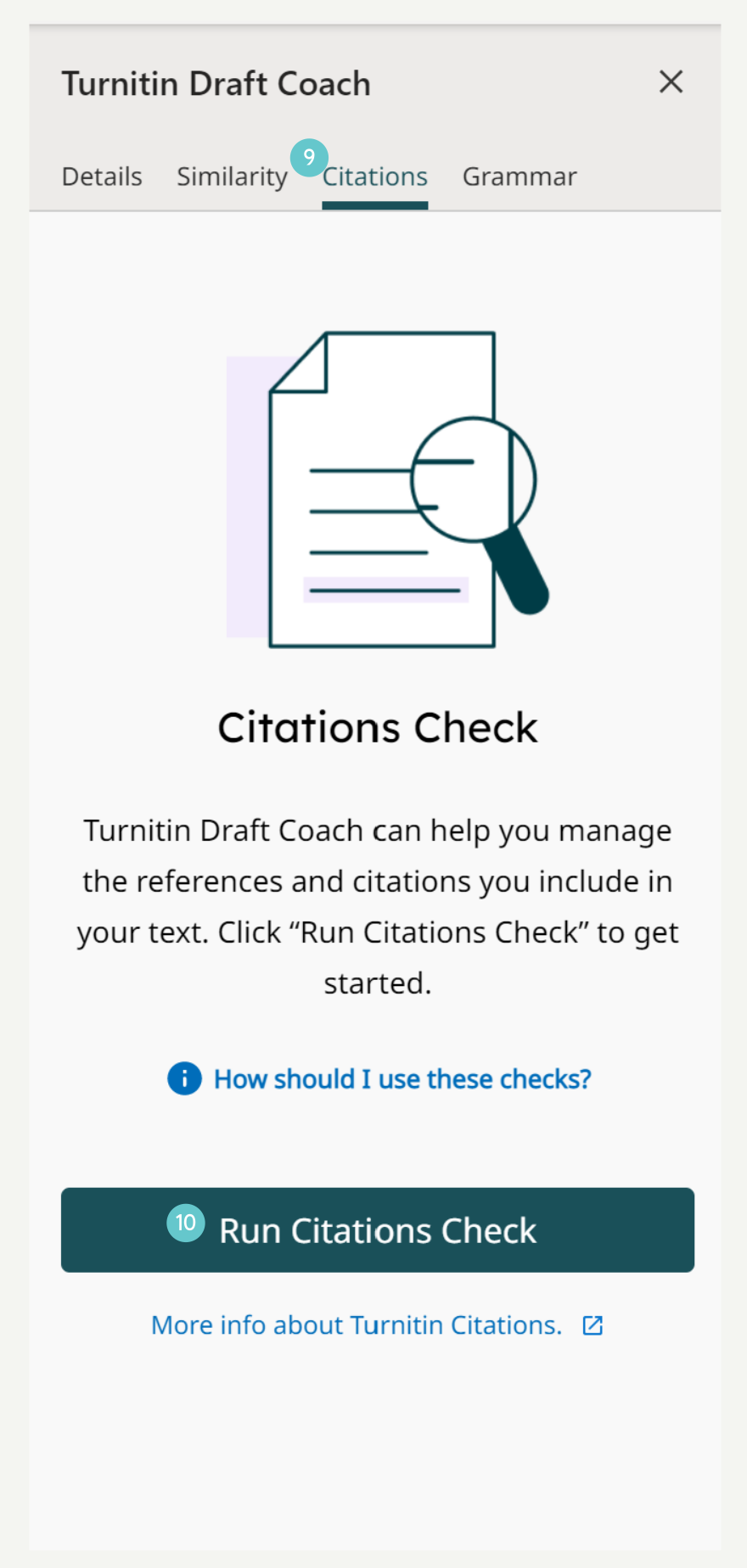
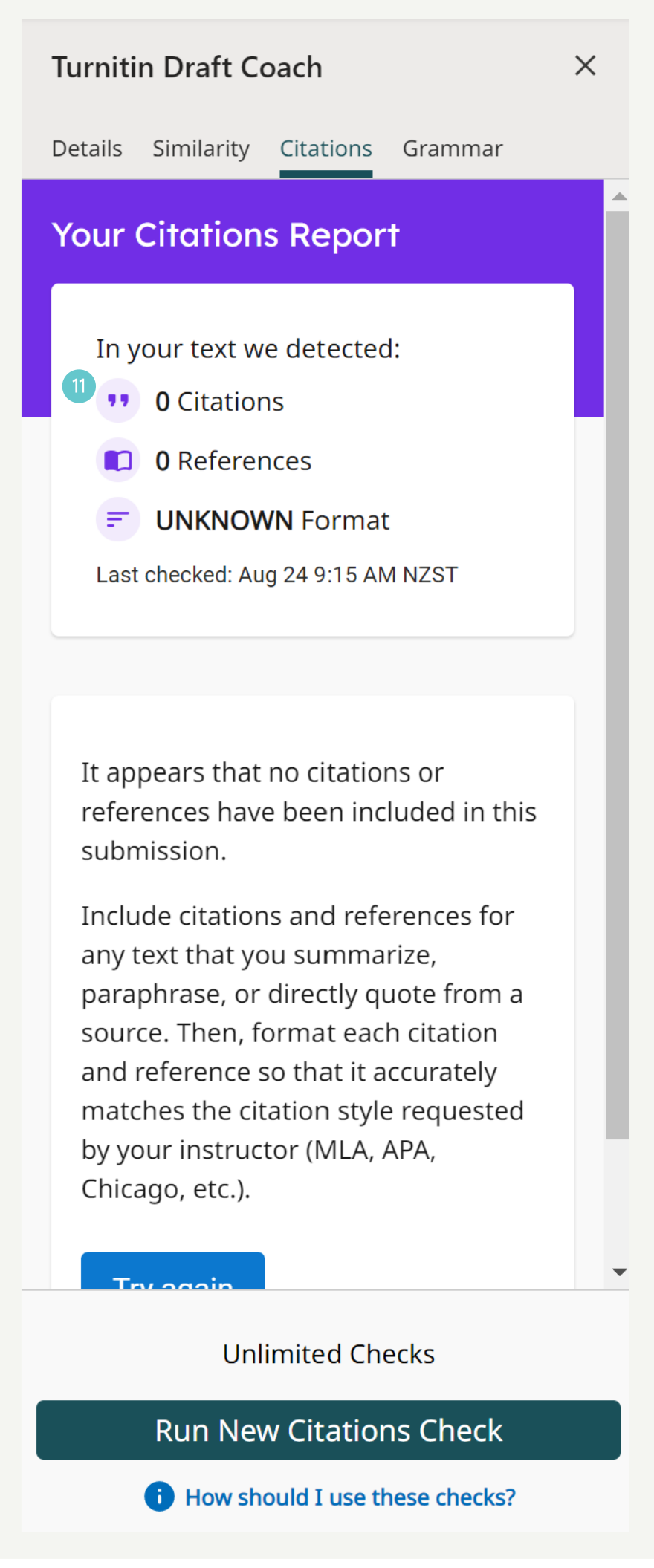
- Click on the Citations tab. This will display any issues seen.
- Click Run Citations Check
- Wait for the Citations Check to give the results. The results will show in the Turnitin panel on the right. Clicking on the individual results will show where the information was found.
- Click on the Grammar tab
- Click Run Grammar Check

- Wait for the Grammar Check to give the results. The results will show in the Turnitin panel on the right. Clicking on the individual results will show where the information was found.
