
Subscribing to your Canvas Calendar in Microsoft Outlook ensures that all your course deadlines and personal events appear alongside your staff meetings and emails. This feature uses a special URL feed to keep the calendars automatically synced.
Get Your Unique Calendar Feed Link from Canvas
- Click the Calendar icon 🗓️ in the global navigation menu in Canvas.
- On the right-hand side, look for the Calendars list.
- Click the Calendar Feed link (usually at the bottom of the calendar list).
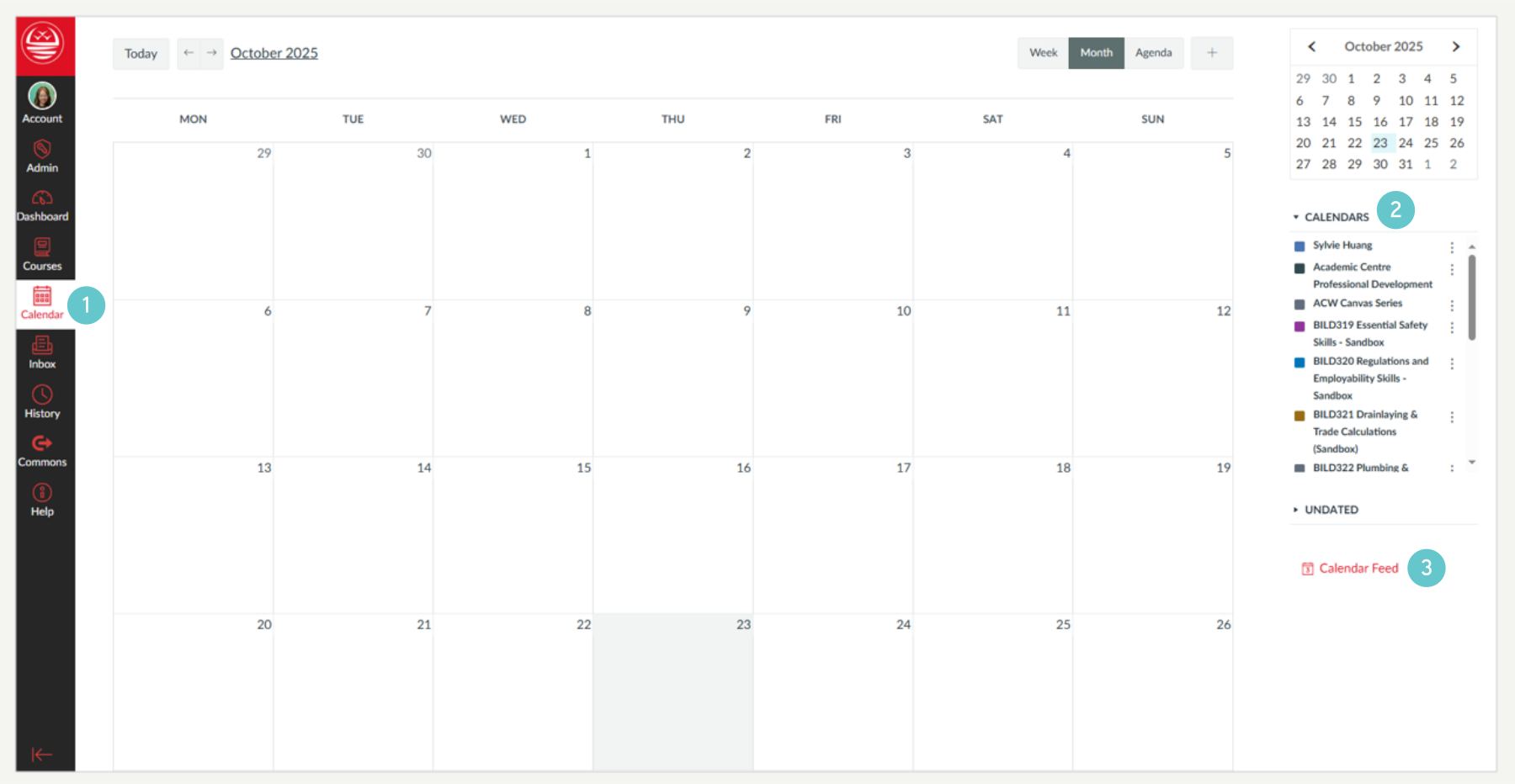
- Copy the URL provided. This link is unique to your account and should be kept secret.

Add the Feed to Microsoft Outlook
The exact steps vary slightly between the desktop app and the web version, but the principle is the same:
- In your preferred browser, go to Outlook Web App and navigate to your Calendar view.
- Look for an option to Add Calendar.

- Select the option for Subscribe from web
- Paste the Canvas URL you copied in Step 1.
- Follow the prompts to name the new calendar (e.g., “MIT Canvas Deadlines”) and click Import

Your Canvas events will now appear in your Outlook Calendar.
Note: The calendar feed is usually updated every few hours, so changes made in Canvas may take some time to appear in Outlook.
Hints and Tips
- Calendar Visibility: Events added to a specific Course Calendar in Canvas will appear in the subscribed Outlook calendar. Personal events added to your personal Canvas calendar might not sync depending on your Outlook version.
- Don’t Edit in Outlook: This is a read-only feed. If you need to change a due date, always edit it directly in the Canvas Calendar first, then wait for the next sync cycle.