

Broken Links on your Canvas Courses can be annoying! You can check for broken links using the Course Link Validator, this can be found in the Settings menu. This feature enables searches through course content and returns invalid or unresponsive course content links in both published and unpublished content. Links can be checked and reinstated or replaced very easily.
First you will need to check all the links in courses.
- Click on Settings from the Main Menu (to the left of your Canvas course page).

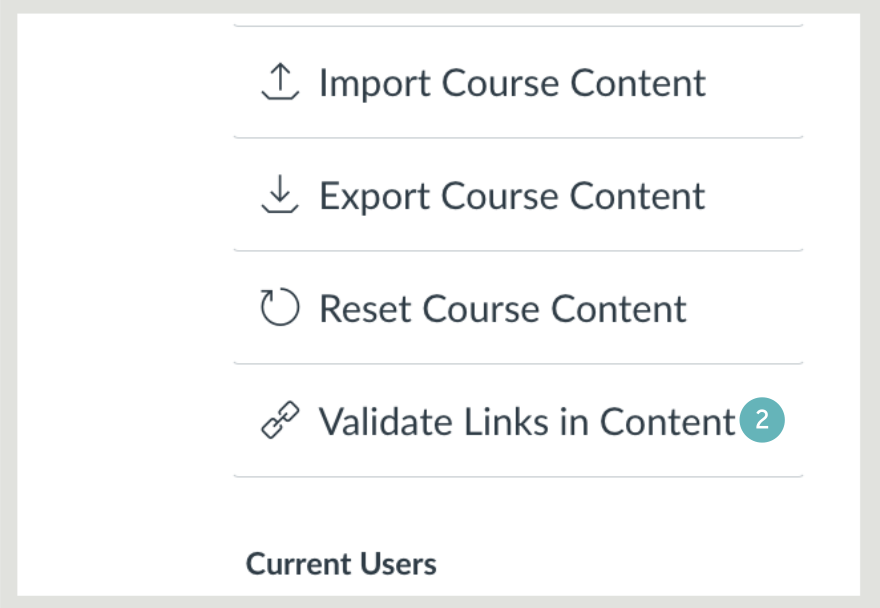
- Select Validate Links in Content in the menu to the right of the page.
- Click the red Start Validation button, (this can take a while with larger courses).

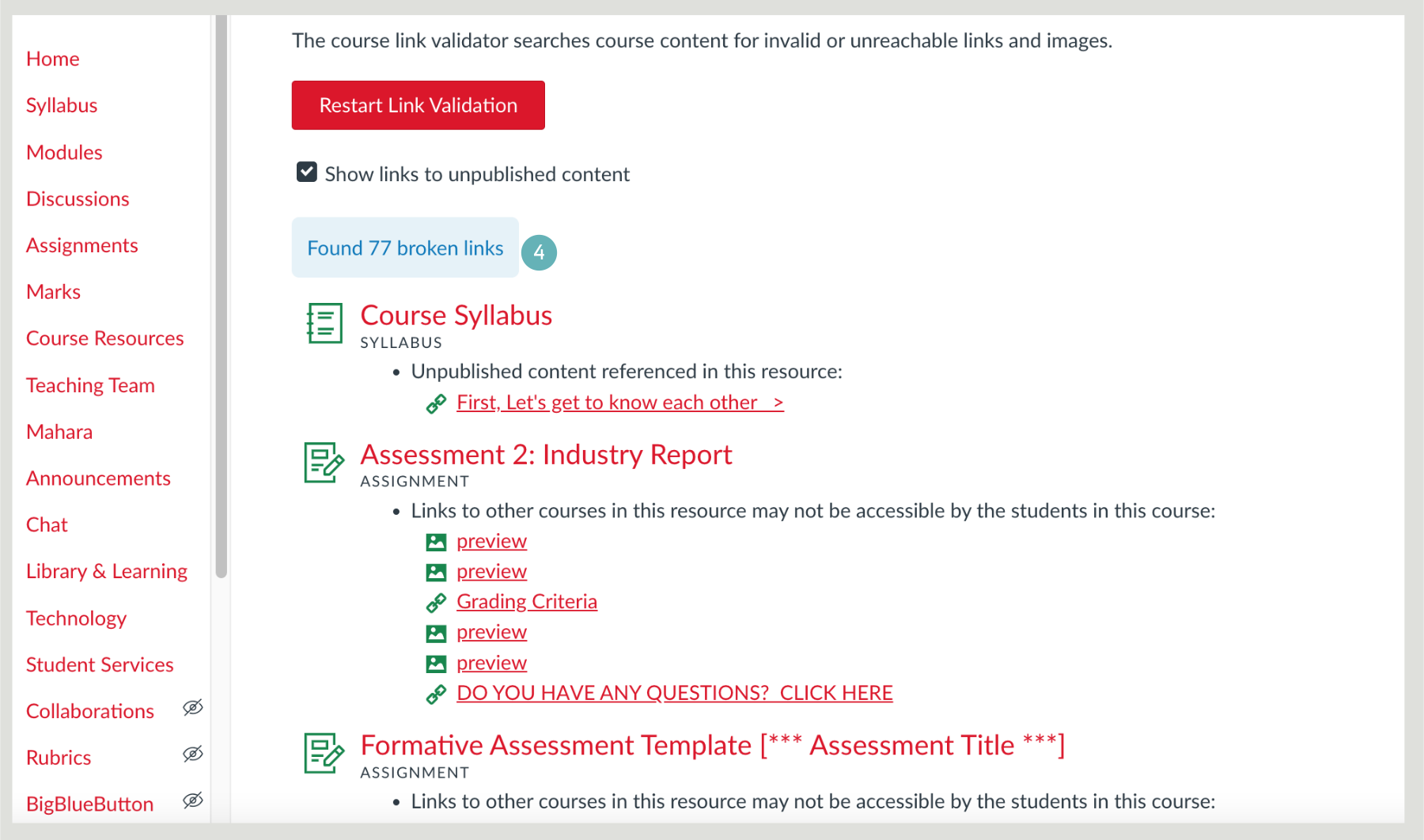
- The results are shown on the validation page, there are problems with both URL’s links and various image links as well.
To repair broken URL links in Canvas:
- Navigate to Page with the broken link.
- Click Edit.
- Highlight the hyperlinked text.
- Click Remove Link.
- Copy the URL.
- Click Link to URL.
- Paste the URL.
- Click Update Link.
- Click Save or “Save & Publish.
Updating or Repairing File Links in Canvas:
- Navigate to the Page or resource with the broken link.
- Click Edit.
- Highlight the hyperlinked text.
- Click Remove Link.
- Use the pane on the right-hand side to select the files.
- Click Save or “Save & Publish.