

Create a Mahara assignment: Follow these steps to add an assignment on Canvas to let the students submit their Mahara page to your Canvas Assignment for marking.
- In your Canvas course, select Assignments
- Click on the [+] button

- In the Add assignment to Assignment select More options

- Add an Assignment name
- Add assignment description
- Add assignment details
- Select External tool from the Submission type menu

- Select Mahara (from External tools)
- Then click on Select

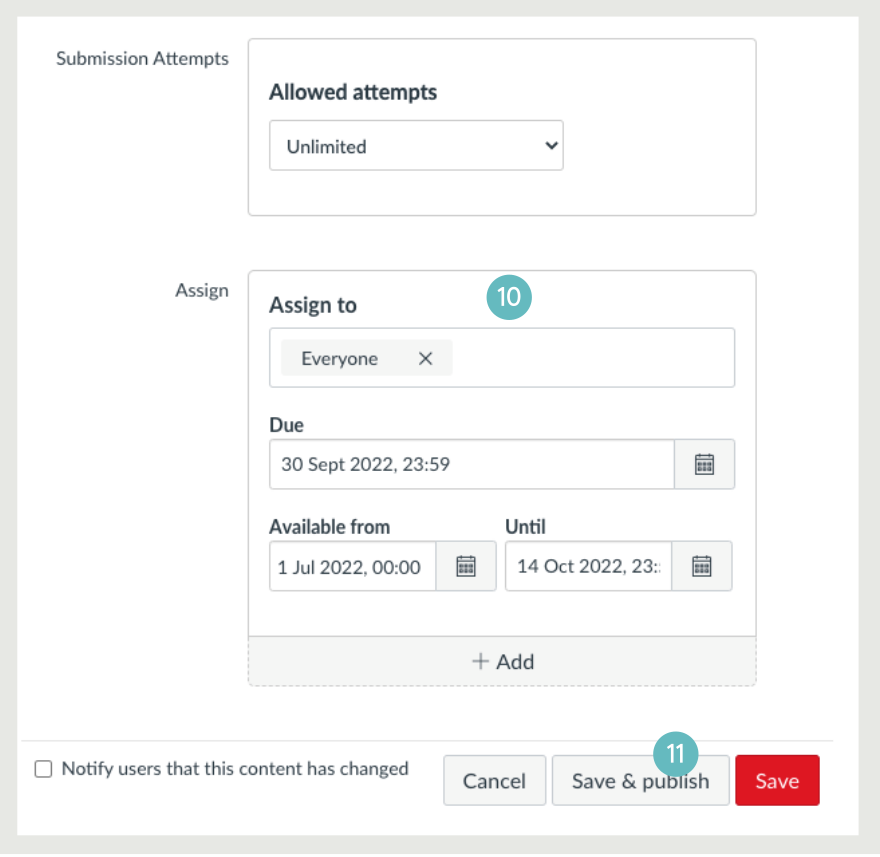
- Back in the Assignment page, add detail regarding who the assignment is for and relevant dates
- Click Save & publish
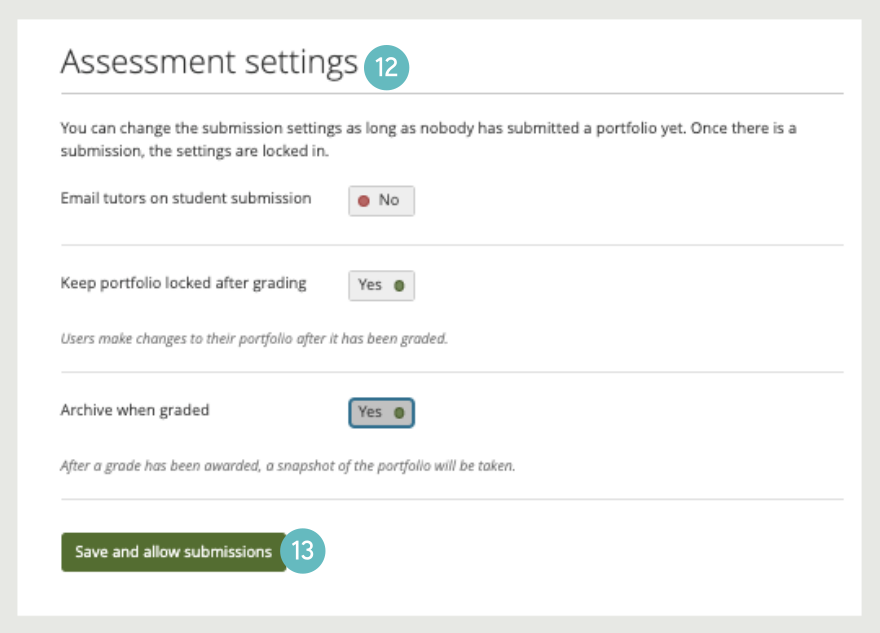
- Select the setting you wish to apply to the assignment
- Click Save and allow submissions
Student submission to this Mahara Assignment
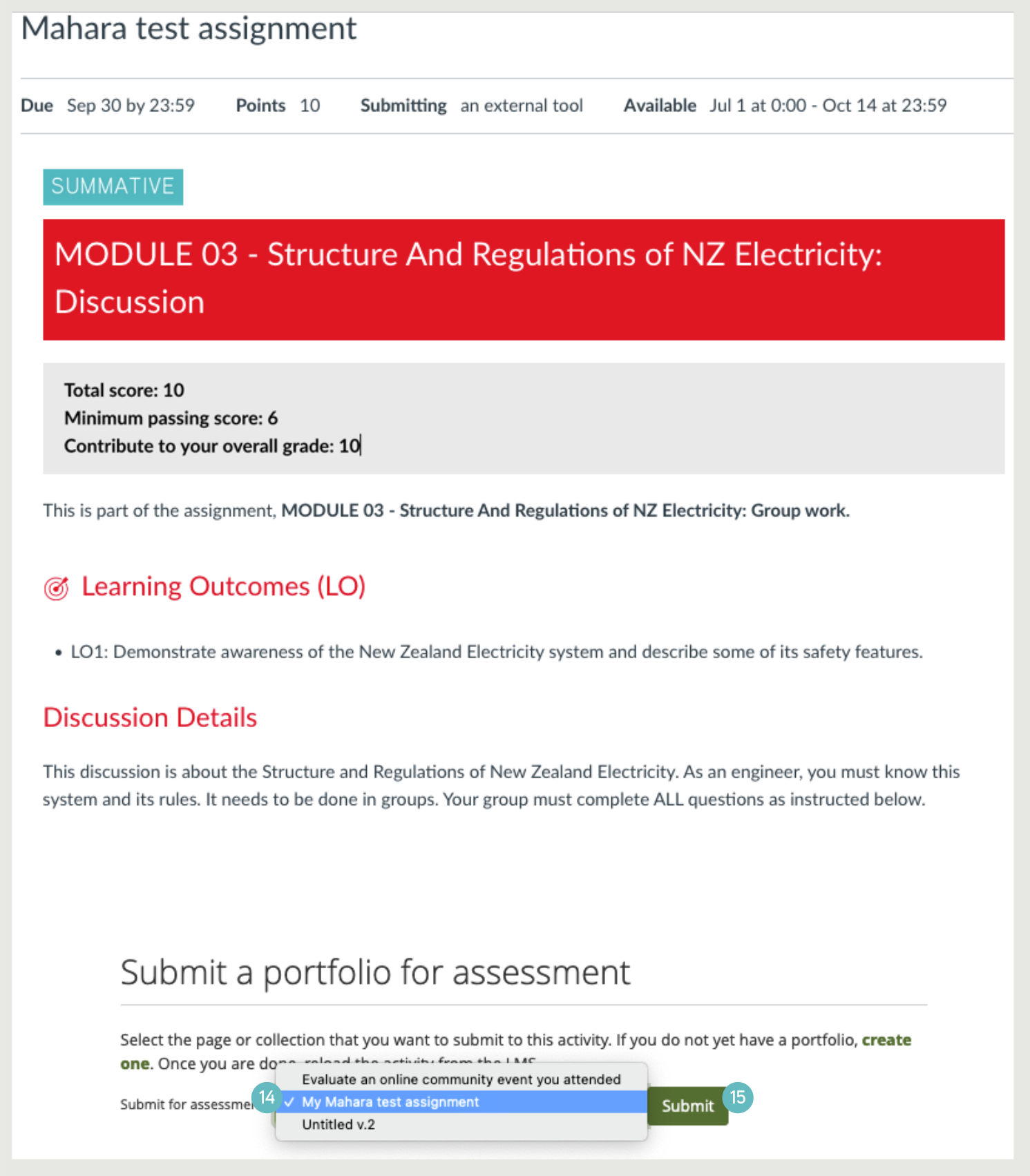
When the students select this Mahara Assignment, they will see the submission page as shown below. They can submit their assignments by following steps 1 and 2.
- Under the title Submit a portfolio for assessment, students should select My first portfolio page
- Then click Submit
Marking a Mahara Assignment
The lecturer will see the student’s submission as below. Follow steps 1 to 9 to mark the student work.
This mark will be automatically shown in Canvas Gradebook.
[There is a bug in this function. After you have submitted your mark in step 9, all the links to this submission and your comment(s) will be lost. You need to save a copy of them by following step 5 to 8 for future reference]
- Look at the Submissions for grading
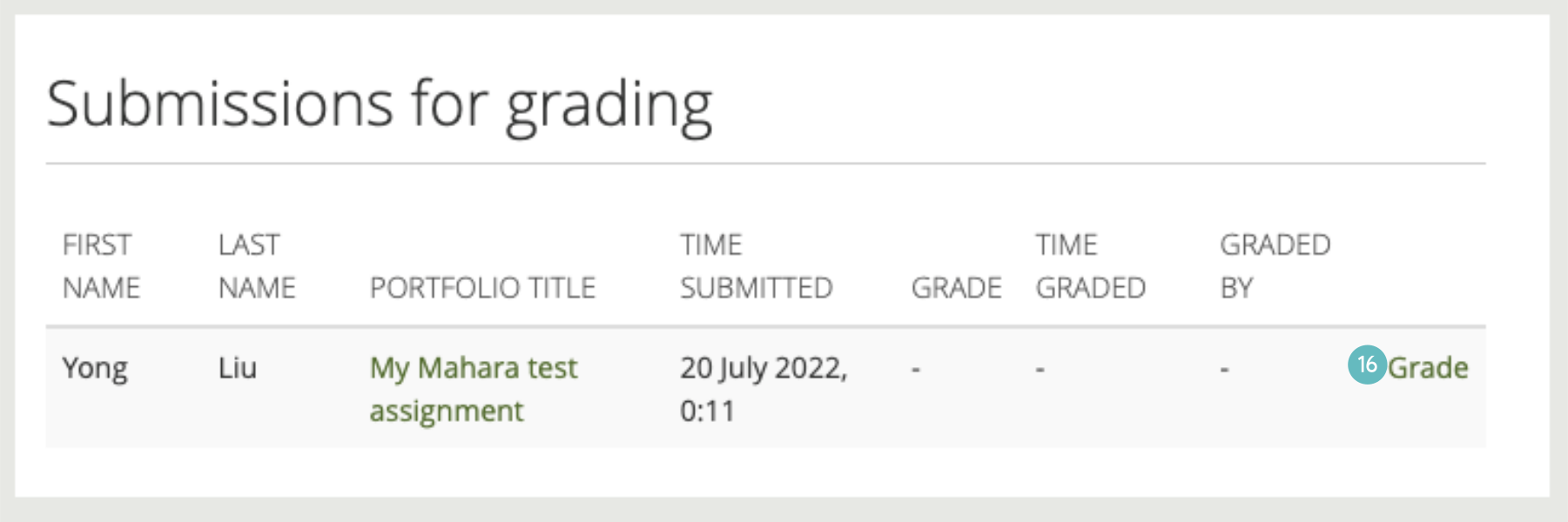
- The grade mark will be seen here, next to Grade *
- Add your comment in the Comments window
- Click the Comment button, below the comments window to save the comment
- You will have to save a copy of this submission with your comment and mark for future reference by following steps 5 to 8. Click the dots […]
- Select Print
- Choose Save as pdf, Pages All, Pages per sheet 1, Margins Default, and tick Background graphics
- Save
- IMPORTANT: Follow the sequence up until step 4, then print. Submit must the last step. Upon submission you will lose access to the page information. You will only be able to access the pdf copy you have just saved.

