

A guide on how to set up your Mahara page
Where to start?
There are two ways to access MIT e-portfolio (Mahara), directly login from MIT e-portfolio (Mahara) front page or from inside Canvas course.
Access
- You need to log onto MIT e-portfolio (Mahara) landing page to initialize your Mahara account.
- You can login at https://eportfolio.manukau.ac.nz/ and by using your current MIT login name and password.
- Next time you can directly access it from your Canvas course.

Access Mahara from your Canvas course
- If Mahara has been enabled in your course, you will see “Mahara” in you course menu as shown below. You can click on it to automatically go to your Mahara account page.
- Otherwise please contact Canvas administrator (for lecturers only) to enable it if you wish to try it.

Setup your front page
This is the place when people first see your account.
You have to create this Front page, as it is essential to your portfolio.

Add your profile photo
First you need to follow the steps below to add your profile photo.
- Click on the Arrow
- Select Profile Pictures
- Profile Picture, select Choose File
- Give photo an Image title
- Select which picture you want as your default
- Click here to either set as default or to delete a picture
- Upload

Create your profile
You will also need to create your profile, use the following steps.
- Click on the Arrow
- Select Profile
- Add your full name and other information asked for
- Provide information in the Introduction panel
- Save Profile

Add placeholders to your front page
- Click on the Photo image beside the Arrow

- Select the Edit tool (pencil)
- Select the [+] symbol, then choose your desired location
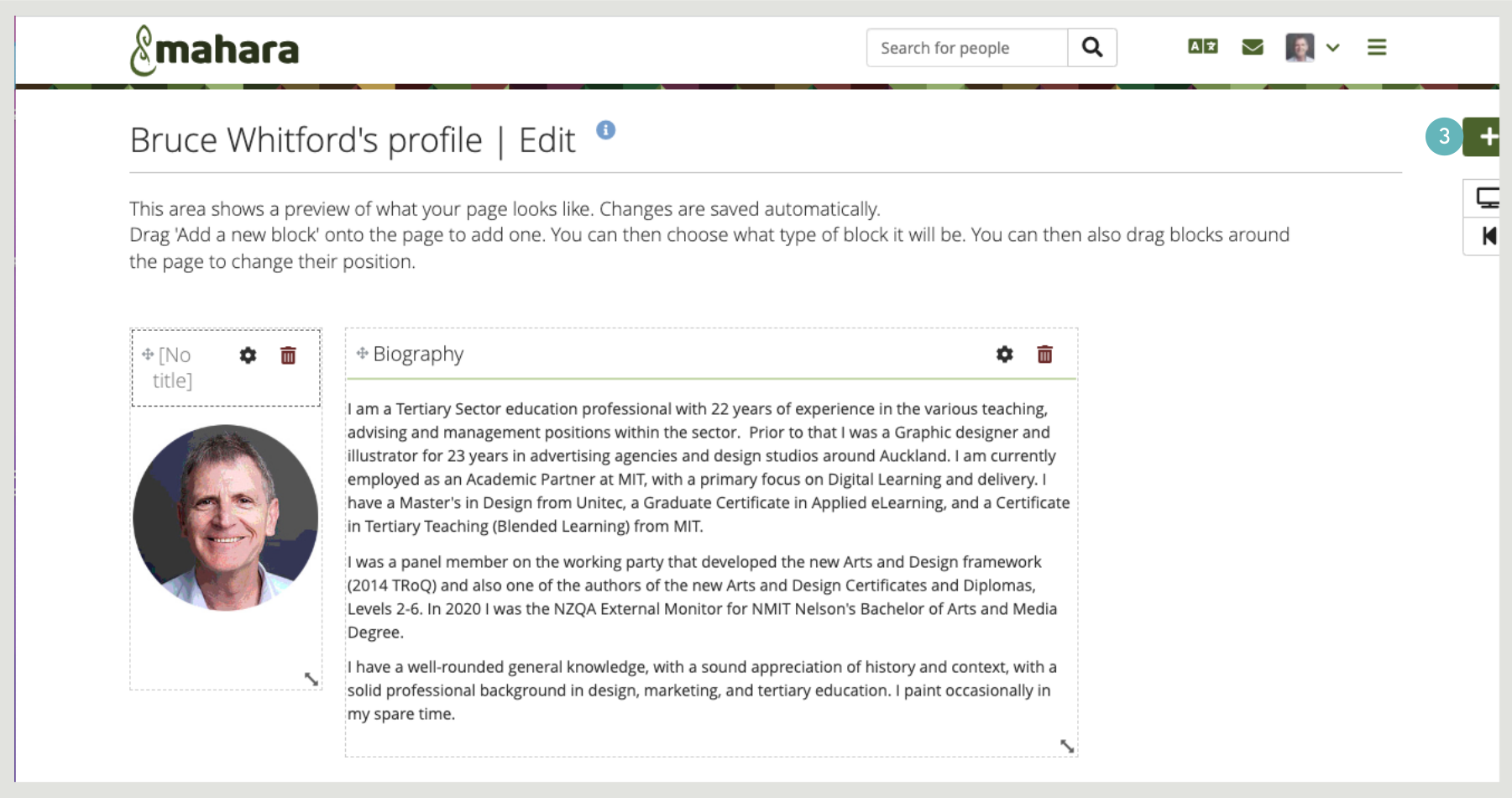
- Add a Text box, to the profile page and Save

- Repeat step 3 to 4 to add more text type placeholders and drag them to your preferred places as shown below.

Add contents to the placeholder
- Click on the Cog icon on the top right of each placeholder to edit it.
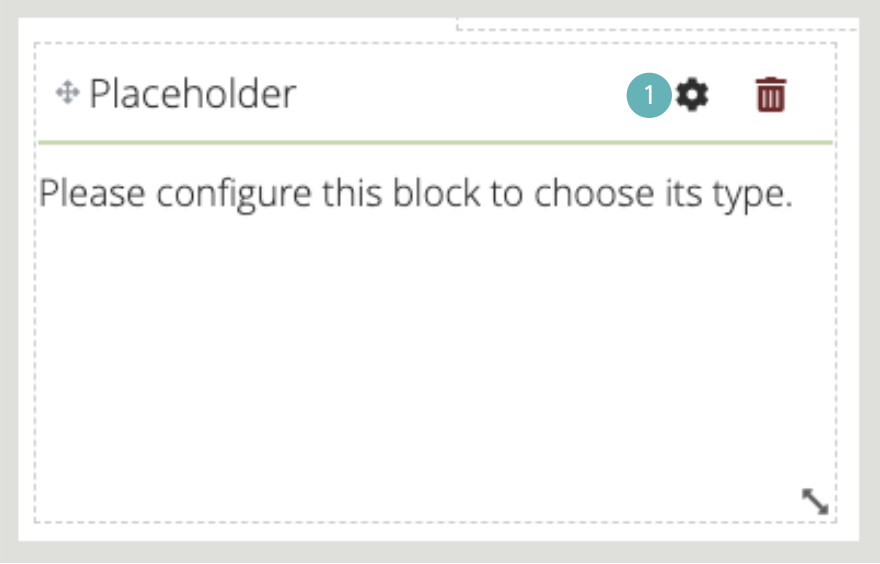
- Add a Block title
- Add Block content as desired
- Save
- Repeat these steps for the other placeholder block as they are created

Portfolio page
Now it’s time to post your portfolio page. First create an empty post by following step 1 to 9. Two placeholders will be created by default, one for a text block, another for an image block.
- Click the Dropdown menu button
- Select + Create
- Select Pages and collections

- Select Page

- Give the resulting page a title
- Click on the Cog

- Enter your descriptive text
- Save

- Add another Block, and the result looks like this
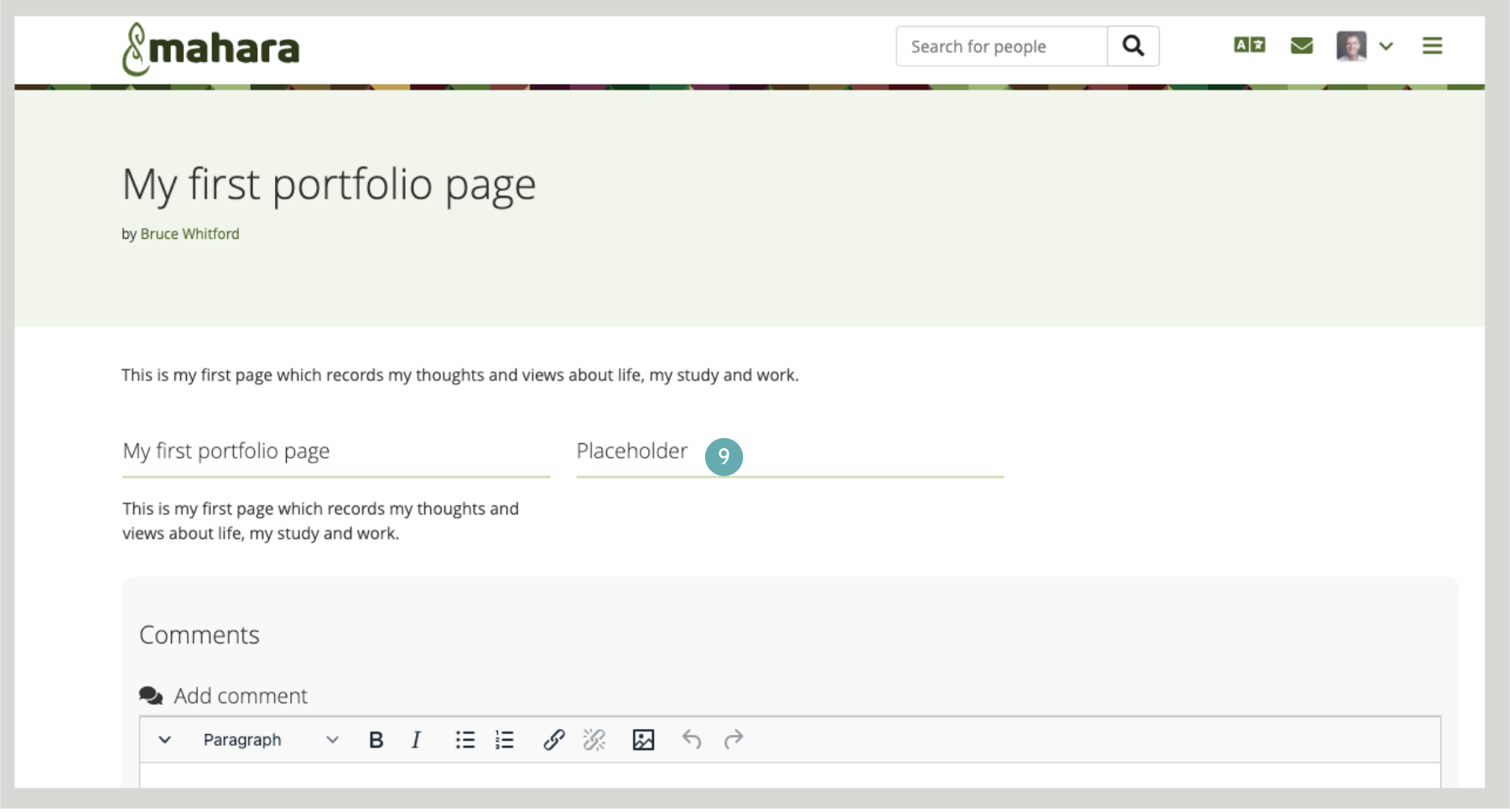
- Click the Edit button, then Click the second Block Cog button to add a title and image

- Edit the second Block

- Your portfolio page will be listed on your Mahara landing page

Add Portfolio list to your Front page
Listing your portfolio pages on your Front page is a convenient way to let people access your posts. Below is the step by step guide to add it.
- Click on the Photo image
- Click Edit
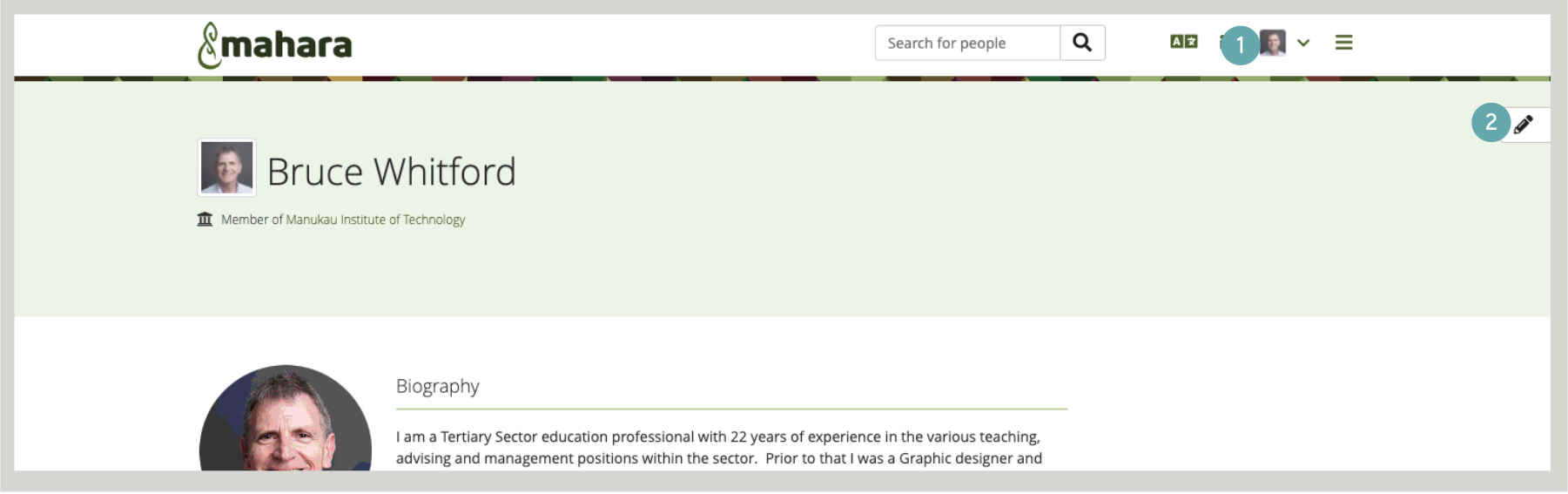
- Select the [+] symbol and drag to add a new block to its correct location

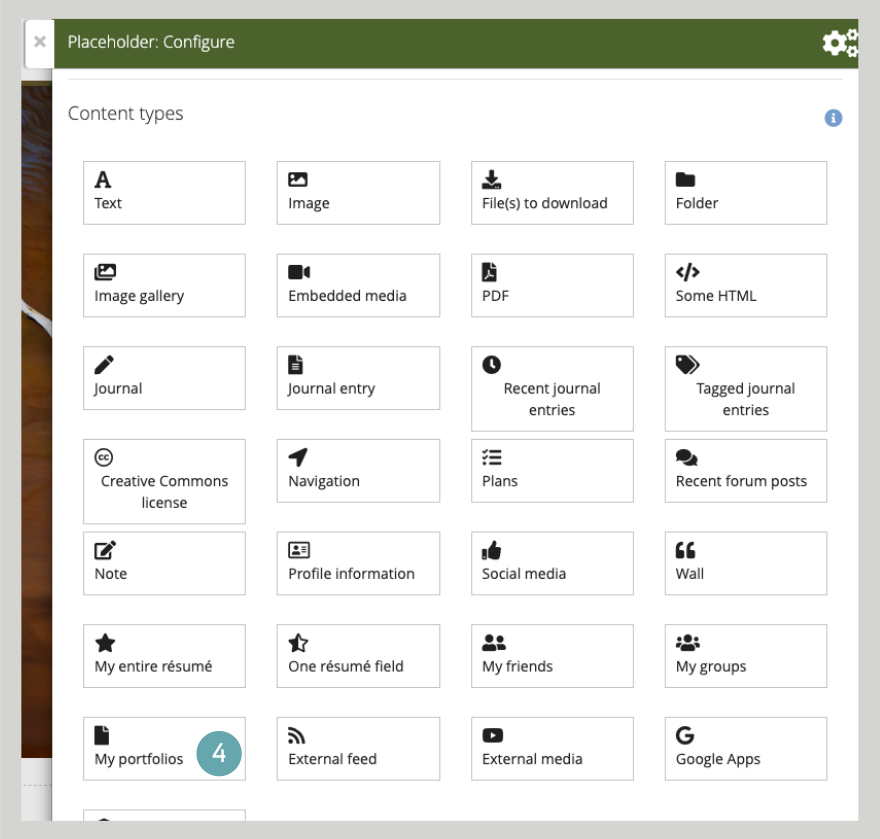
- Select My Portfolios from Content types to edit and Save
- Your Portfolios are now seen on the front page
