

On the Modules page, lecturers can assign students to an entire module and individual module items from the Modules page. Additionally, the Add Module and Edit Module Settings pages are redesigned as trays.
Change Benefit
This feature improves the differentiation of Modules to create a more dynamic and adaptive learning environment.
Notes: If a student is assigned only a specific item within a module and not the entire module, they will see only that item in the feature area, such as an assignment on the assignment page, and not the rest of the module. If a student is assigned an entire module, but only specific items within that module, students can only view the items they are assigned.
- When creating a new module, the Add Module modal is changed to a tray.

- The Edit Module Settings is redesigned to display as a tray with a Settings tab and an Assign To tab.
- Note: The existing module settings remain unchanged.
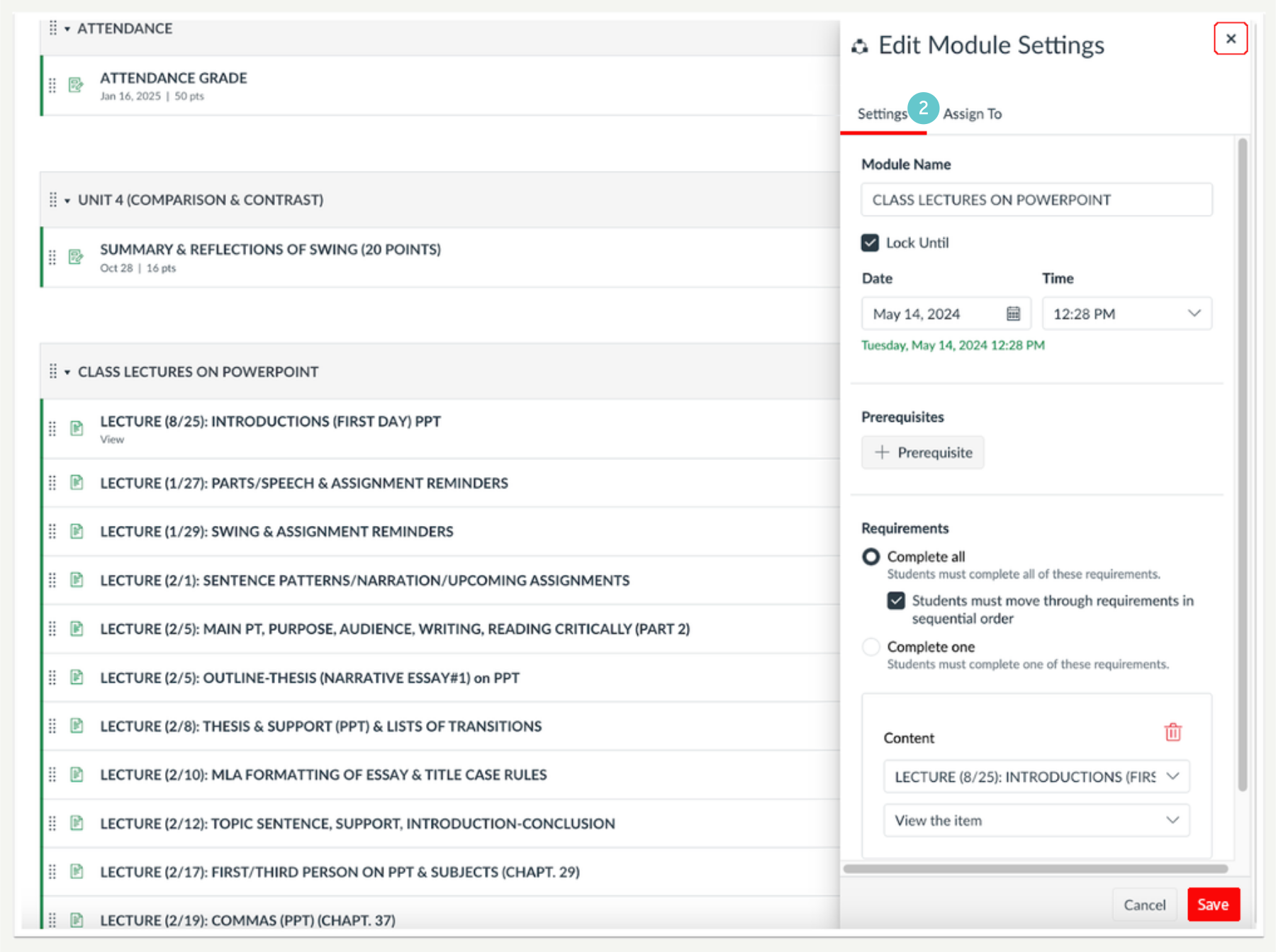
- Using the Assign To tab, lecturers can set the module visibility to Everyone.
- Or assign it to specific students.
- In the Assign To field, lecturers can select students or sections using the drop-down menu, typing student names, SIS IDs (if available), or section names.
- Lastly, click the Save button.
- Note: By default, the modules and items are assigned to everyone.

- On the Modules page, lecturers can also access the Assign To tab by clicking the Options icon
- Then, select the Assign To link.

- When a module is differentiated for specific students, a View Assign To link displays to easily review or edit visibility.
- Note: The View Assign To link does not display if the module is assigned to everyone.

- To assign a specific module item to a student, click the Options icon.
- then select the Assign To link.
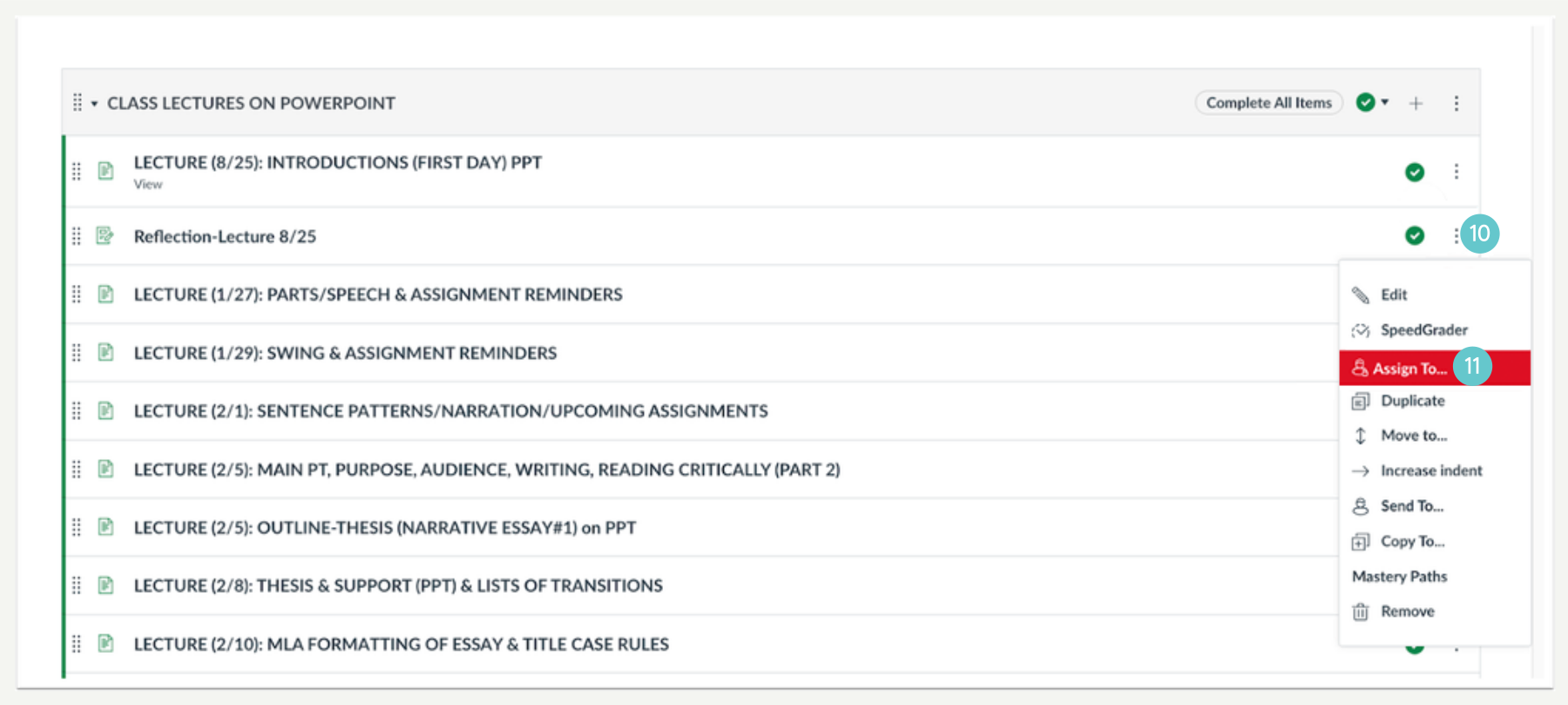
- After selecting the Assign To link, a tray displays where lecturers can differentiate assignment availability dates and due dates.
- Additionally, lecturers can edit and differentiate visibility dates for students for pages.
- Then, click the Save button.
- Note: Pages and ungraded discussions cannot be assigned due dates.

Additional Details
This feature is not available in the Mobile app. However, the feature can be used on a mobile device when viewing in a web browser.