

This Canvas Knowledge Base article is a helpful video from the 60ish Second How-Tos series.
New Quizzes offers several new features and question types, including a more flexible Fill in the Blanks option. Classic Quizzes were simple to use but somewhat limited. In contrast, New Quizzes provides a wider range of answer options not available in Classic Quizzes.
Getting started
- Click Quizzes in the Navigation Menu.
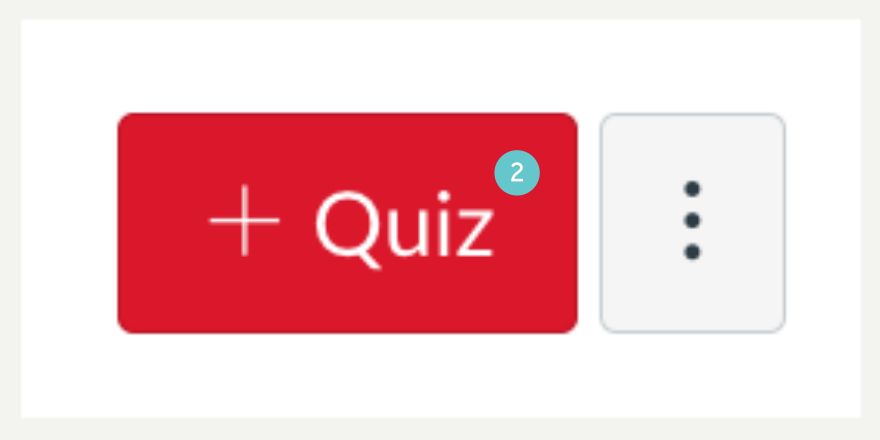
- Click + Quiz in the top right of the screen.
- Click New Quizzes in the pop-up box. If you want to use this type of Quiz going forward, tick the Remember my choice for this course.
- Click Submit.

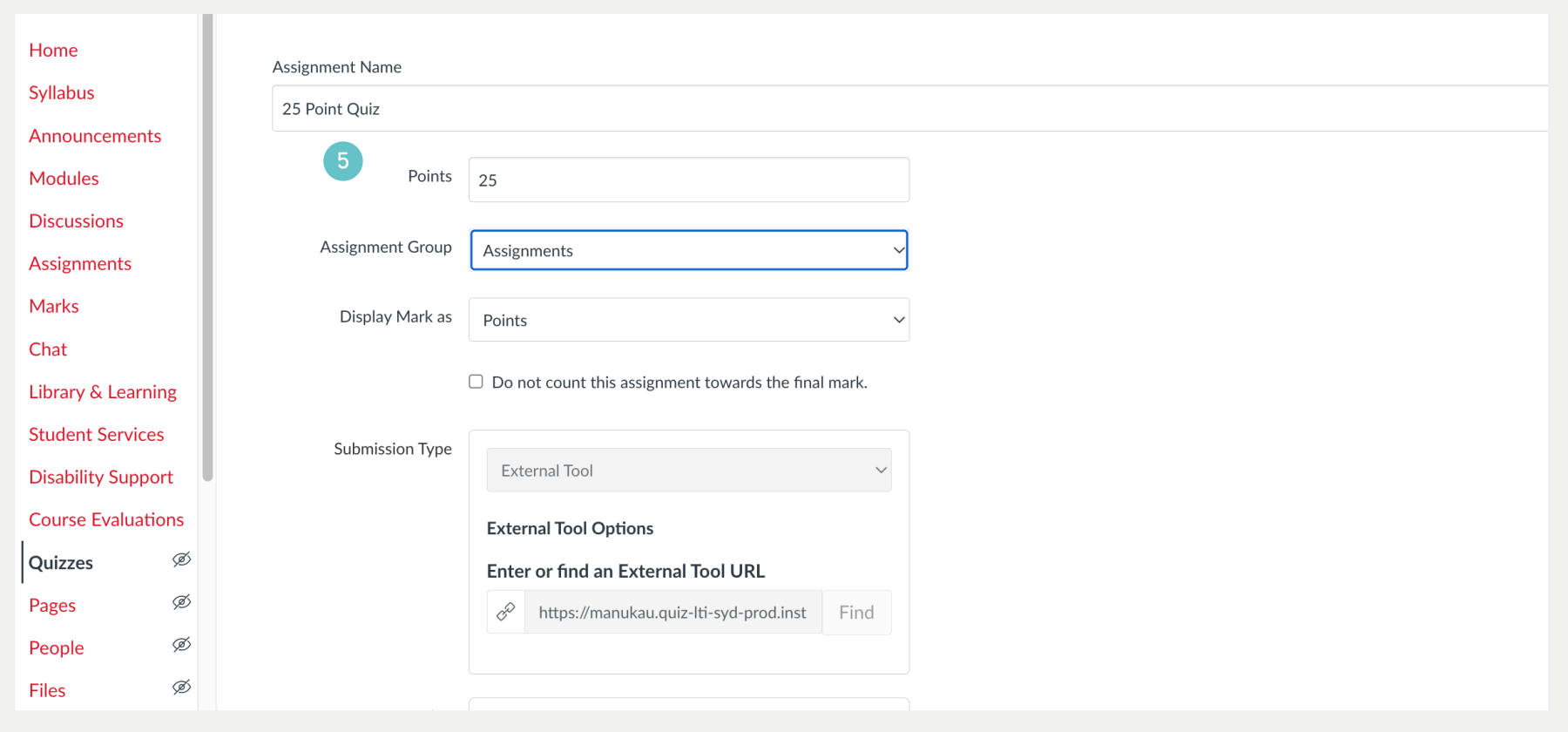
- Enter the settings for your quiz, including a name, number of points and submission options.
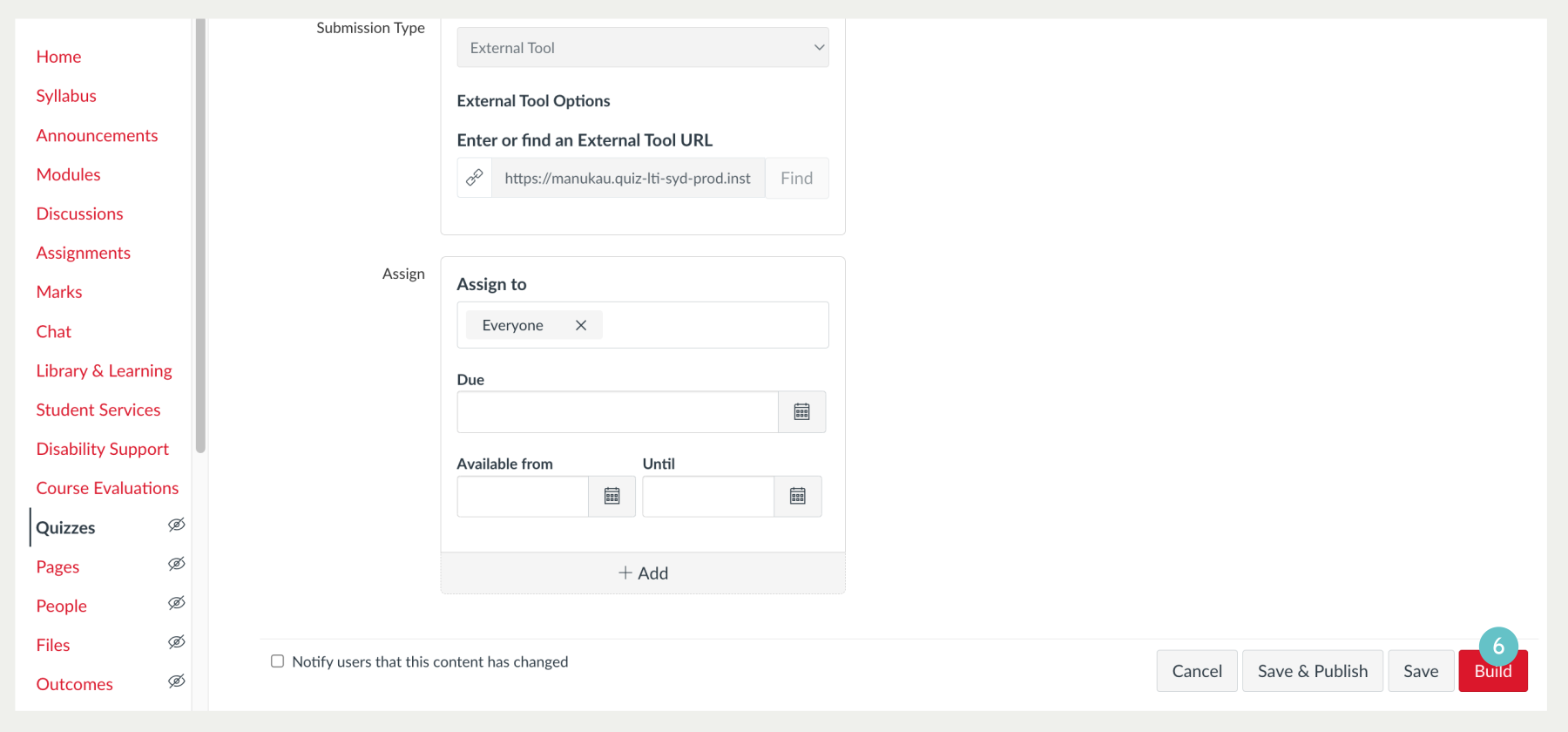
- Click Build. Note: If you want to save your quiz at any point, you can do so by clicking Save.
You are now brought to the quiz editor. From here you can edit your quiz name, add instructions to your quiz, and most importantly, add questions.
- Add instructions to your quiz using the editor.
- Click Done when finished.
- Click the Blue + to add your first question.
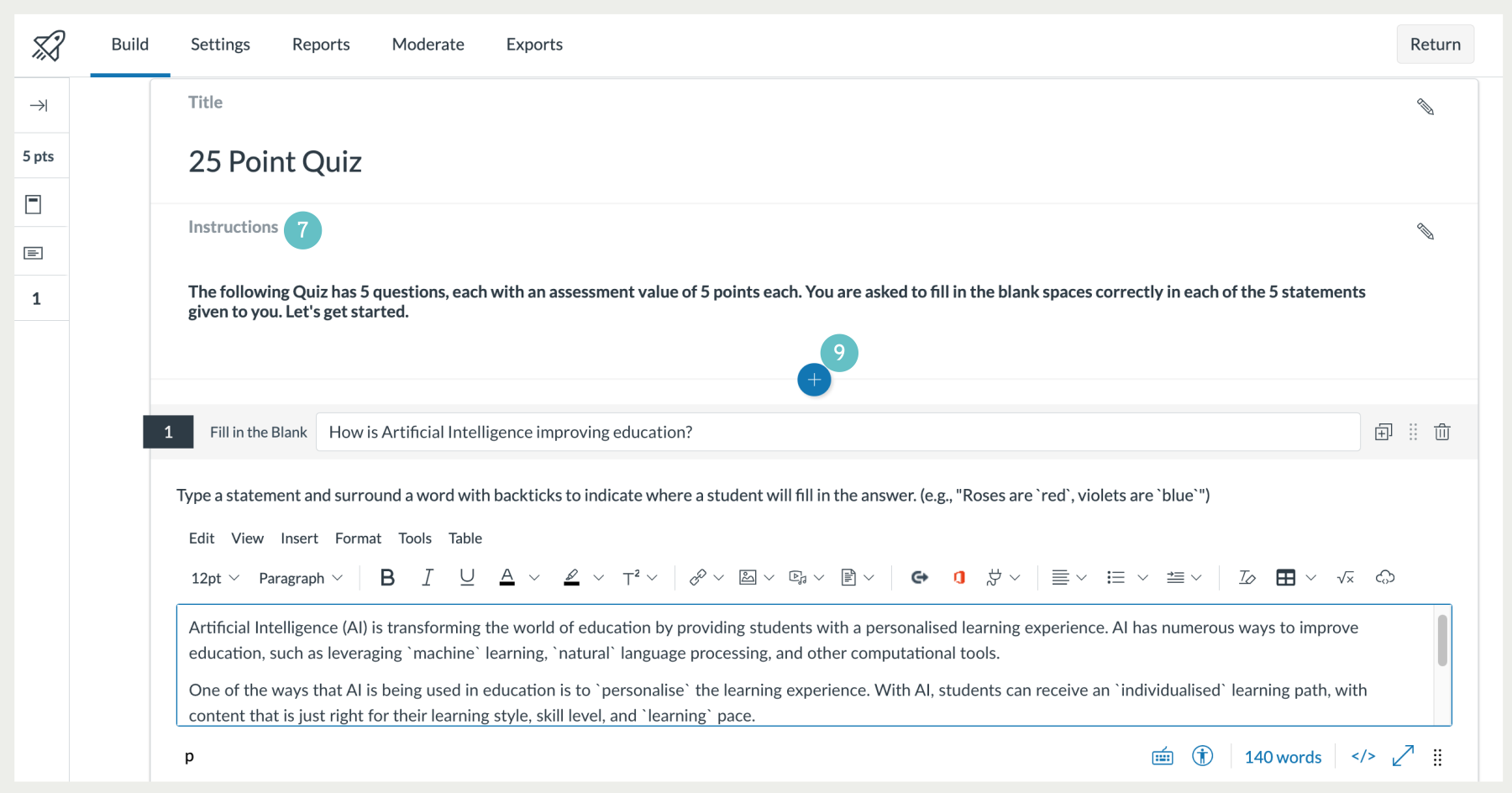
- Missing words are included in the question, but are preceded and ended by a [`], this is sometime called a ‘reverse tick’ by some users.

- The Key that you would used from your keyboard will look similar to this. The default character when typing is the reverse tick, (holding the shift key down activates the top symbol).

- The correct answers appear below under the Heading Text Match.
- By clicking on the arrows at the end of the box you can give various choices for an answer.

- In this case Exact Match would be the most appropriate.

- To finish off, put in a points value for your question, in this case 5.

- When we return to Build screen this is what it will look like, the words selected appear in boxes, indicating the words chosen for learners to enter in the space.
- We would then Click on the Blue circle with the plus sign in it and write our next question.
