

How to post marks to your students in Canvas.
When you have marked all your students’ work using SpeedGrader, you need to publish the marks to the students.
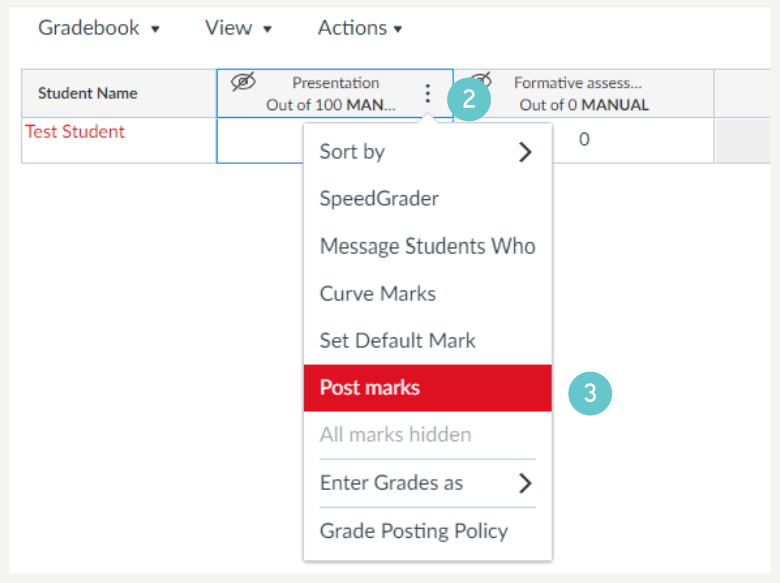
- Click Marks in the Navigation menu.
- Click the three dots next to the Assignment for which you want to post marks.
- Click Post marks
- To post grades and submission comments to all students, select Everyone. An assignment notification will also be sent to all students. Any future grades or comments you enter for this item will be immediately available to students.
- To only post marks to students with marked submissions or submissions with comments, select Marked. Only those students who have been marked will be notified, and any marks or comments you later enter for unmarked students will remain hidden until you repeat this process and post them. This setting is useful if you have students who have an extention.
- Click Post.

- If you want to hide posted graded (e.g. you made a mistake, just noticed it and want to hide everyone’s grades), click the three dots next to the Assignment for which you want to hide marks, then click Hide marks.

Warning: Students are keen. They are sent a notification when you Post the marks. Some student may have seen their marks.
Always double-check your marks before posting them!