

Learn how to print or save a PDF of a learners quiz, complete with answers, directly from Canvas
- Go to quizzes, click on the quiz you need to print

- Click the three dots icon at the top right of the screen
- Select Show Student Quiz Results
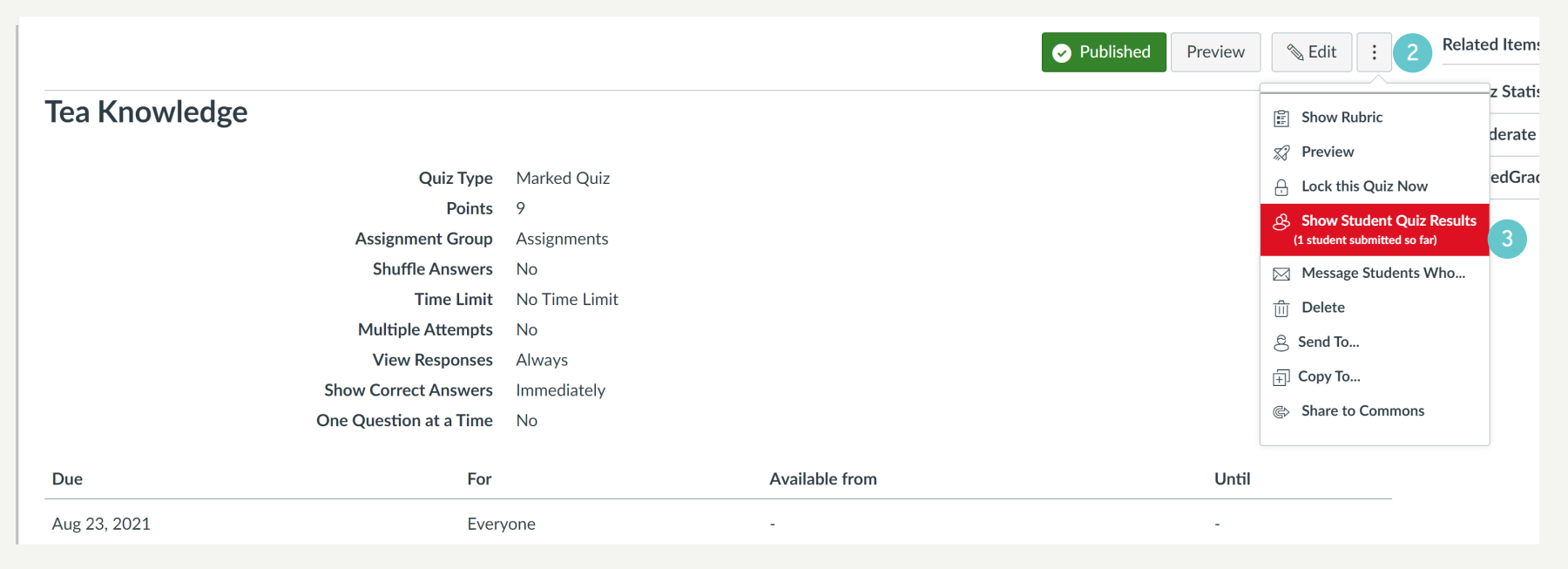
- Click on the name of the student. (This view of the quiz should print correctly with the entire quiz and not just a single page.)

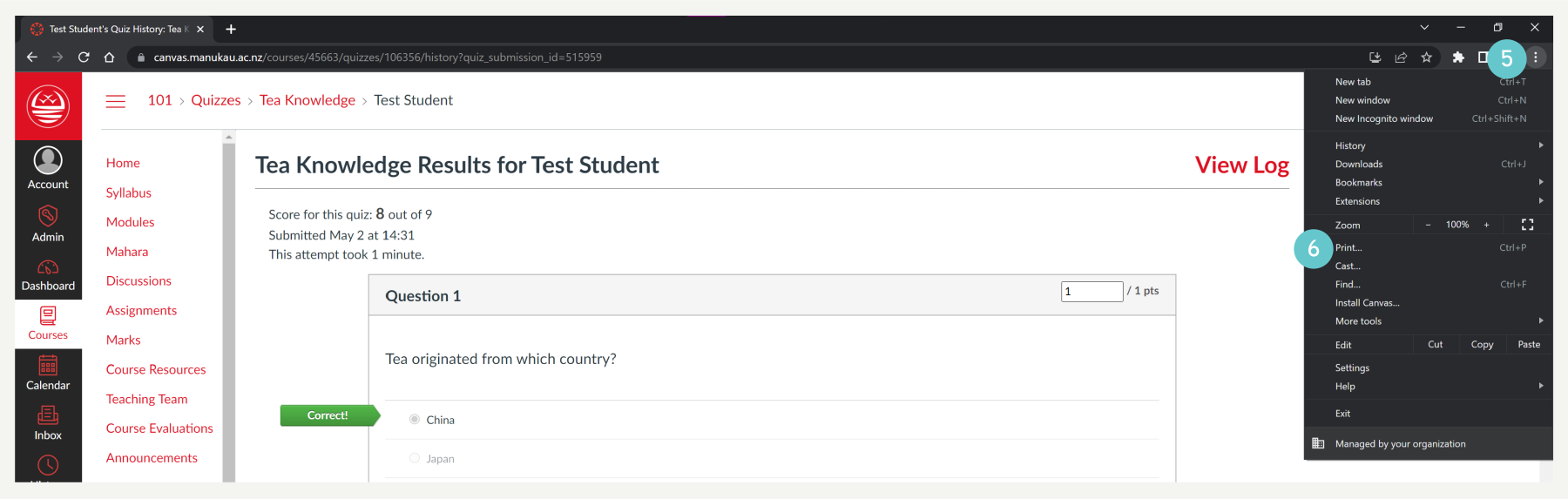
- Click the three dots on your internet browser window, top right
- Select Print.
- You can also use CTRL+P on your keyboard
- The print preview screen will show, select Print
- To save as a PDF, change the Destination to Save as PDF
