

This article explains Publishing in Canvas, and when/how to publish.
You must publish content for students to be able to view it.
Important: Review all content in the course to ensure that the appropriate content is ready to publish. After publishing, review the whole course in student view, to make sure all content has been correctly published.
There are two levels of publishing:
- Publish course items
- Publish the course as a whole
You must publish course items e.g. Assignments, Discussions, Modules, and Pages as well as the course as a whole.
Published content has a green circle with a white tick inside next to it.
In the example below:
- One of the modules is published
- One of the modules is not.
- In the published module, one of the items is not published. Student will not see the unpublished item.
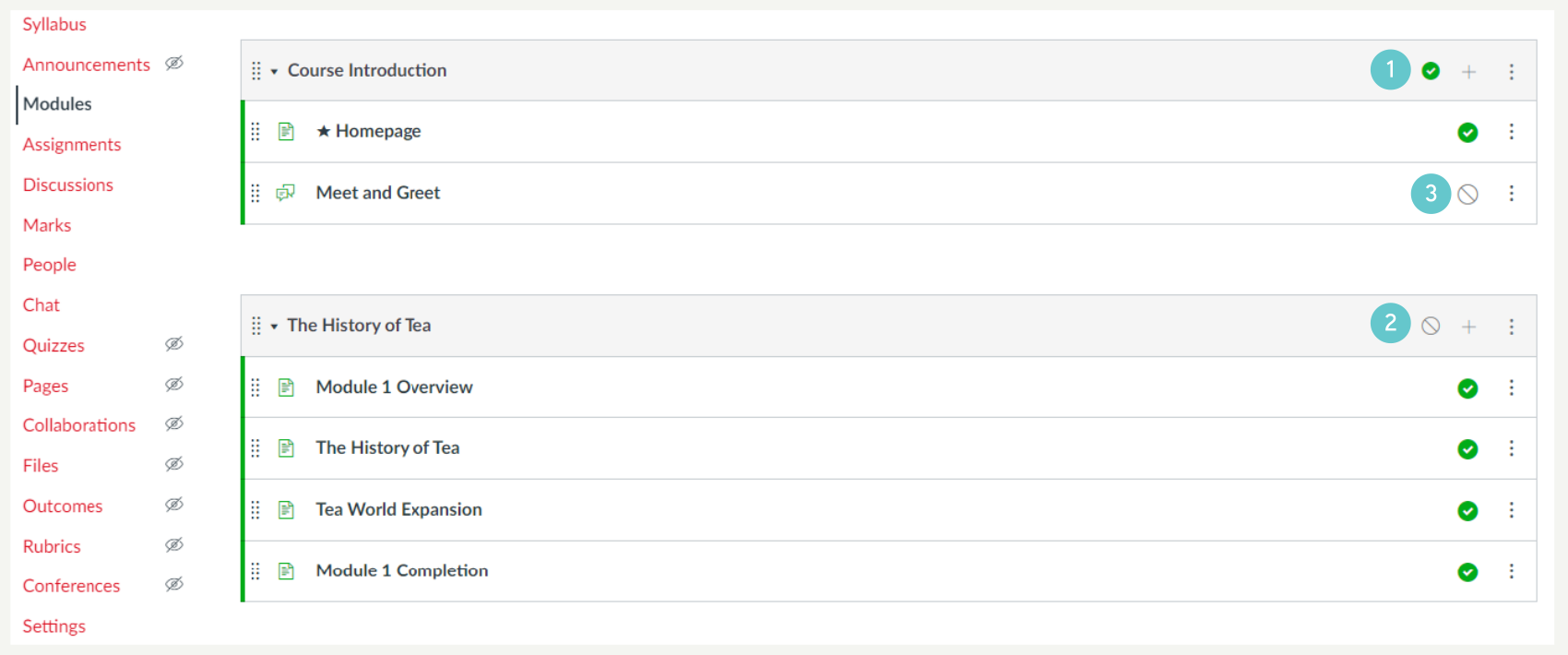
The state of the Module overrides the state of module items. If a module is not published, none of its elements will be viewable to students in the module, even if you publish that element. If that element is e.g. a Discussion, the student can access it through Discussions on the Navigation menu, but if that element is a page, and students do not have access to Pages, then they cannot see that page. Be careful when publishing. Make sure all the correct things are published.
Use this checklist to help you publish items. Review all items before publishing.
- Publish the Assignments (go to the Assignments page and publish the Assignments)
- Publish the Discussions (go to the Discussions page and publish the Discussions)
- Publish the Quizzes (go to the Quizzes page and publish the Quizzes)
- Click on Modules. You will see a list of Modules and any Pages or other Canvas items within them. Publish whole Modules. All items inside that module will be published. If there are then pages/items you want to unpublish, individually unpublish those pages.
Be very careful while publishing any content.
Publishing the Course
Once all appropriate content has been published, e.g. Modules, Pages, Assignments, Quizzes Discussions, there is a final stage to publish the Course to Canvas so that students can view it.
- Click on Home in the navigation menu.
- Click Publish in the top right of the page.
- The status of the course will go from Unpublished to Published.
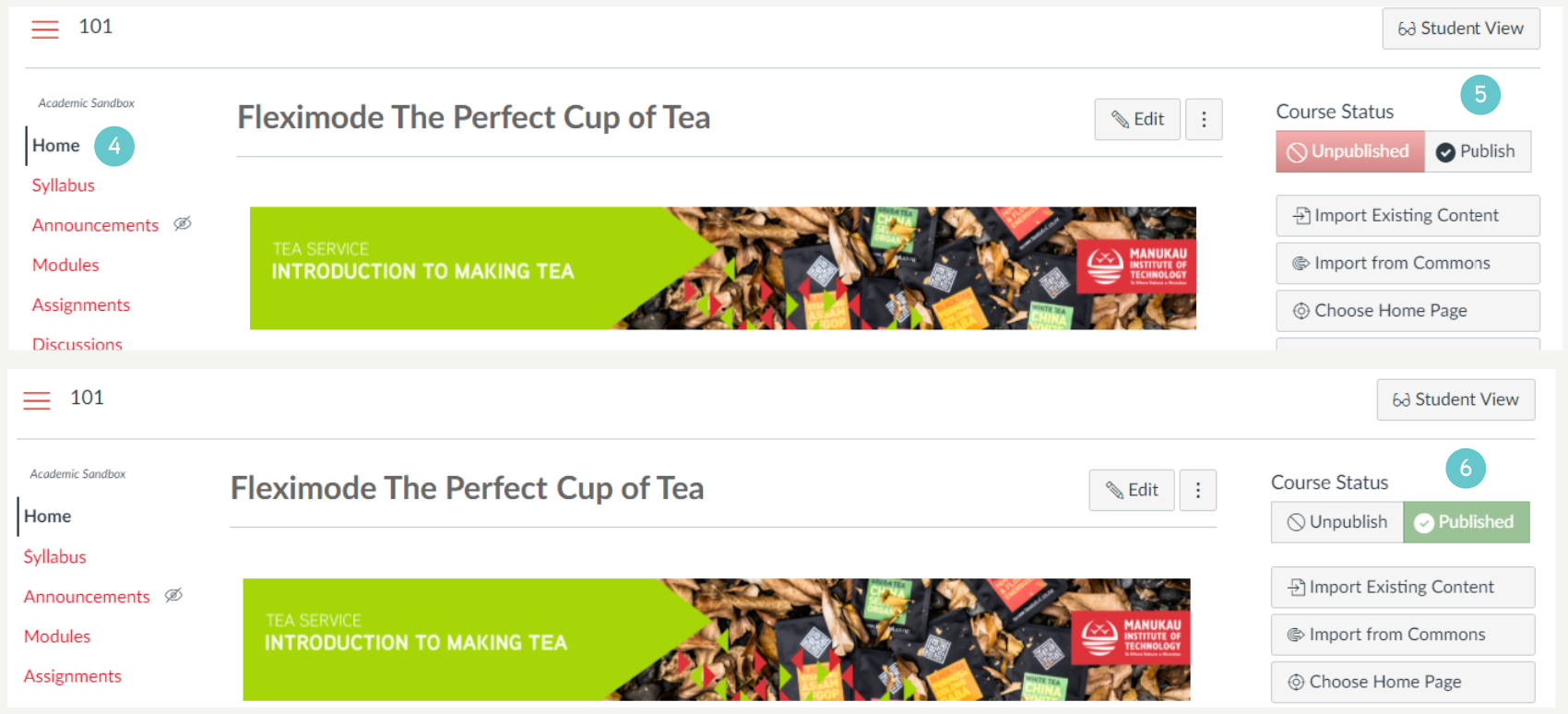
You can unpublish a course using these buttons if you need to.