

This explains why you would want to record your screen (screencast), or a short video of yourself, to present information to your students.
What is it?
Screenshots work great, but sometimes a quick how-to video can create a more powerful message. Using Microsoft Stream, you can create short screen recordings of up to 15 minutes, using the camera and microphone on your device:
- Record a brief introduction about yourself to your class
- Record a series of steps on your computer that you need your students to follow
- Voice over a series of steps on your computer, e.g. step through with your students in a ‘Click here’ type way.

How do I do it?
You have different recording options.
- Screen and camera. This will record what’s on your screen and in the bottom right corner of the screen put a little window which records from your camera. Your students keep the human connection of you talking to them even though they are mainly watching the screen.
- Screen only. When you are demonstrating how to do something, sometimes you don’t want the distraction of your students watching the little video of you in the bottom corner. This is when you use this option. But remember, you can still voiceover – your mic and camera are different things!
- Camera only. This is great for getting a short message directly to your students. You can use this to introduce yourself, or a topic quickly, especially if there is a lot of online reading and other material. It makes your Canvas pages more human.

Microphone on or off?
Just because you’re doing a screen capture doesn’t mean you can’t talk to your students. Turn your mic on and talk your students through what you’re doing!
What do I want to record?
Choose carefully what you want your students to see.
- Entire screen. Are you swapping between windows often? Do you want to show students content from a couple of different windows in the one video? If so, use this option. Remember to be careful about backgrounds, or having your email or Instant Messaging open when you record. Prepare your screen before you start, and have files open and ready to go.
- Window. This option only records the one window. You choose which window to record at the start. Choose this option if you are only recording within the one window. A web browser is a window. The browser can have many tab open. Use this option if you want to swap between multiple tabs in your browser.
- Chrome tab. This records literally one Chrome tab. You cannot swap to another tab. Only use this option if you want to record only the one tab.
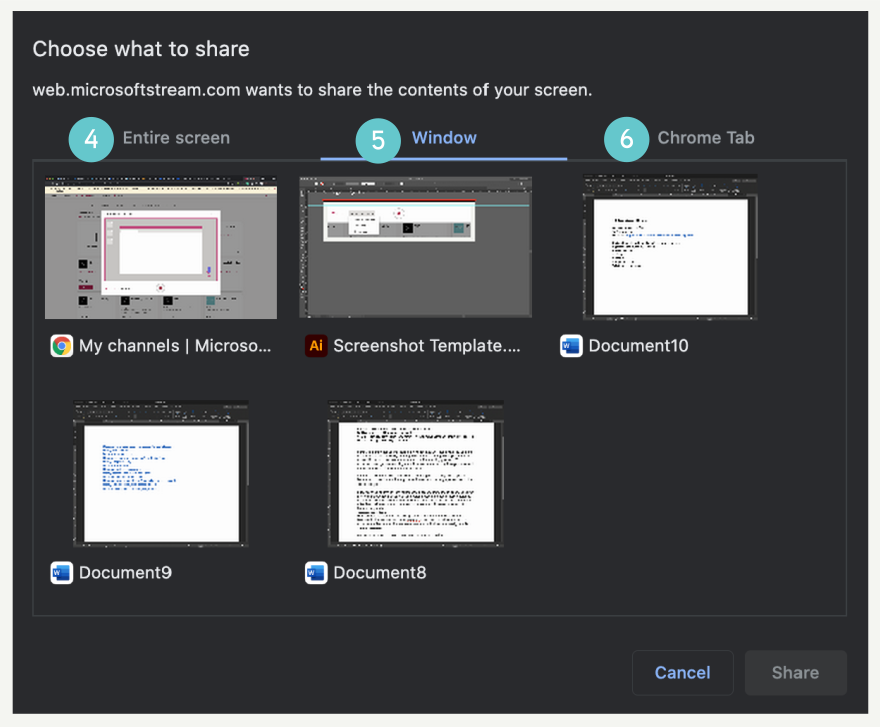
Starting/stopping and editing your video
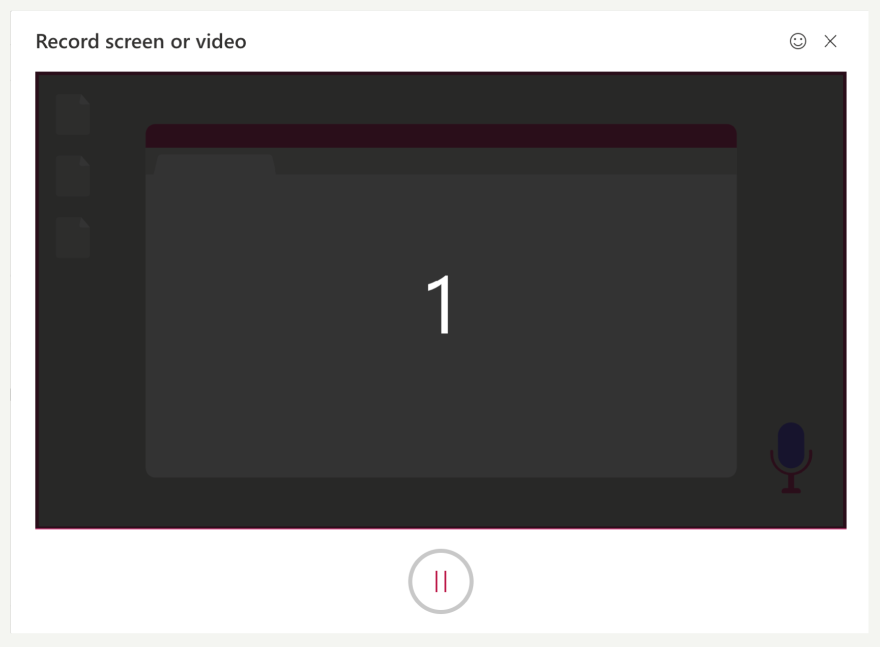
Don’t panic! You are given a 5 second countdown to the start of the recording, but after the recording has finished you can quickly trim the start and end of the video.
When recording starts take your time, don’t panic. Switch to the window/tab you want to start from then record your video.
Practice before hand
Think about it before you record a video. Plan what you want to say. Plan where you want to click. Plan what windows you need open. This minimises the ‘ums’ and ‘ahs’ in your video.
Edit your video
When you stop your video, you can record it again if you need. These videos are short videos, with a maximum length of 15 minutes, so if you want to record it again, that’s what they’re designed for. If you are happy with the content of the video, you can trim the beginning and end to remove the part where you moved your mouse to the correct window, or moved your mouse at the end to stop the recording.
