

How to redact Canvas assessment for moderation for Foxit users.
For external post moderation, lecturers need to remove the identities of the student and the lecturer (i.e. their names) from the saved PDF document about assignment submission with the lecturer’s annotations and comments.
You must have Foxit PDF Editor on your computer to do this task. Otherwise, you need to contact your manager to install it.
Open your PDF file that contains both student’s work and the teacher’s annotations side by side on the same page by using Foxit PDF Editor. Then follow the steps below to deidentify the identities of both the student and the lecturer.
- Open your PDF file.
- Select Computer.
- Browse to find the file.

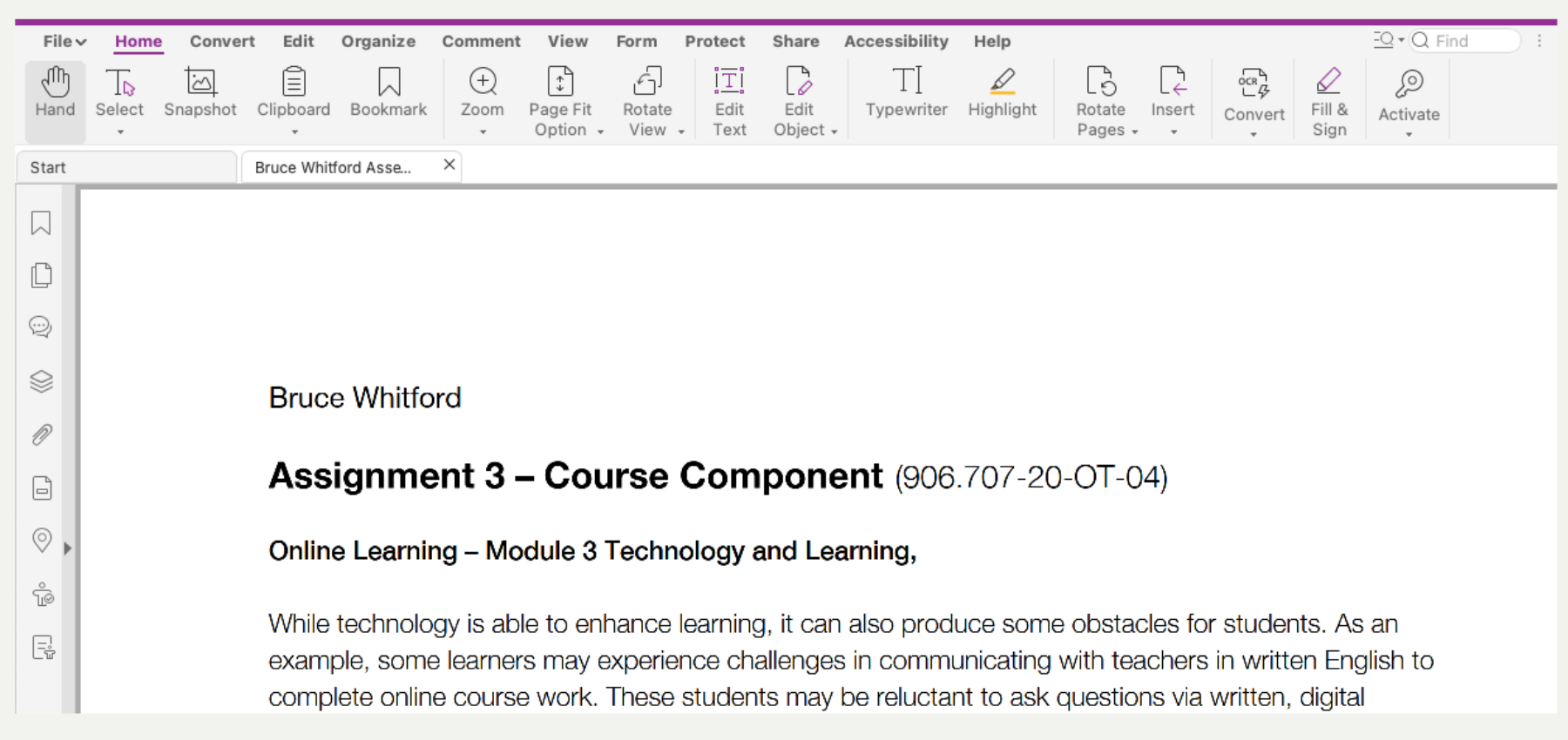
- Click on Protect at the top of the page.
- Then click on Mark for Redaction.
- An info box titled Using Redaction Tools pops up, click OK to accept it.

- Select Text & Images.
- Next search and select ALL identities of the student(s) and lecturer(s) on all pages and page headers if available, including their names, initials and ID numbers.
- Click Apply Redactions to remove these identities.

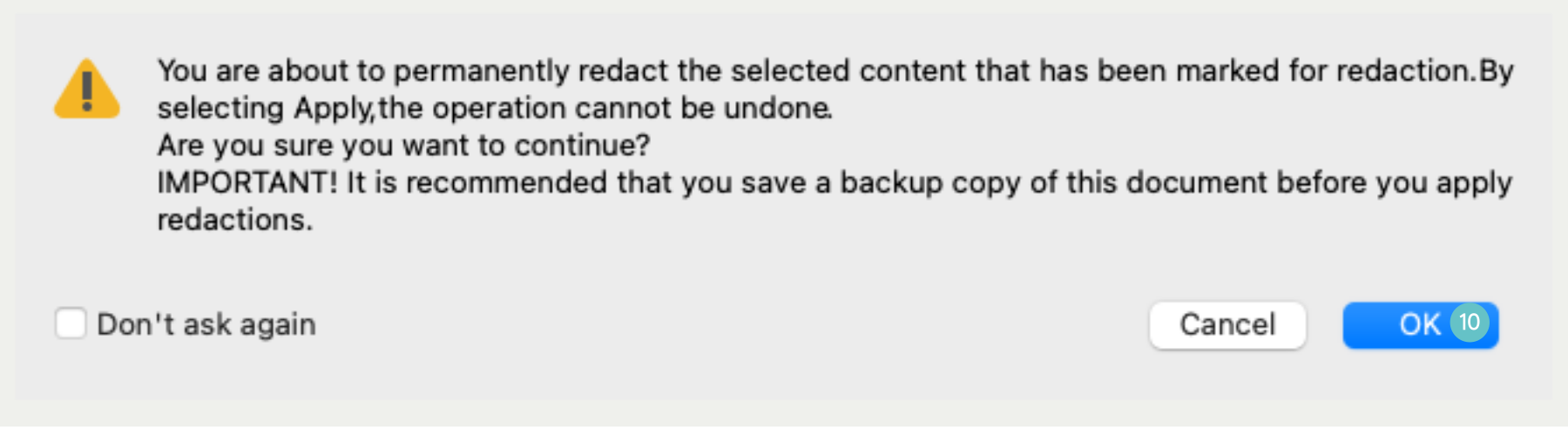
- A warning pops up, read it and Click OK, you are now ready to save.
- Go to File, and click.
- Choose Save and locate the folder you intend to save the file to.

Redaction is now complete.