

How to set Turnitin settings in Canvas.
Select an assignment for which you want to use Turnitin.
Make sure you have created the assignment and created a rubric for it before adding Turnitin. If you set the Submission type to use Turnitin before attaching a rubric, you have to change the Submission type back to e.g. Online, then attach a rubric, then set the Submission Type to Turnitin. The order in which you do these things is important.
- There are settings below the main assignment box. Select External Tool from Submission Type.
- Click Find.

- Scroll down the list of external tools and select Turnitin. Click Select.

- Click Save for the Assignment at the bottom of the screen.
Now you can change the Turnitin settings:
- There are settings At the bottom of the Assignment’s page. Click Optional Settings.
- These settings are the Turnitin Settings. Some of the key settings you can change are:
- Generate reports
- Allow students to view similarity reports
- Exclude bibliographic materials
- Exclude quoted materials
- Exclude small sources
- Save the settings for future uses.
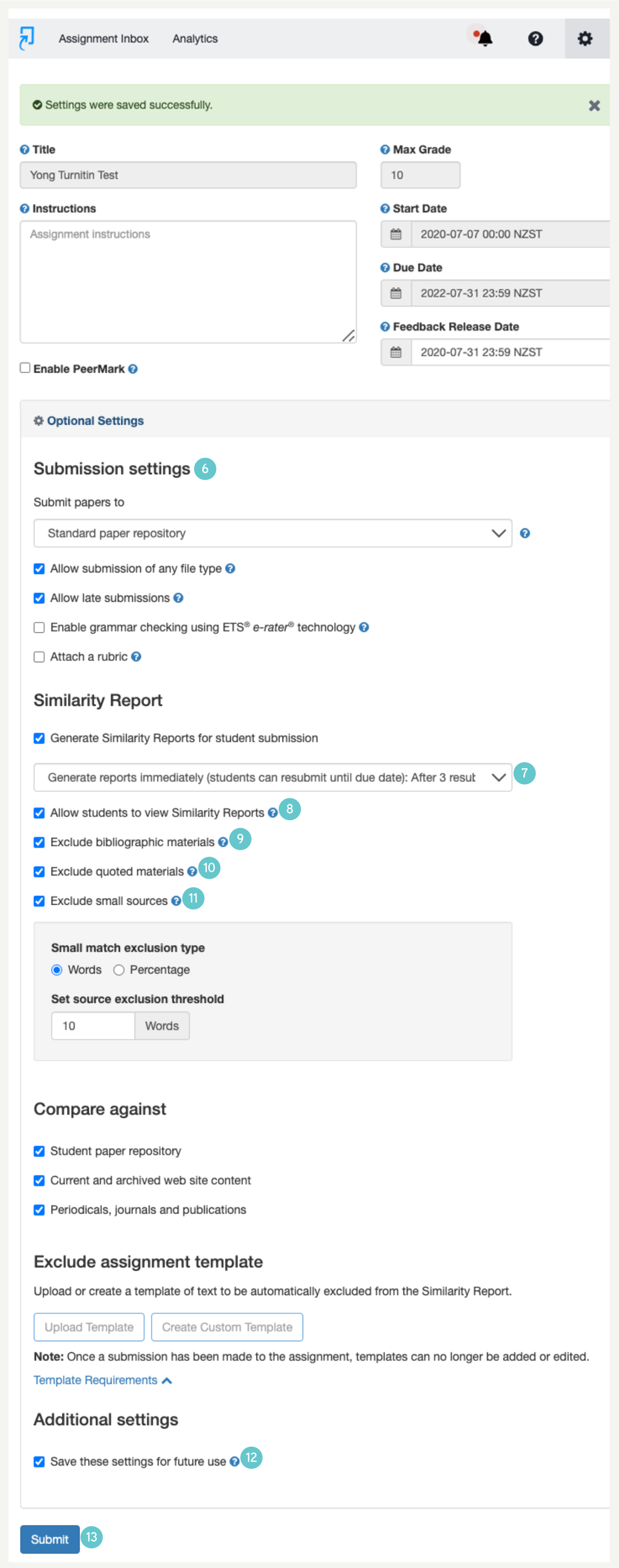
Check or uncheck the appropriate boxes.
- Click Submit when you have finished changing your settings.