
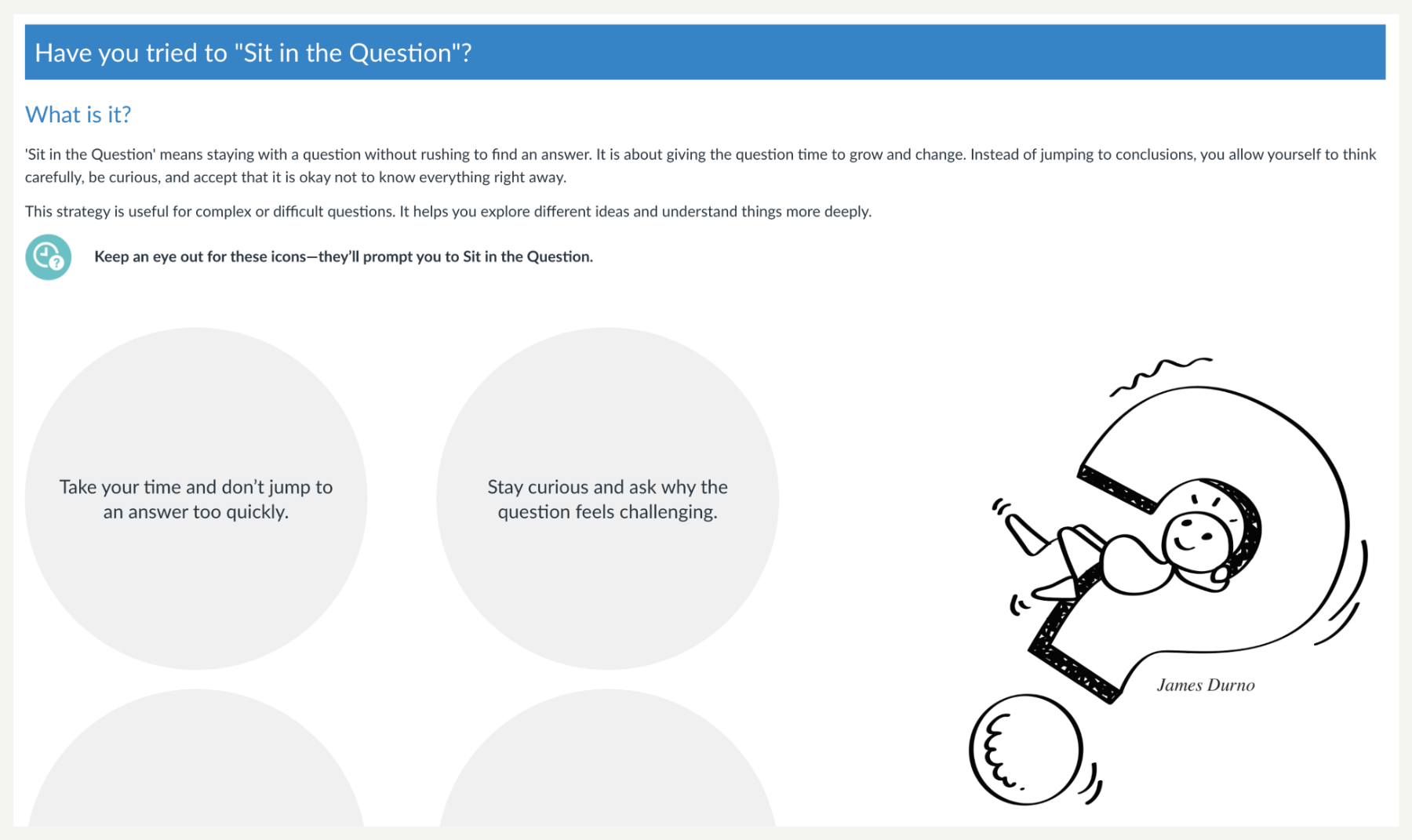
Sit in the Question is a simple but powerful strategy that encourages students to pause and stay with a complex or open-ended question, rather than moving straight to an answer. It helps students become more comfortable with uncertainty, giving them space to reflect and explore different ideas. This approach builds curiosity, patience, and deeper thinking, making it a useful tool for supporting reflective learning in online environments.
This strategy helps students slow down and think more deeply. Instead of rushing to give an answer, they are encouraged to explore different possibilities. It supports critical thinking by allowing space for uncertainty and reflection — both important skills in real-world problem-solving.
By sitting with a question over time, students can return to it with fresh thinking. This helps them build insight gradually, rather than expecting quick solutions. It also encourages deeper engagement, especially with topics that have multiple viewpoints or no single correct answer.
Let students know it’s okay not to have an answer straight away. Give them time and space to reflect, without pressure to respond quickly. Remind them that complexity is a normal part of learning — not something to avoid or rush through.
This approach is especially valuable in hands-on or applied courses, where answers are not always immediate or clear. Encouraging students to Sit in the Question prepares them to work with uncertainty and think in flexible, creative ways.
Hints and Tips
How to use Sit in the Question in your online course:
- Adding a question icon or visual beside reflective prompts or tasks.
- Starting discussions with an open question and encouraging students not to answer straight away.
- Using journals or learning logs – ask students to revisit a question across several weeks.
- Including it in feedback – invite students to sit with challenging comments or questions.
- Recording short videos that model your own thinking process as you explore a difficult question.
You can find this template directly in Canvas Commons. Just search for Feature Header Page and look out for the Fleximode Duck.