

Turnitin has added AI writing detection to the Similarity Report. To use it, you need to follow your usual Similarity checking workflow -both native or via an LMS.
Feature Guidance When Using AI Detection Natively
Step 1:
- Upload the document you’d like to check for AI writing
- Note: We’re able to detect AI writing for documents submitted in English only

Step 2:
- Wait for the Similarity report to generate
- Then click the report

Similarity Score:
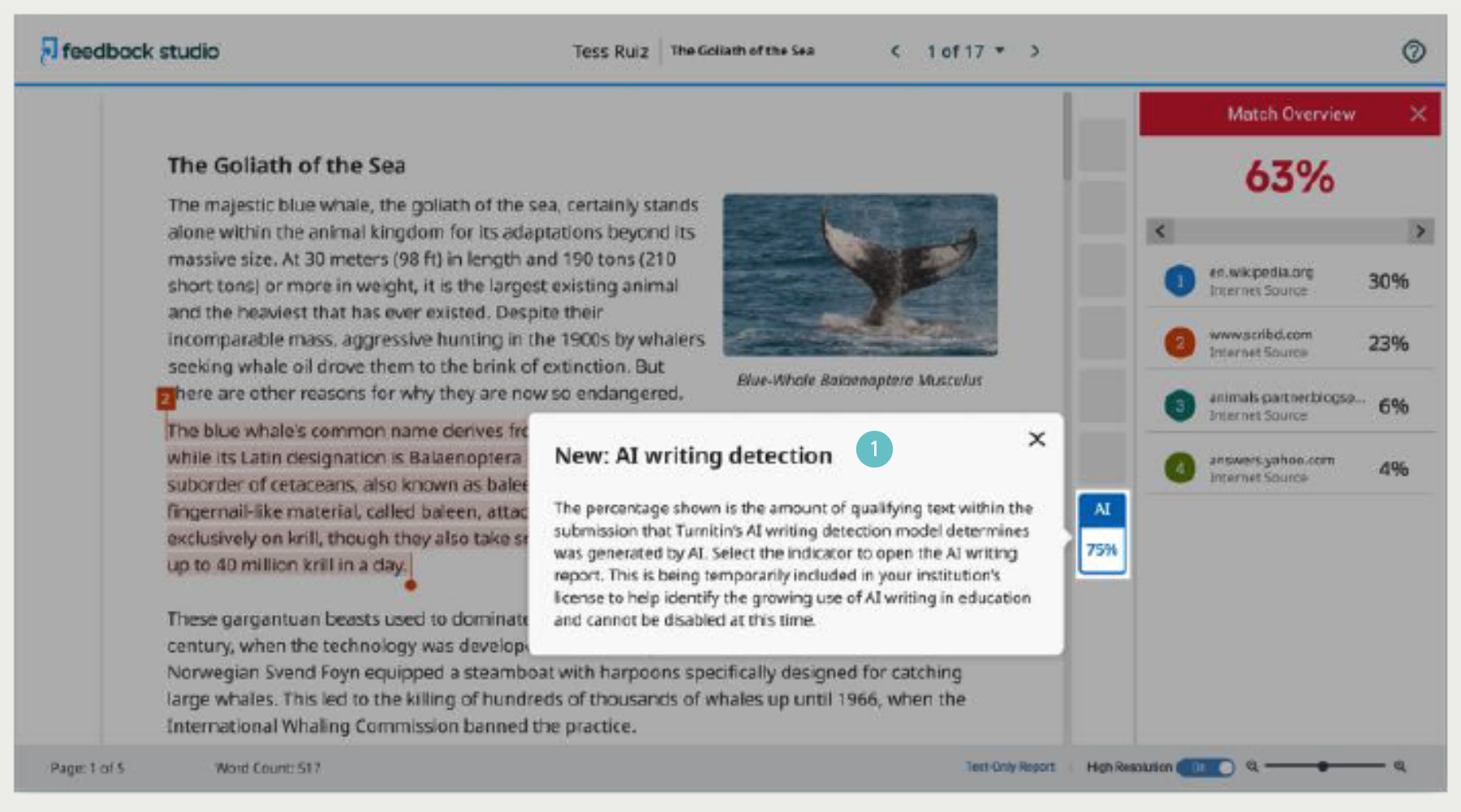
- When you launch the Similarity report you will be presented with the new AI indicator in the side panel
- The indicator shows an overall percentage of the document that AI writing tools, such as ChatGPT, may have generated -75% in this case

Note: The Similarity Score is separate and independent of the AI indictor
Step 3:
- The AI indicator is linked to the AI report. To view the report, click the AI indicator
- The indicator and report will only be visible to instructors & admins
- The AI indicator shows the same percentage as seen earlier

Step 4:
- Click on the AI writing detection page to access additional feature information
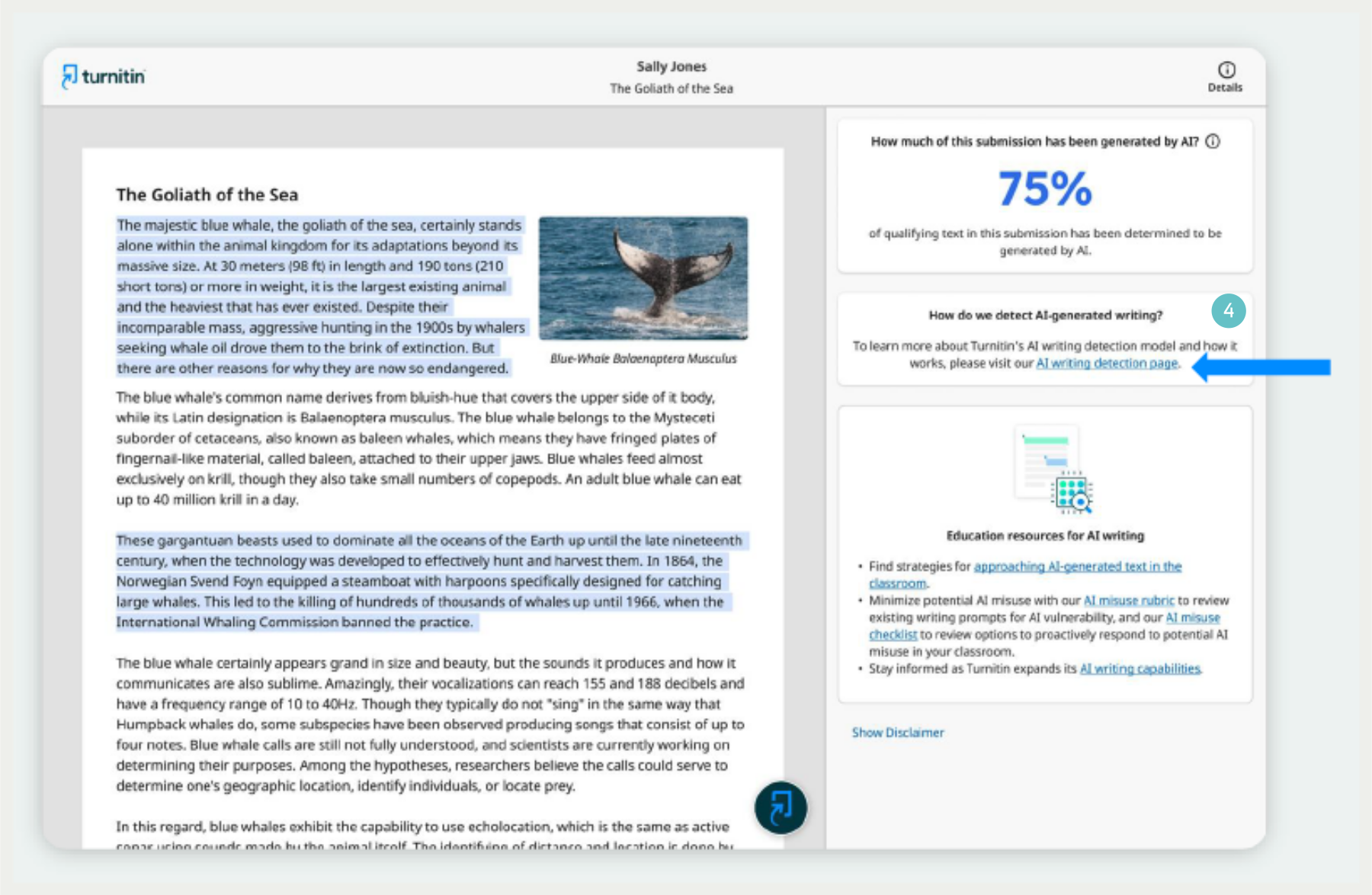
- This page provides details on how the solution works, how to interpret the results, accepted document types, etc.

Specific AI Writing Detection Guidance within Turnitin
Screenshots Depicting The In-Product Guidance Within The Similarity Report:
- Pop-up explaining the AI writing indicator
- Pop-up explaining that AI detection is only available for English language submissions

Note: Pop-ups might appear slightly different depending on the Turnitin product you’re using
Screenshots Depicting The In-Product/Interface Tour Within The AI Writing Report:
- Options to ‘Provide feedback’ or ‘Take a tour’ of the Turnitin interface.
- If you choose the Feedback option, a window will open up for you to leave any product (Turnitin application) feedback for Turnitin.

- If you select the product tour, the next set of pop-up will guide you through the report

- Explanation of the AI writing percentage

Hints and Tips
- For Additional Resources Turnitin has created an expanded FAQs document as well to answer any additional questions you might have. You can access this document here
- If you are using AI Detection via the Canvas LMS
- Follow your usual workflow for Similarity checking
- Once the submission is processed, you will need to click on the Similarity report.
- The AI score is not embedded directly in the LMS user interface and you will need to go into the Similarity report to see the AI score and access the AI report.