

How to upload and organise Files in Canvas.
All files in a canvas course need to be uploaded to Canvas before you can use them. You can also import files from other Canvas courses.
The Files section of your Canvas course contains all the course files, such as multimedia files, PowerPoints, Word documents etc. Organising files in Canvas ensures that the course has a logical structure so files can be found and updated efficiently later on by you and others. The best way to organise files is by using folders, in much the same way you organise your files on your computer.
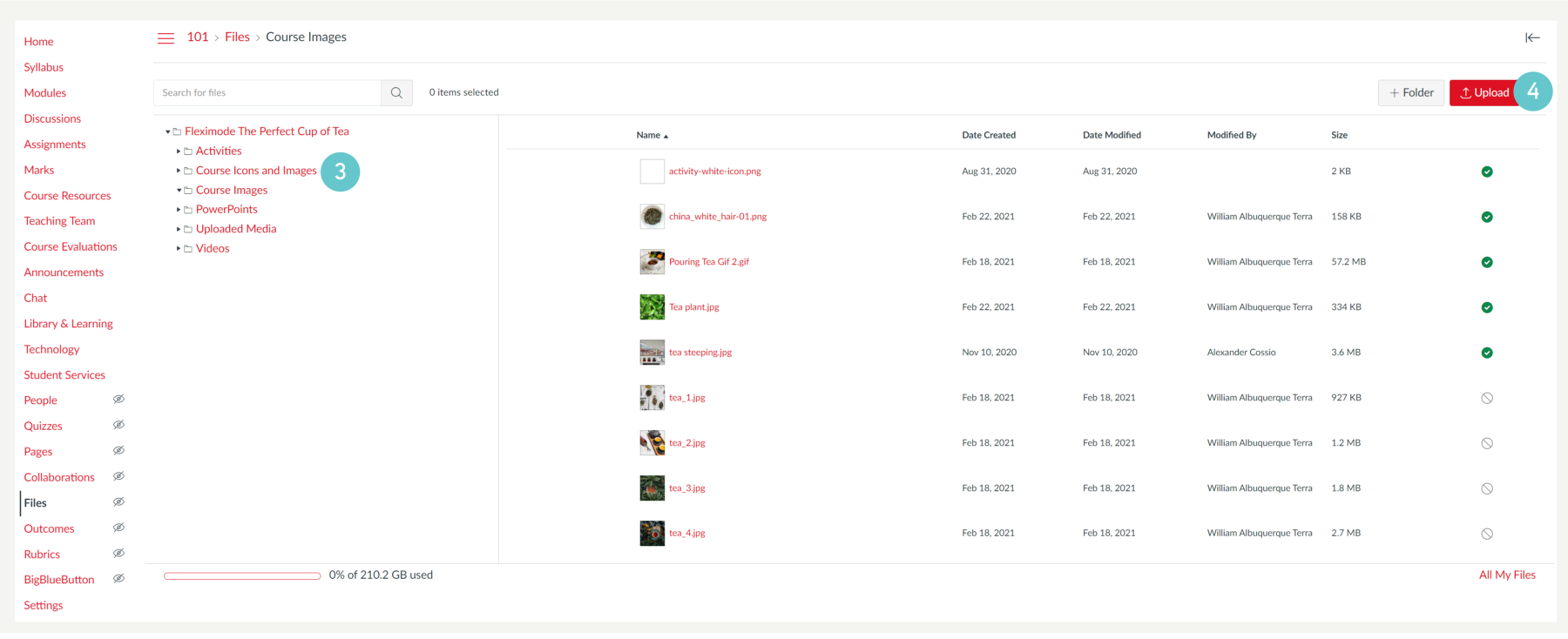
- Click on Files in the navigation menu on the left.
Create a basic folder structure, e.g. folders for images, by topic, or module.
- Click +Folder to create a new folder. Note: you can have folders inside of other folders.

To upload a file to an existing folder:
- Open the folder where you are uploading the new file.
- Click Upload in the top right of the page. Select a file from your computer, then click Open.
To move files into a folder:
- Click and hold on to the file you would like to move and drag it to the desired folder list on the left

or
- Hover the cursor over the file you want to move.
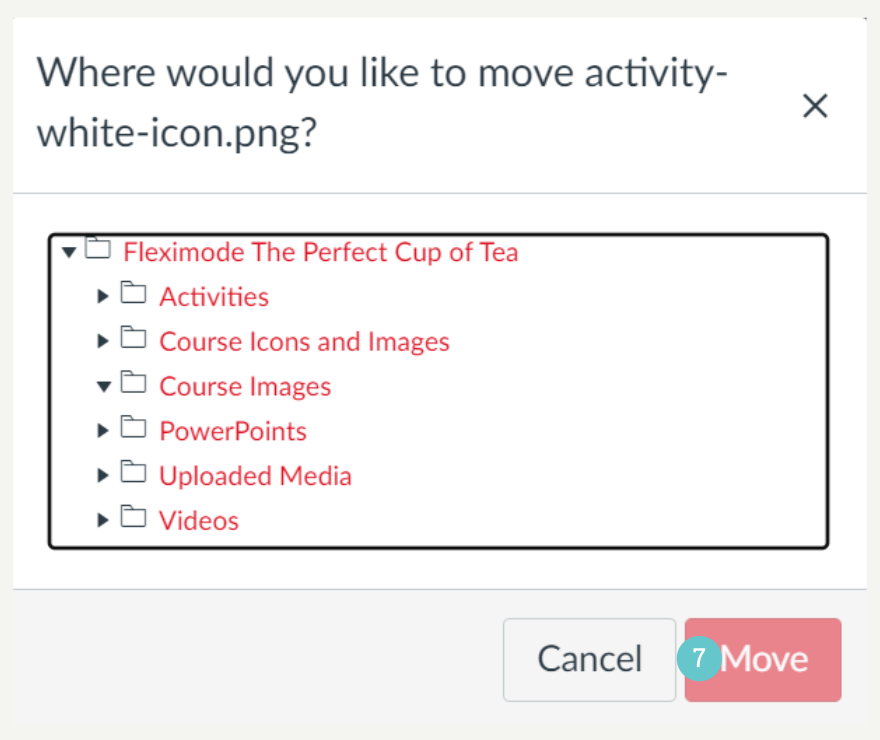
- Click the three dots on the right of the file and select Move.

- Choose the folder you want to move it to and then click Move.
Hints and Tips
- We recommend to make sure files and folders are named sensibly.
- Canvas does not support file uploads larger than 5 GB.
- Video and audio uploads to Canvas through the media tool can be up to 500 MB in size. Use Stream where possible so that you minimise the amount of files you upload.
- To move multiple files at the same time use the Ctrl key to select multiple files. If you want to select all files in a folder, click Ctrl+A