

Using Microsoft Stream, you can record your screen, create webcam videos, and add effects directly in Microsoft 365 with your MIT account. The Stream screen recorder is great for explainer videos, demonstrations, or quick webcam videos. You can add emojis, images, music, text, replace your background, and record multiple clips.
To record video using Stream
- Click on the nine dots on the top left side of your screen to reveal all the Microsoft Apps available to you.
- Select Stream.

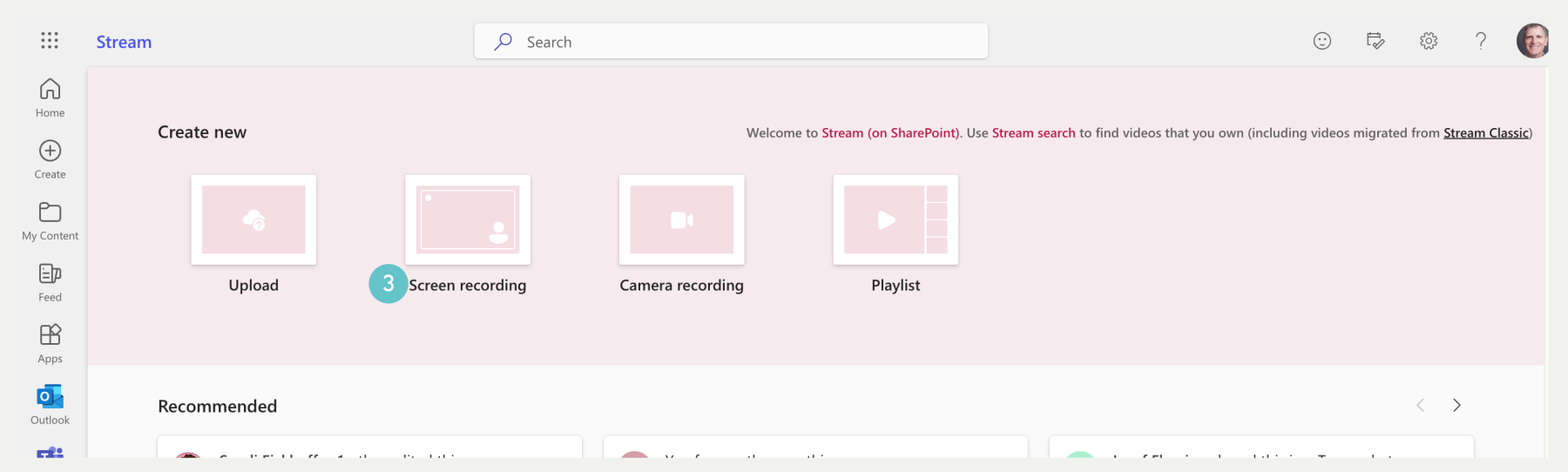
- Select Screen Recording from the list of options provided. This will open the Screen recording window.
- The screen will appear with your camera turned on
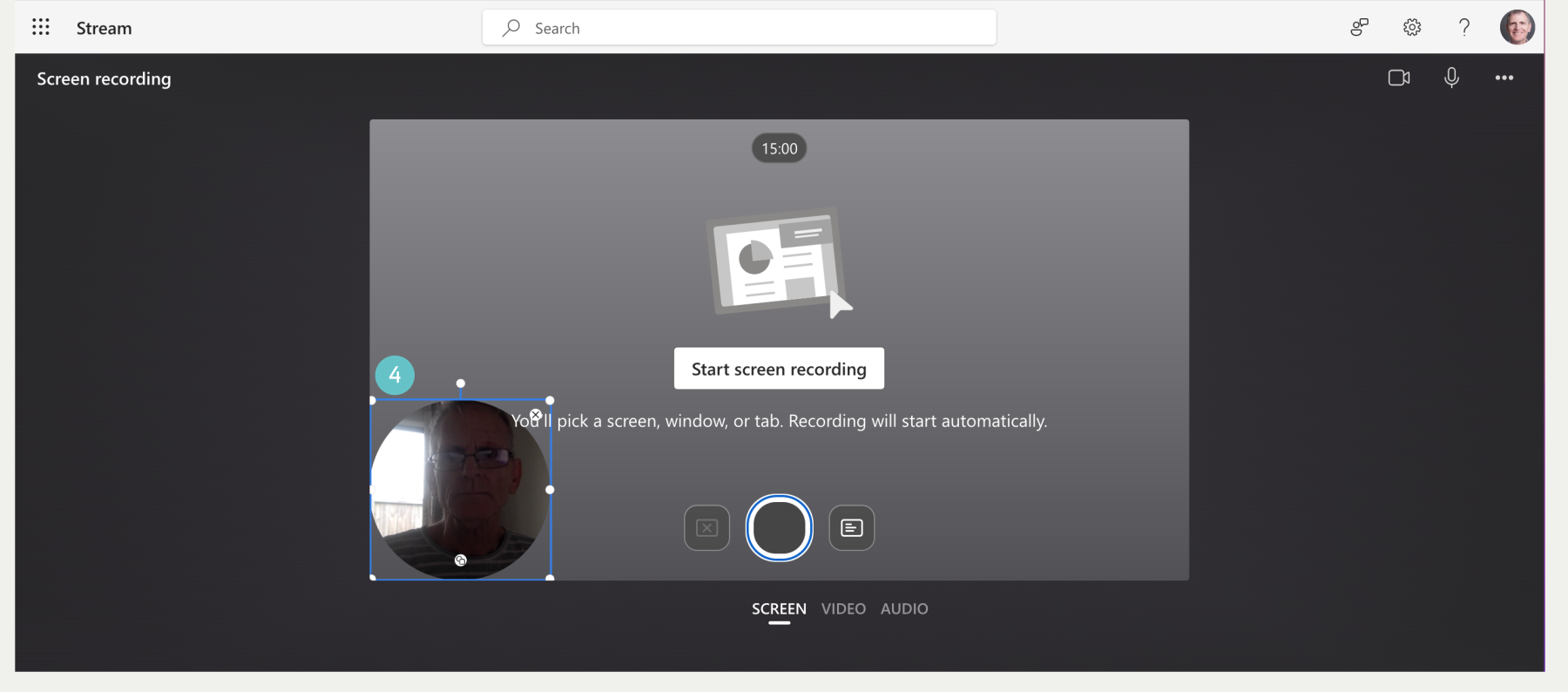
- There are also settings buttons for Camera and Mic if you wish to set those up differently from standard settings.

- Select your desired VIDEO effect settings, these include Text, Draw, Stickers (Emojis), Filters, Frame, Board, and Photo (to add a photo).

- When you are ready to start recording, click on the Start screen recording button.
Note: The ‘self-image’ in the corner can be both included in the final video or removed by dragging the handles diagonally.
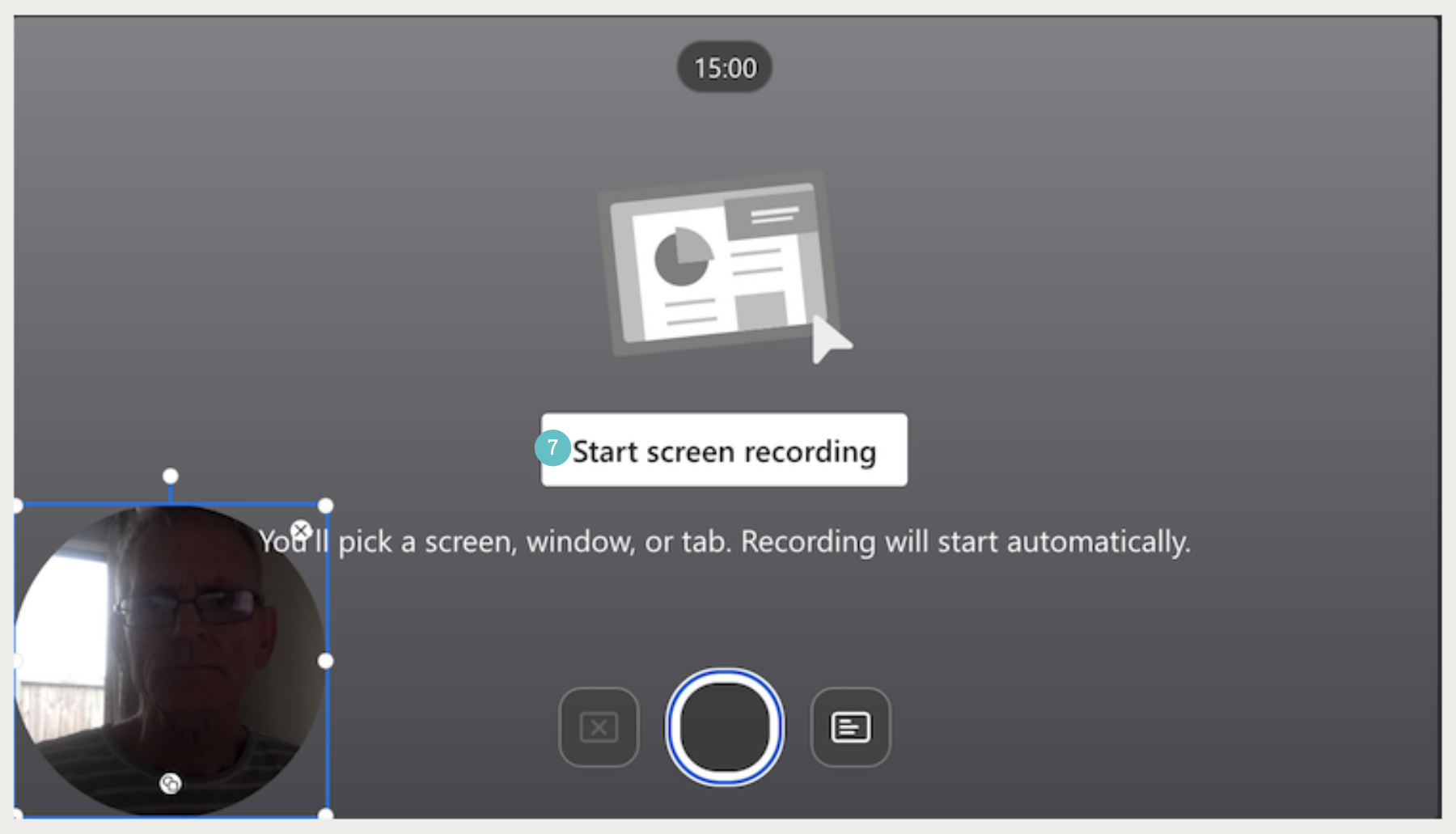
- Select the page/file you are going to video about from the list of possible open documents. The ‘self-image’ picture in the corner can be both included in the final video or removed by dragging the handles diagonally until it disappears.
- Click Share.

- The page/file opens, and you begin your video.
- When you have finished recording, click Stop sharing.

- Once the recording has finished you can then edit the video clip.
- Click Finish, once editing has been completed.

- Your video is saved and uploaded to Stream and ready to share.

Enhance & share
After your video is uploaded it will open in the Stream web app for you to enhance the video and share.
- From within the Stream player page, you can add a title or description, generate a transcript for your video, set the thumbnail, add chapters to make the video easier to navigate, suppress background noise in your recording, and more.
- Select Share to create a sharing link to your video to send to someone to view.
- After people view your video, select Analytics in the Stream player page to see a trend of views and visitors over time and which part of your video was viewed.
See this article for more information on how to enable or troubleshoot your camera.
If you need any further assistance, please contact the academic partners on our e-mail address: academic partner@manukau.ac.nz