

What the Collaborations in Canvas are, and how best you and your students could use them. It also explains that you can do the same thing using Office365.
Collaborating on documents (either using Canvas Collaborations or Office365) allows sharing work without having to email it around. Multiple users can work inside a single document concurrently.
You may be used to working on shared files in Office365 (Word online). Canvas Collaborations is simply another tool to do the same thing. Choose which you and your students prefer to use.
Using Collaborations
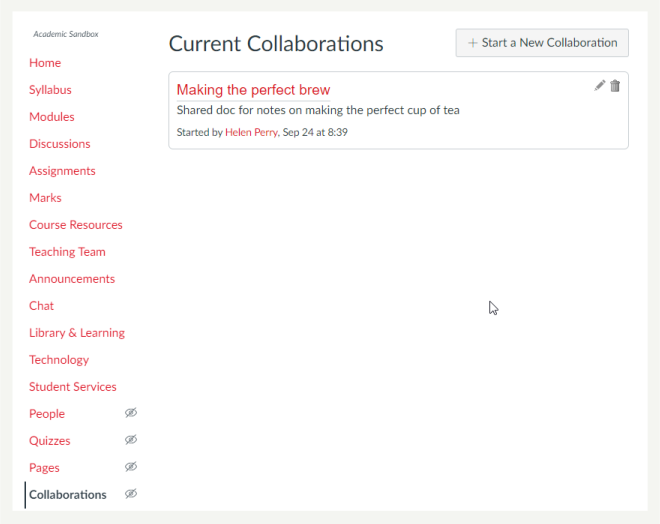
Canvas allows multiple users to work together on the same document at the same time. Collaborative documents are saved in real-time, meaning a change made by any of its users will be immediately visible to everyone.
You can use Collaborations to:
- Copy and paste notes that everyone can access.
- Share bullet-point lists or agendas for upcoming synchronous class or group time or meetings.
- Create a text-based whiteboard that everyone in the classroom can see and refer to later.
- Set collaborative assignments
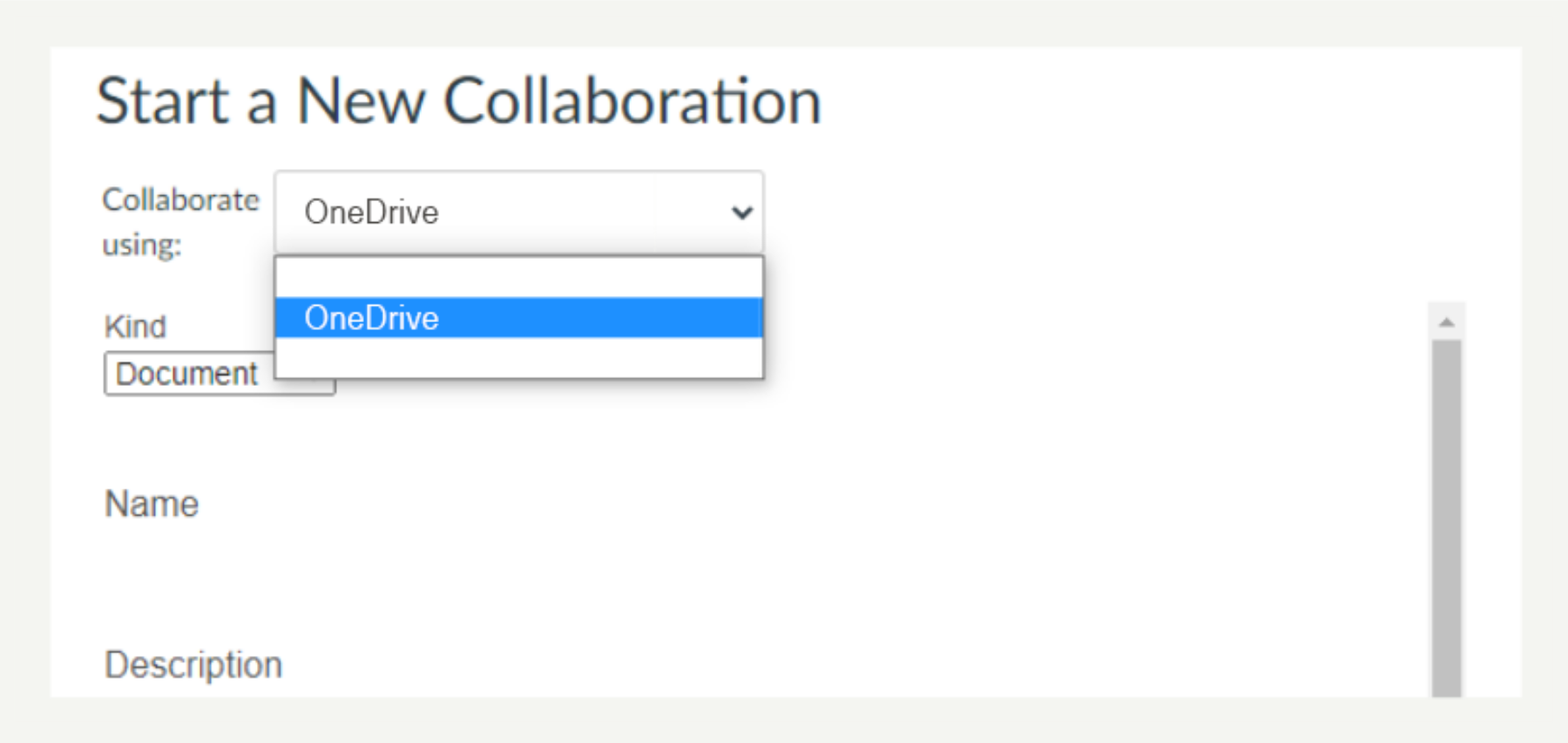
Collaborations in Canvas can be done using OneDrive. Collaborations makes use of e.g. Office 365’s Word within Canvas. The advantage of this is that students don’t need to leave the Canvas environment to complete a shared task, or use information from a shared document.
The disadvantage of sharing using Collaborations overusing Office 365 in their own native environment is that not all products are available. Canvas Collaborations allows you to create Word, Excel and PowerPoint documents (Office 365). There is no access to e.g. Form/Forms.
Hints and Tips
- Choose how you want to collaborate with students before diving in.
- If you and your students are happy to share files using Office365 natively (not through Canvas Collaborations), do so.
- Show your students how to share files using Office365.
- Collaborations are useful if you, as a lecturer, want to keep an eye on the content students are collaborating on. You can set up which students are sharing which files, and add yourself to all files. You could do the same thing in Office365 too.
- Is Collaboration the tool for you? Can you use a Discussion and Office365 instead?
- Don’t use Canvas tools just because they’re here. Use them well. Decide how you want to collaborate and why.
- Don’t overload your students with too many tools that do very similar things.