

By organising your files into folders and following these tips, you can maintain a well-managed storage area and ensure a smooth experience for your learners.
Did you know that there is 210 GB of storage space available for each course in Canvas? While this might seem like plenty of room, it can easily fill up with outdated or unnecessary files that get carried over from semester to semester. Effective file management helps keep your course materials organised and accessible.
Keep in mind: Canvas does not support file uploads larger than 5 GB. Large files can be harder to view, slow to load, and difficult for ākonga to download, which can impact their learning experience.
To manage your files effectively:
Check your current storage usage:
- Select “Files” from the course menu in Canvas.
- Scroll to the bottom of the page to see your remaining storage space.
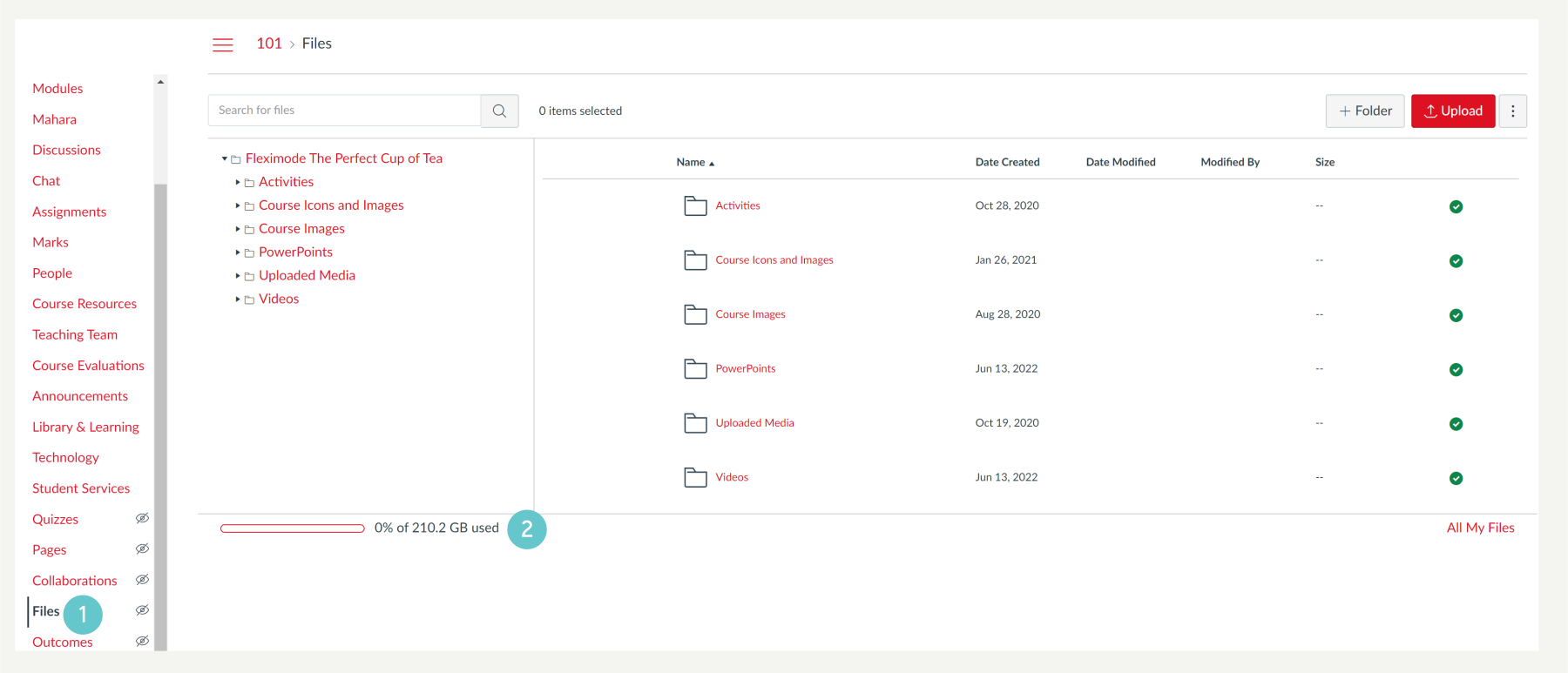
Organise files in folders:
- Create folders to categorise files by type, topic, or week.
- This makes it easier to locate specific files and keep your storage area tidy.

Identify large files:
- Click “Size” to sort from largest to smallest.
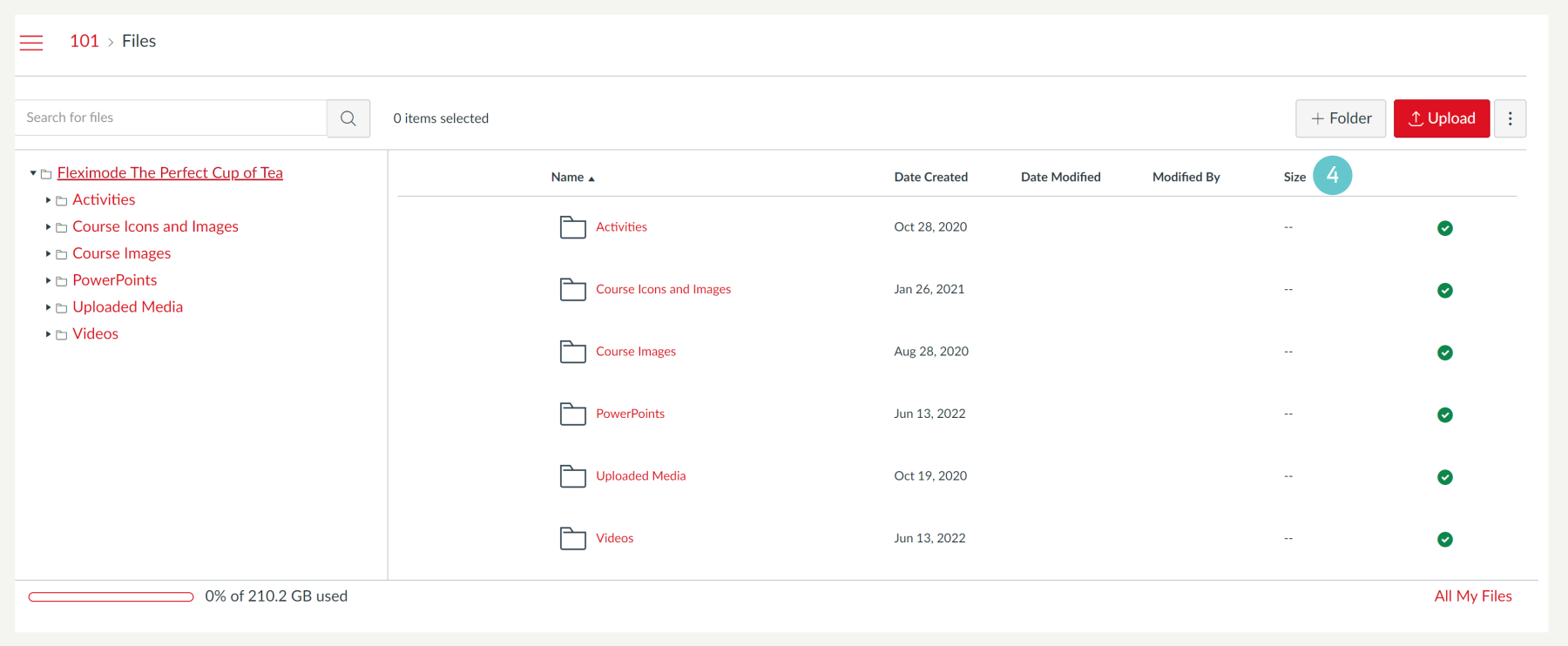
- Review these files and delete any that are no longer needed:
- To delete files click the three dots
- Click Delete

Store and link your media files elsewhere:
- Upload MP4s to Stream and share links in your Canvas course.
- Use SharePoint to store media and link them to your course. This way, you free up Canvas storage while keeping content accessible.
Optimise large files:
- Reduce the size of large PDFs or other documents before uploading them to Canvas.