

How to create a Quiz in Canvas.
- Click Quizzes in the navigation bar.
- Click the + Quiz button in the top right to create a new quiz.

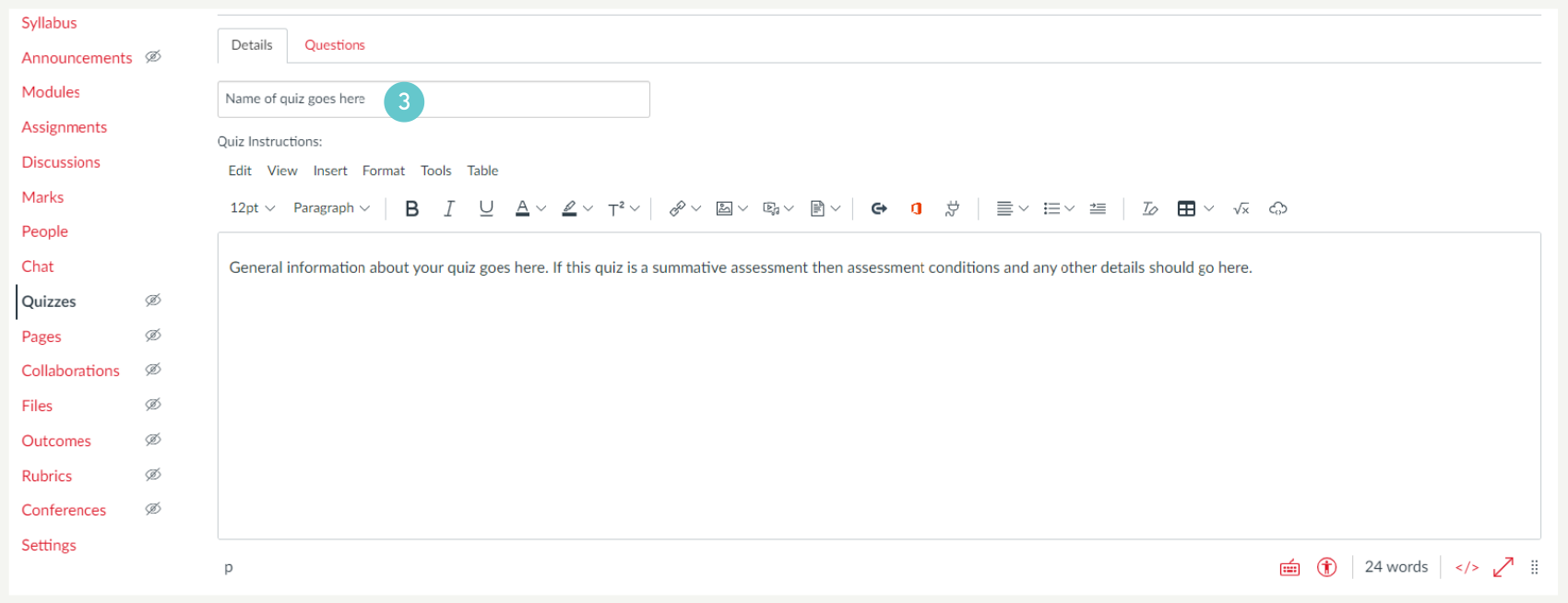
- Enter a name for your quiz and add instructions/relevant assessment information in the Rich Content Editor box in the Details tab.
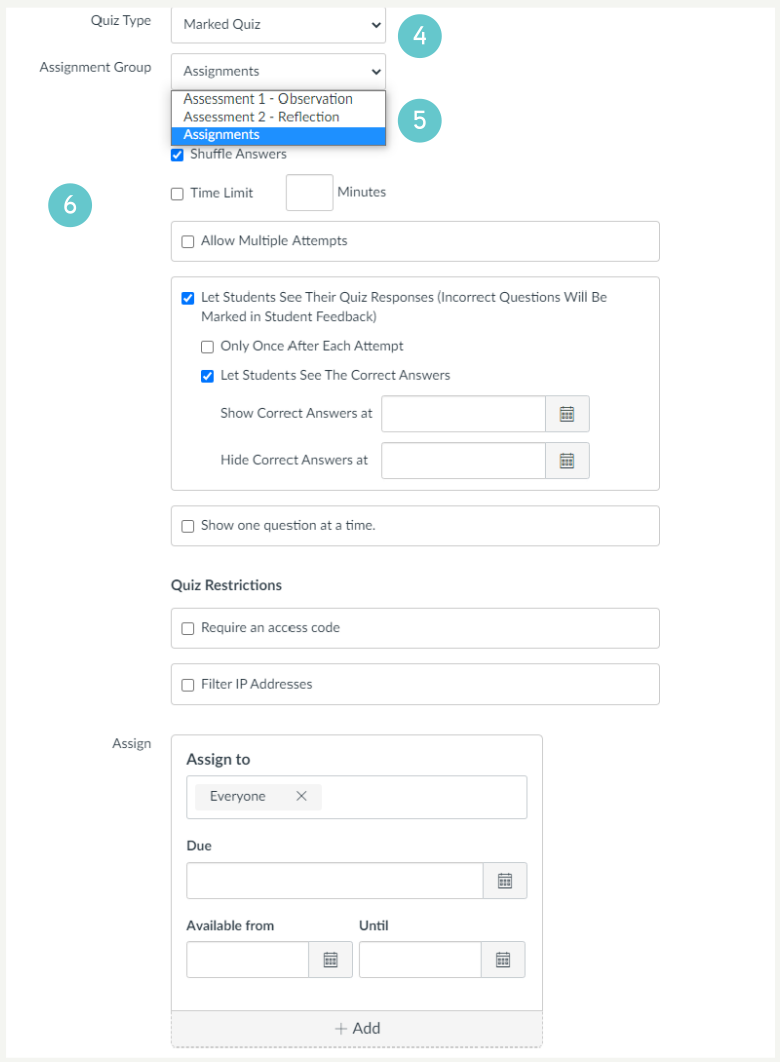
- There are settings below the editing box. Select the Quiz Type (view Quiz Types).
- Select the Assignment Group to which your Quiz belongs. You need to have an Assignment Group for each assessment in your PAD. Formative assessments can be grouped separately from summative assessments.
- Select any other further options for your quiz:
- Shuffle answers
- Time Limit
- Multiple Attempts
- Whether students see quiz answers at all, or after each question
- Restricting access
- Due dates (this is important for summative assessments)
Now let’s add some questions to your quiz:
- Click the Questions tab at the top the page.
- Click the + New Question button to add a new question.

- Select a question type from the dropdown box (default selection is Multiple Choice). (view Question Types).
- Choose the number of marks for each question (Canvas calls them points/pts)
- Write the question in the Rich Content Editor
- Write possible answers in the Answers boxes below the main question box.
- In the example above (Multiple Choice), select the correct answer by hovering over the correct answer and click the green arrow. Different question types have different requirement, e.g. listing all possible answers for a Fill-in-the-Blank question.
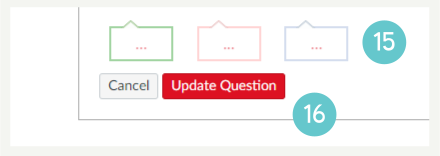
- Include feedback for questions if you wish. You can put feedback in for both correct and incorrect responses. Click the coloured box (green for correct or red for incorrect) under the Answer textbox to enter feedback for that response.

- You can also add feedback to the question as a whole, not just to each response. Click the coloured box (green for correct, red for incorrect, or blue for general comments) at the bottom of the answer options to enter feedback for the whole question.
- Click Update Question to save your question. This is a really important step, else your question will not save.
- You can now add more questions, or when you have added all your questions, click Save at the bottom right of the page. This will save your whole quiz, including the settings you set at the beginning.
- Click Save & Publish when you have finished making your quiz and you want to publish it.
Question Banks
Question banks are questions that already exist in your Canvas course in different quizzes. You can use questions out of a different Canvas course if you import that course’s questions into your course first.
- Click Find Questions to add existing questions.

- Select either all questions, or select a specific question.
- Select the quiz that the question(s) are in.

- Add the question to either the quiz you are creating, or to a particular Question Group (see below for more on Question Groups).
- When you have selected your questions, click the Add Questions button.

If you want to add questions that are in another course, you will need to import the quiz from that course into your course, then follow the above instructions. Click here for more information about importing content.
Question Groups
Question groups place multiple questions in a group for students to answer, e.g. questions on a particular topic, or questions of a particular difficulty. Question groups are optional. You may find it easiest to create all your questions first then drag them into groups.
- Click + New Question Group to create a Question Group

- Give your Question Group a name.
- Pick the number of questions you want in the group and the number of points per questions
- Click Create Group.

- Add questions to the group by either creating new questions (as above), or you can drag and drop existing questions from your quiz into the group.