

How to create an Assignment in Canvas.
The process for putting the assessments from your PAD on Canvas is to:
- Create an assignment group for each assessment in the PAD
- Create assignments as necessary within each group
If you have not created an Assignment Group yet for your assessment, do that first – click here.
To create an assignment within a group:
- Go to the Assignments page in your Canvas course. Make sure you are creating assessments as stated in the PAD course descriptor.
- Click on the +Assignment button to create a new assignment.

- Enter a name for the assignment, then
- In the Rich Content Editor put all the details of the assessment. This must include all instructions to your students and assessment conditions. Make sure the assessment has passed pre-moderation first. Embed the assessment as a Word document if you wish.
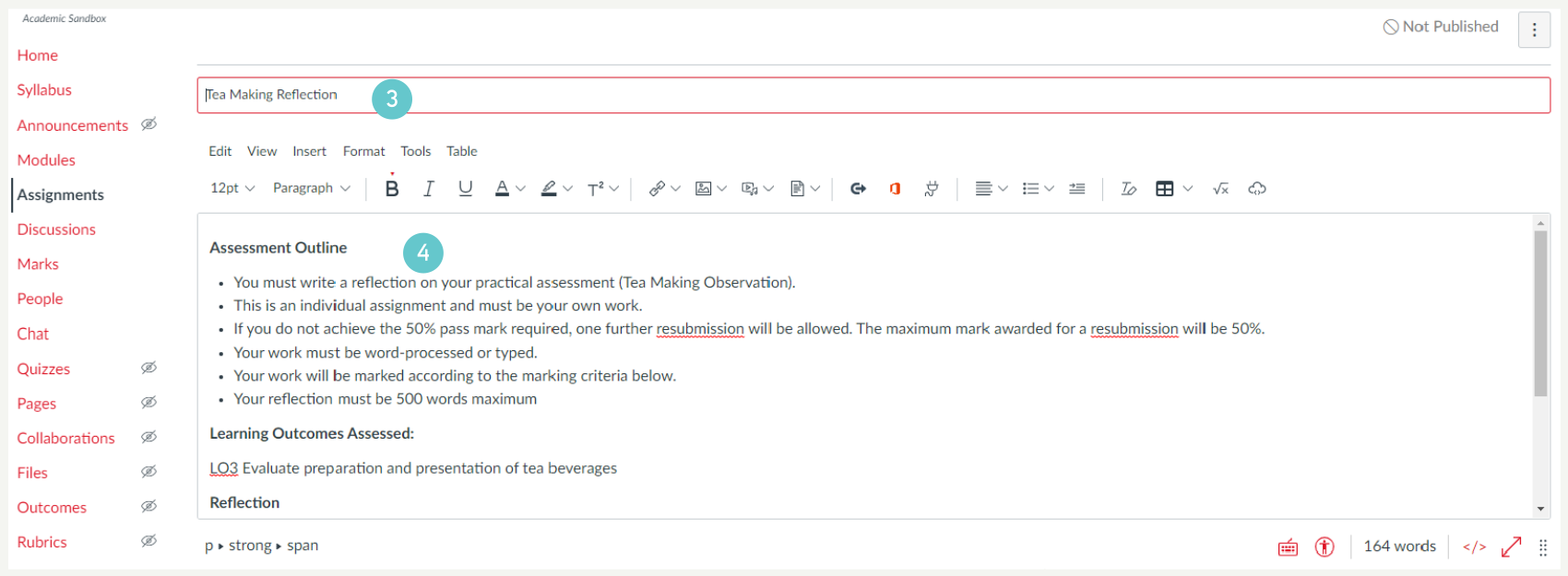
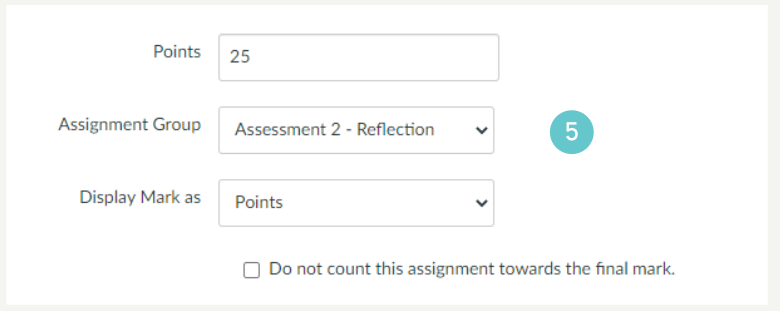
- Below the rich content editor add the following details:
- Points – this is the number of marks for the assessment
- Assignment Group – choose the appropriate Assignment Group
- Display Mark As – choose how you want learners to see their final grade
- If this is a formative assessment, tick the box Do not count this assignment towards the final grade.
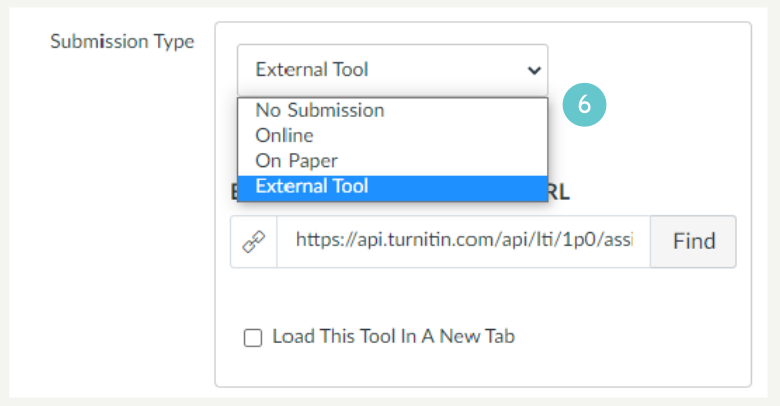
- Choose a submission type.
- Submission Type – Click here if you are unsure of submission types.
- Submission Attempts – do you want the learner to be able to have multiple submissions before you mark it? If so, how many? Three is the maximum allowed if you are using Turnitin.
- Group Assignment – If it is a group assignment, enter information here. If you are unsure of Group Assignment options, click here. This option is not available if you have chosen Turnitin as a Submission Type.
- Peer Reviews – If you require peer reviews, set these options here. You are unlikely to want peer reviews for summative assessment. This option is not available if you have chosen Turnitin as a Submission Type.
- Make sure you set a due date for your assessment
- Assign to – Make sure dates here match your course outline.

- Click Save or Save & Publish at the bottom of the page.
Hints and Tips
- Make sure you put an Assignment inside an Assignment Group. Assignment groups ensure correct weighting, independent of how many marks the individual assessment is worth.
- Using Assignment Groups means that you can assign as many points as is suitable for that assessment, without having to contrive points to equal e.g. 100 for the whole course.
- Make sure you check your PAD and Course Outline (Syllabus page) to ensure correct information in your assessments.