
Step 1: Access Copilot through any of the following platforms.
- Via Web Browser: Visit https://copilot.microsoft.com on a supported web browser.
- Via Microsoft Apps: Open Microsoft Edge, Copilot is integrated directly into the sidebar. It is available in Microsoft 365 apps such as Word, Excel, and Teams.

- Via Mobile App: download the Copilot on to your device. The display looks similar to the web browser version.

Step 2: Sign In with Microsoft Account
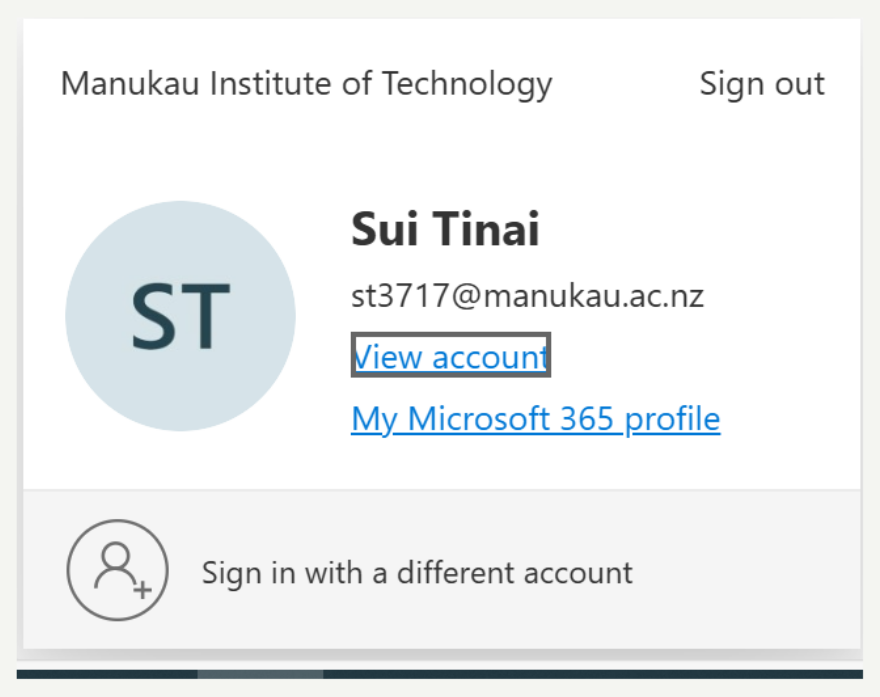
You should have already signed in as soon as you sign into your MIT account if not follow these instructions
- Click on Sign In (if required).
- Use your MIT Microsoft account or personal Microsoft account to log in.
- MIT provides the basic version of Copilot through Microsoft 365.
Step 3: Start Using Copilot
- Once you sig in, you can start typing your queries the chat box.
- Start with a prompt like this one below.
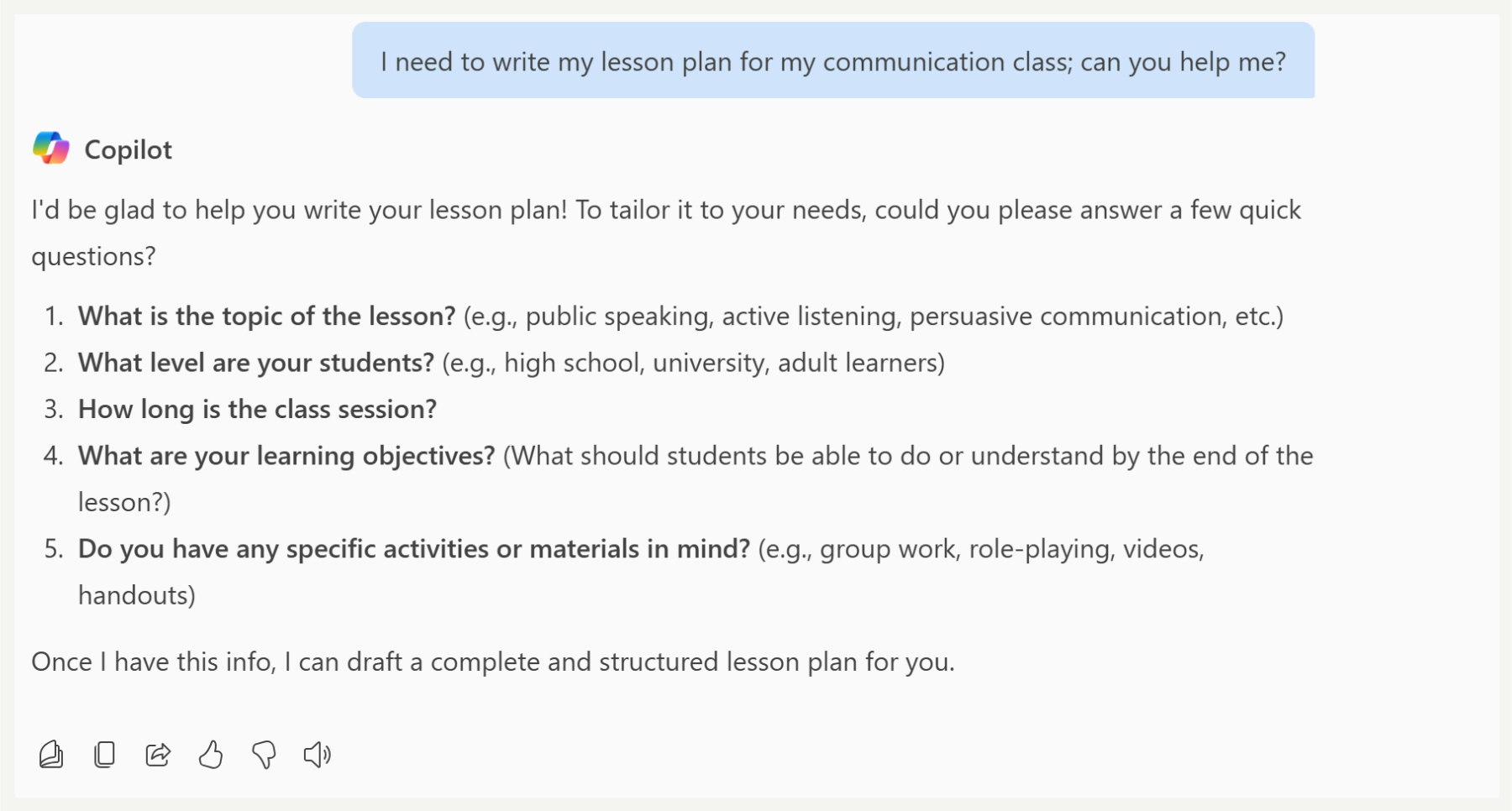
If your prompt is not clear, Copilot will ask you a series of questions to make sure you get the right prompt for it to produce the expected result you are after. Here is how you can improve the prompt.
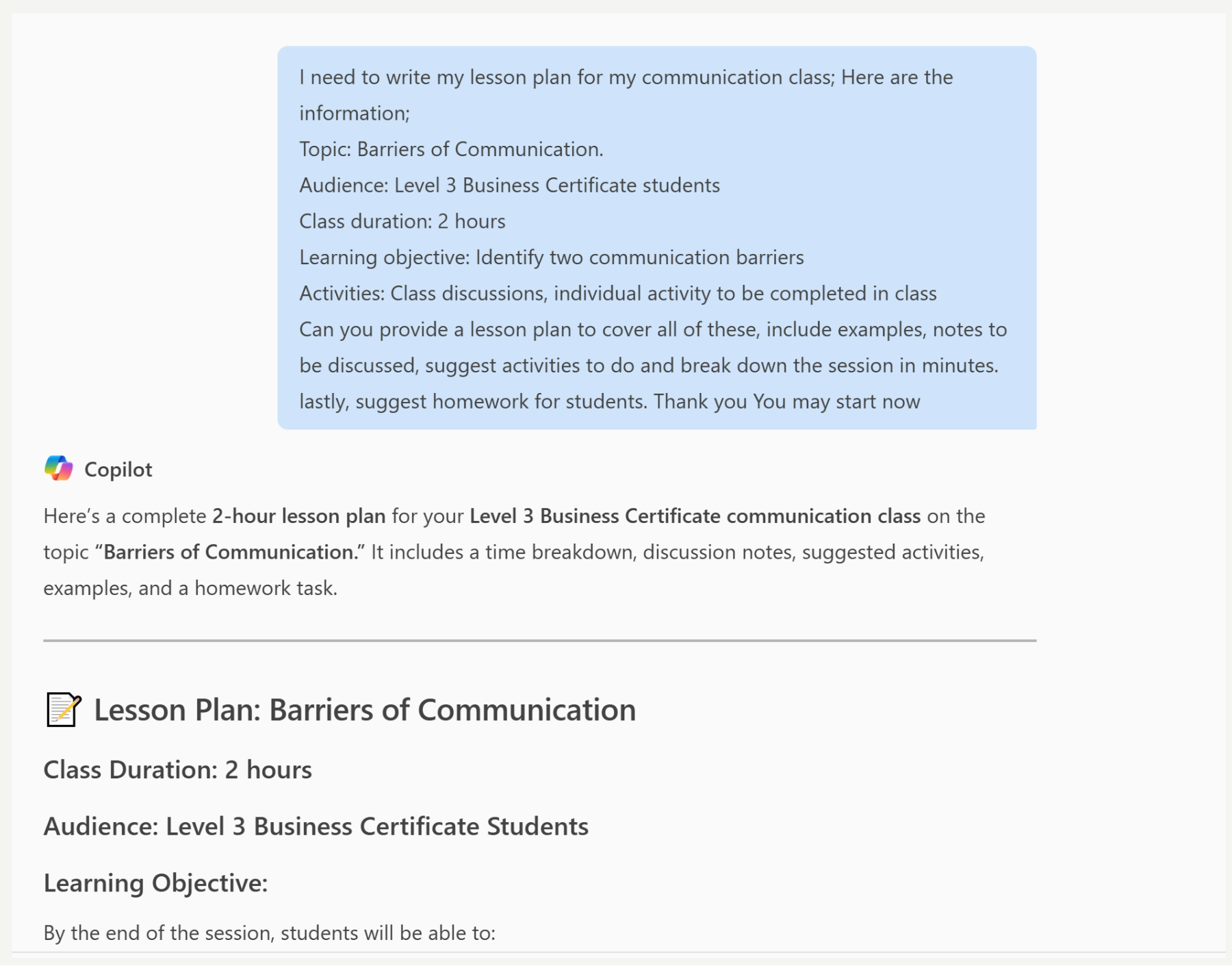
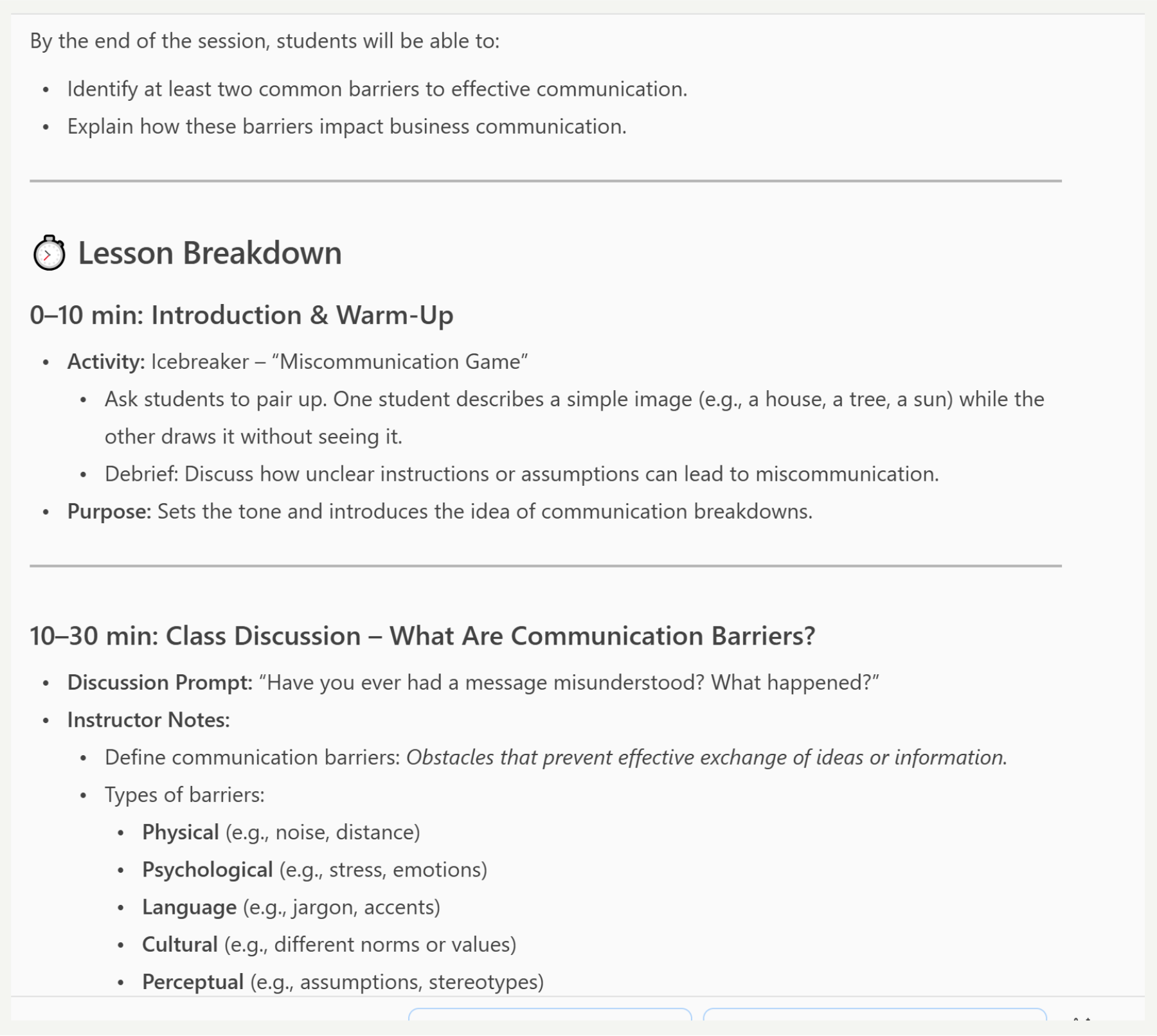
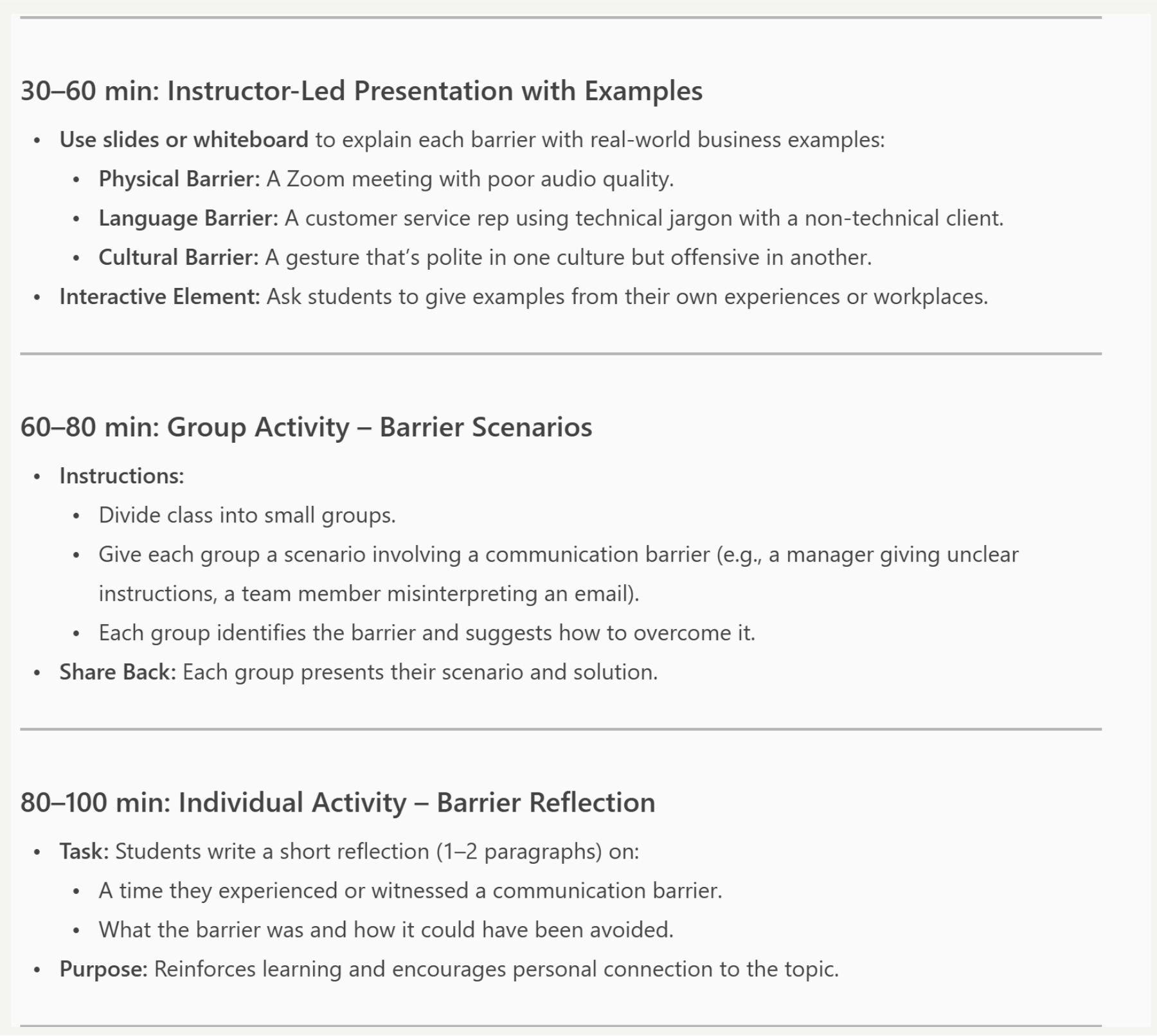

You can refine responses, ask follow-up questions, or request alternative outputs until you find the one you are satisfied with.
Hints and Tips
Depending on the version available you can:
- Perform web searches for research.
- Generate text, code, or creative content.
- Use Copilot within Microsoft 365 apps like word, excel, powerpoint etc.. for document generation, data analysis, and more.
What’s Next?
What is Copilot and How Do We Use It?
How to Access and Start to Use Copilot
How to Use Copilot to Write a Good Assessment
How to Spot Student Use of GenAI in Assessment Submissions
How to Use Turnitin’s AI Writing Detection Feature