

How to embed a file on a page and display (view / preview / display) the file on a Canvas page.
Canvas will let you link files to a Canvas page through the use of a hyperlink. However, links on a page are not very user-friendly.
Canvas will also let you embed a file so that it previews on the page. You can embed many different kinds of files including:
- Word, Excel and PowerPoints
- YouTube videos
- Stream videos (e.g. recorded Teams sessions)
- Forms (Microsoft’s survey/quiz tool)
There are many other types of files you can embed, but these are the main ones. Once you know how to embed a file, you can embed other types of files.
Preview an Embedded a File Uploaded to Canvas
Your Canvas course may include Word/Excel/PowerPoint files. These files are not very large. You can upload them to Canvas using the Files section of your Canvas course. Click here for more information on how to do this.
To embed an uploaded file:
- Go to the page on which you want to embed the file and click Edit.
- Place your cursor where you want the embedded document to be.
- Click on the documents icon and choose either Upload document or Course documents (if you have already uploaded the file).

- Select the document you want to embed. The document has now been added as a hyperlink.
- Click on the hyperlink. Select Link Options.
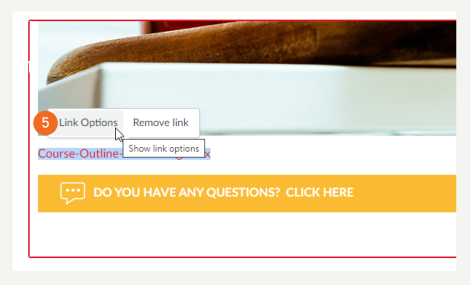
- Choose Preview inline and tick Expand preview by Default.

Embed a file not uploaded to your Canvas course (linked files)
Some files that you want to embed/preview cannot be uploaded to your Canvas course. Examples of these files are:
- Files you do not own
- Large files
- Linked files that you could edit elsewhere and you always want them to be up-to-date.
Beware: if you do not own the file, e.g. YouTube, the file could be removed, altered, etc. Regularly check the links on your Canvas course.
To embed a linked file:
- First you need to get Embed code from the file you need to link. This is often found under a Sharing option (here are some examples):


Microsoft Form

Microsoft Office

You will need to open Word, Excel and PowerPoint from the web version of Office365 to have this option available to you.
- Adjust any Embed options that are available, e.g. size of window (we recommend over 1000 pixels wide, so that the preview is wide enough to read comfortably).
- Copy the embed code.
- Go to the Canvas page on which you want to embed the file and click Edit.
- Place your cursor where you want the embedded document to be.
- Click the Embed icon in the toolbar above the Rich Content Editor (usually the right-most icon, or if your screen is narrow it’s one of the extra items accessed by clicking on three dots on the right).

- Paste the Embed code into the box.
- Click Submit.

- Your document should now be embedded and previewed on the Canvas page.
- If the document previews too large/small, embed the item again changing the wide and height of the original embed code.
Hints and Tips
- Look for a Share button if you can’t find Embed code
- Only upload small(ish) files to Canvas (Canvas has limited space). Embed others.
- When you embed a document, if you change the original, it will change on Canvas. Be careful what you link and what you edit.
- Always embed/link videos and audio files. These are very large file types.
- Teams recordings are automatically stored in your Office365 Stream app.