
Your cart is currently empty!
How to Use Turnitin’s AI Writing Detection Feature
This guide will show you how to locate and interpret Turnitin’s AI writing detection results
Turnitin includes a built-in ‘AI writing detection’ tool that helps identify content that may have been written by generative AI tools like ChatGPT, Copilot and others. It is important to remember that this detection is only one source of information. You should always evaluate results in context and use your professional judgement when reviewing assessments.
Disclaimer: For the purpose of this page, an assignment was created on ChatGPT to demonstrate how to detect AI writing.
Step 1: Log in and open Speedgrader.
- Open the assignment you want to check.
- Click Speedgrader to open the assignment.

Step 2: Select the Relevant Class or Assignment
- Click on the class that contains the student submissions you want to review.
- Select the assignment you wish to check.
- Click on the submitted file to open up the Feedback Studio
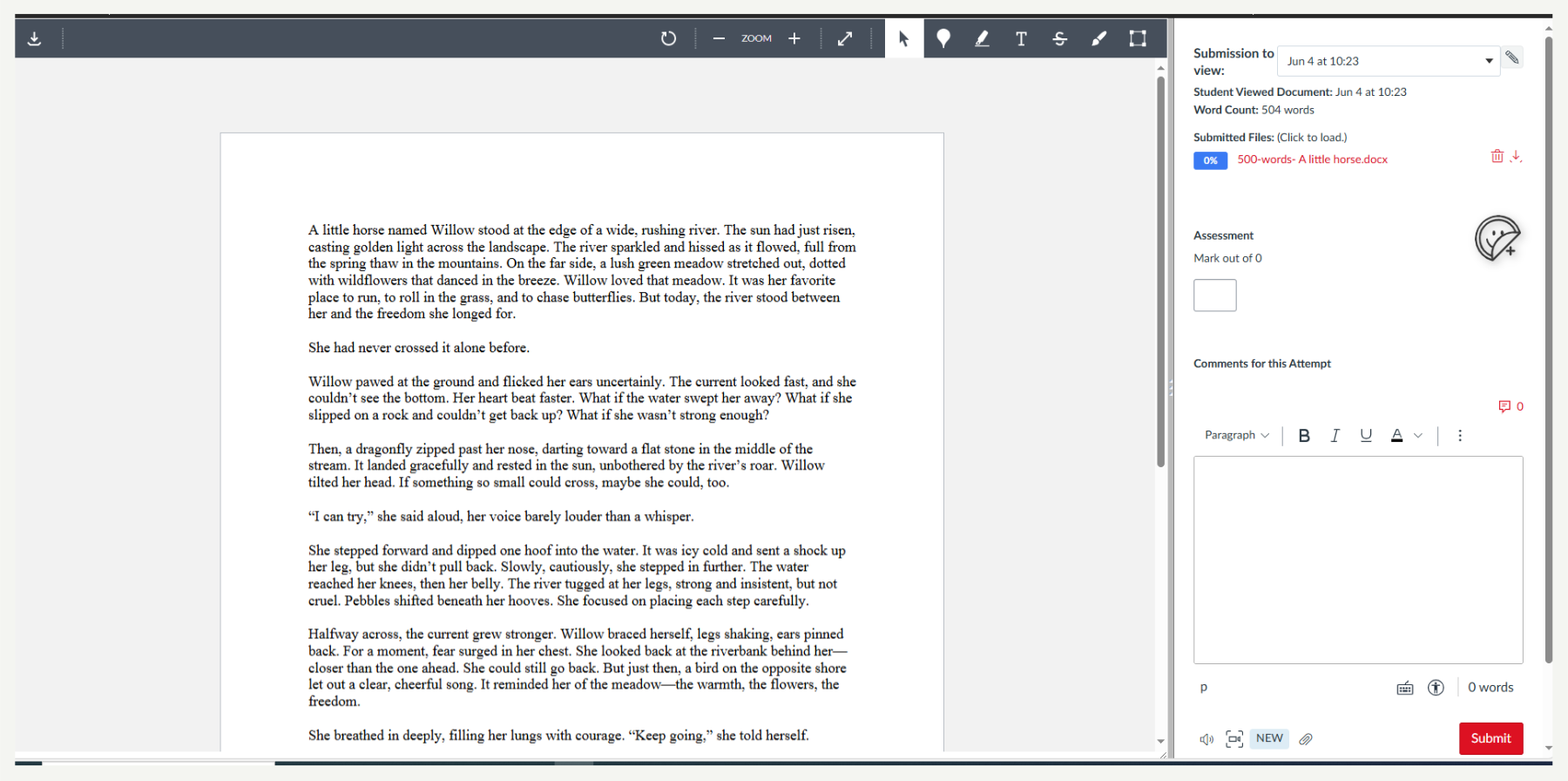
Step 3: Open a Student Submission
- Click on the student’s name or submission title to open the Feedback Studio.
- Wait for the report to fully load.

Step 4: View the AI Writing Detection
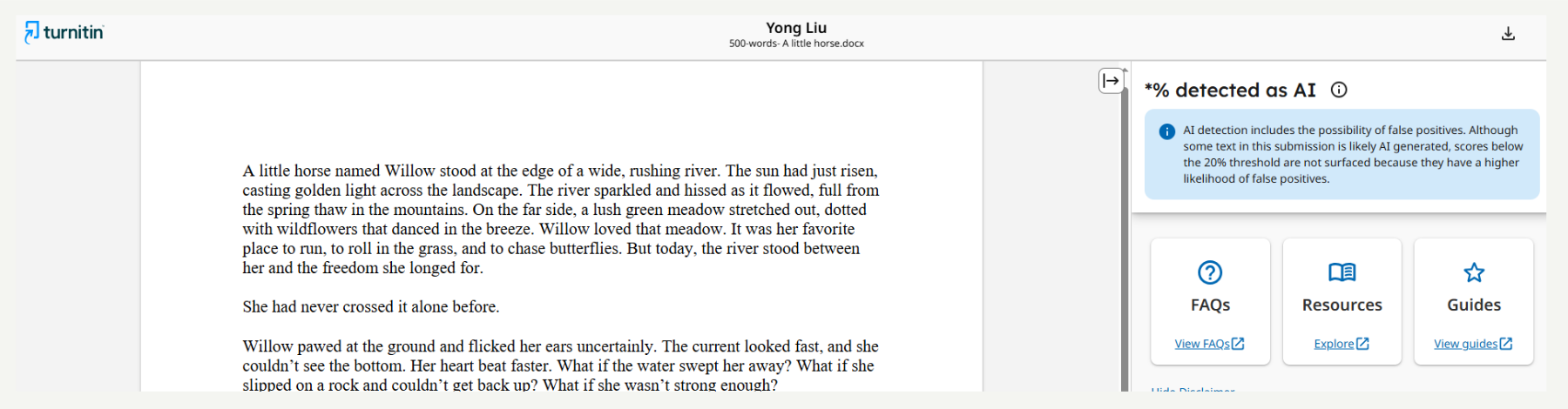
- If Turnitin has scanned for AI content, you will see an “AI Writing Detection” indicator at the bottom of the Feedback Studio.
- Click on this indicator to view the AI score.
- The score will display the percentage of the document that Turnitin believes may have been generated by AI.
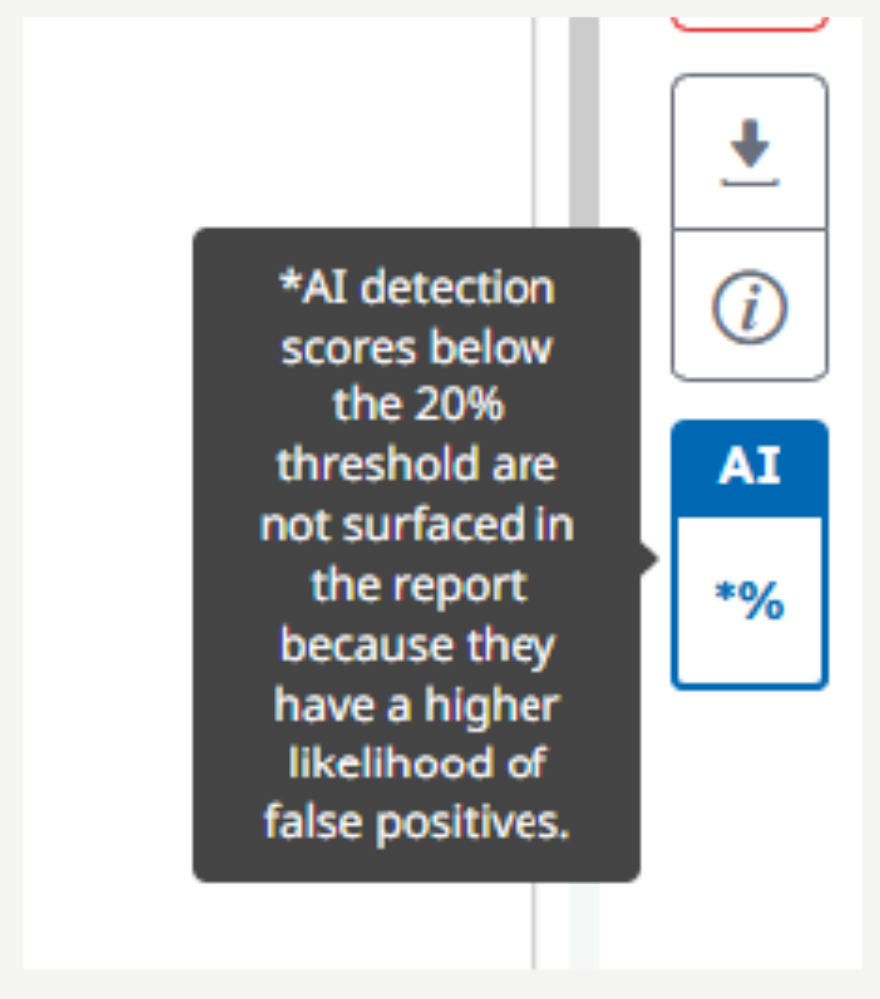
Step 5: Interpret the Results
- Do not rely on the percentage alone. It is not a confirmation of misconduct.
- Review the highlighted sections and consider the content, context, and writing style.
- Compare with the student’s previous work if needed.
- Use the AI detection result as a prompt for further investigation, not as evidence on its own.
Step 6: Take Further Action if Needed
- If you have concerns about a summative assessment, document your observations.
- Discuss the case with your academic integrity officer or follow your institution’s process for academic concerns.
Hints and Tips
- The AI writing detection tool is not always accurate.
- Results should never be the sole reason for taking disciplinary action.
- Human evaluation is essential. Use your professional judgement.
- Check out MIT-Protocols-for-Using-Turnitin.pdf
What’s Next?
What is Copilot and How Do We Use It?
How to Access and Start to Use Copilot
How to Use Copilot to Write a Good Assessment
How to Spot Student Use of GenAI in Assessment Submissions
How to Use Turnitin’s AI Writing Detection Feature