

You can access and reuse comments across different assignments and courses, by adding these to the Comments Library within your Canvas profile. This will save you time and improve efficiency marking student assessments.
To add comments to the Comment Library
- Navigate to SpeedGrader within an assignment
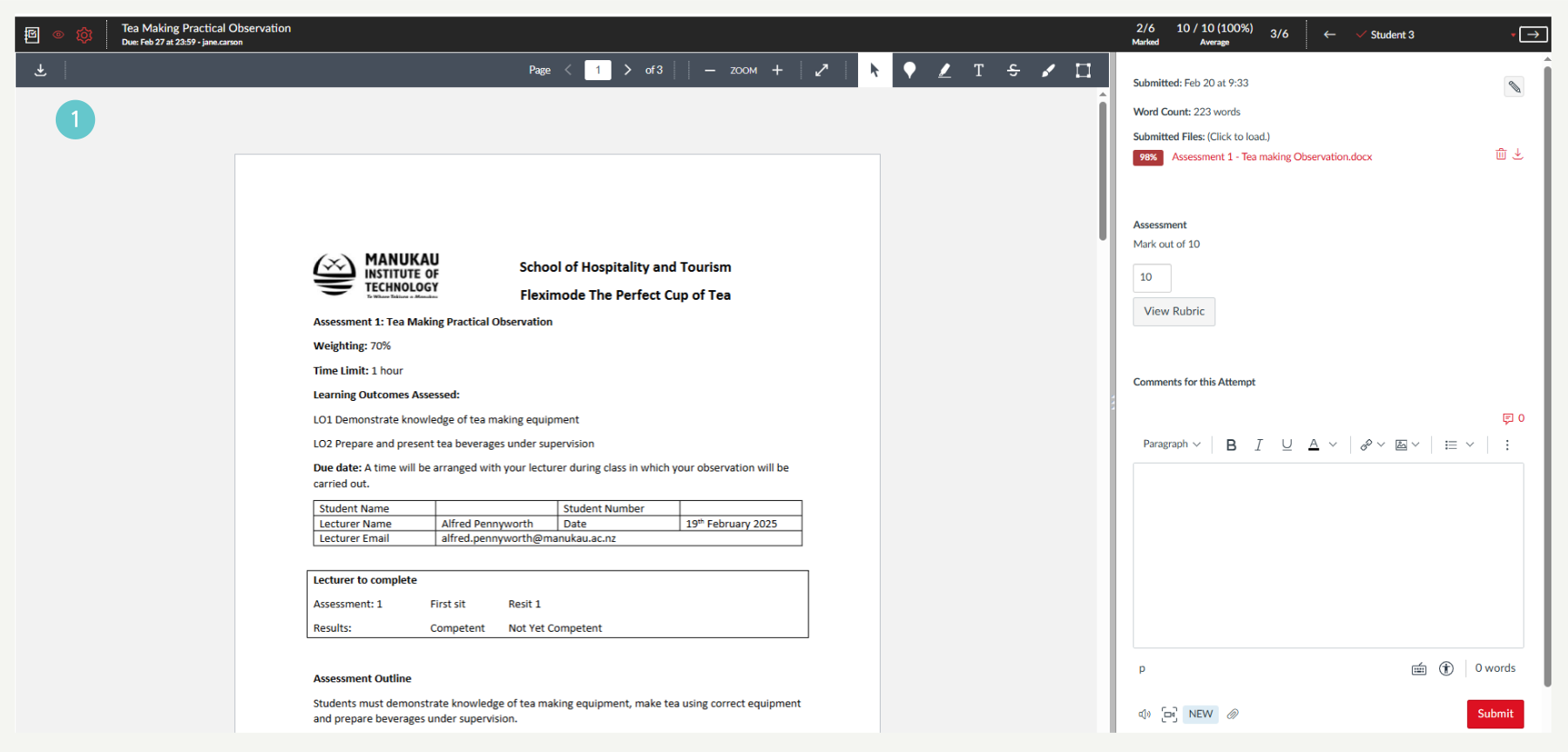
- Open the Comment Library icon, which is the small icon representing a conversation bubble.
- Note: You can only access the Comment Library while grading student submissions in SpeedGrader.
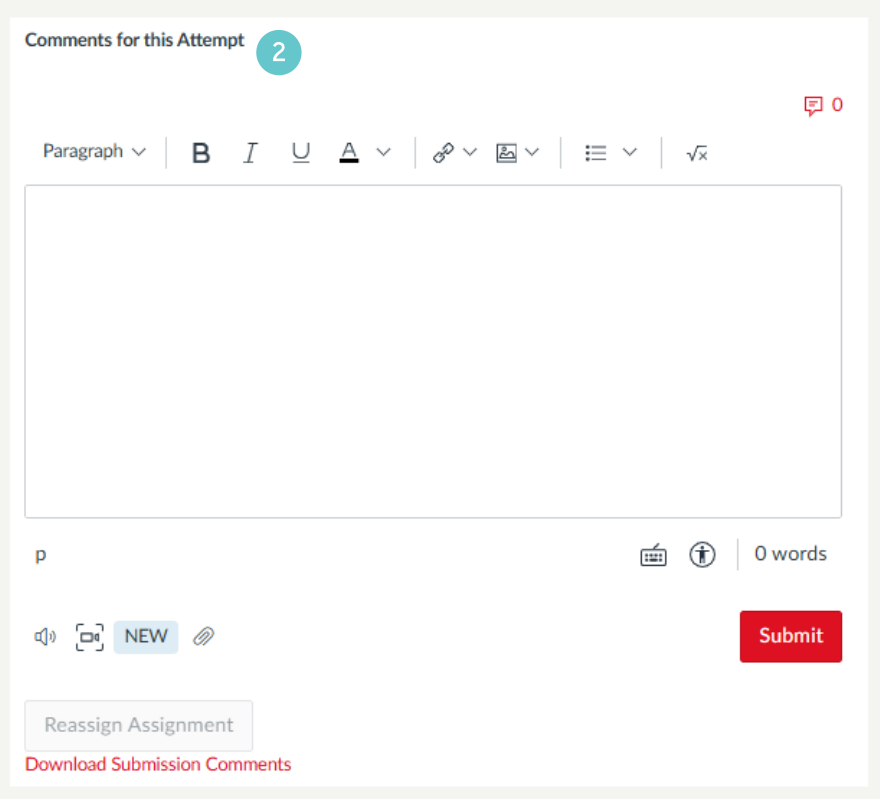
- Type your comment in the Add Comment to Library box.
- Click Add to Library to save it.

- Your comment will be added to the library for you to use when providing feedback to your students.

Edit a Comment in your Library
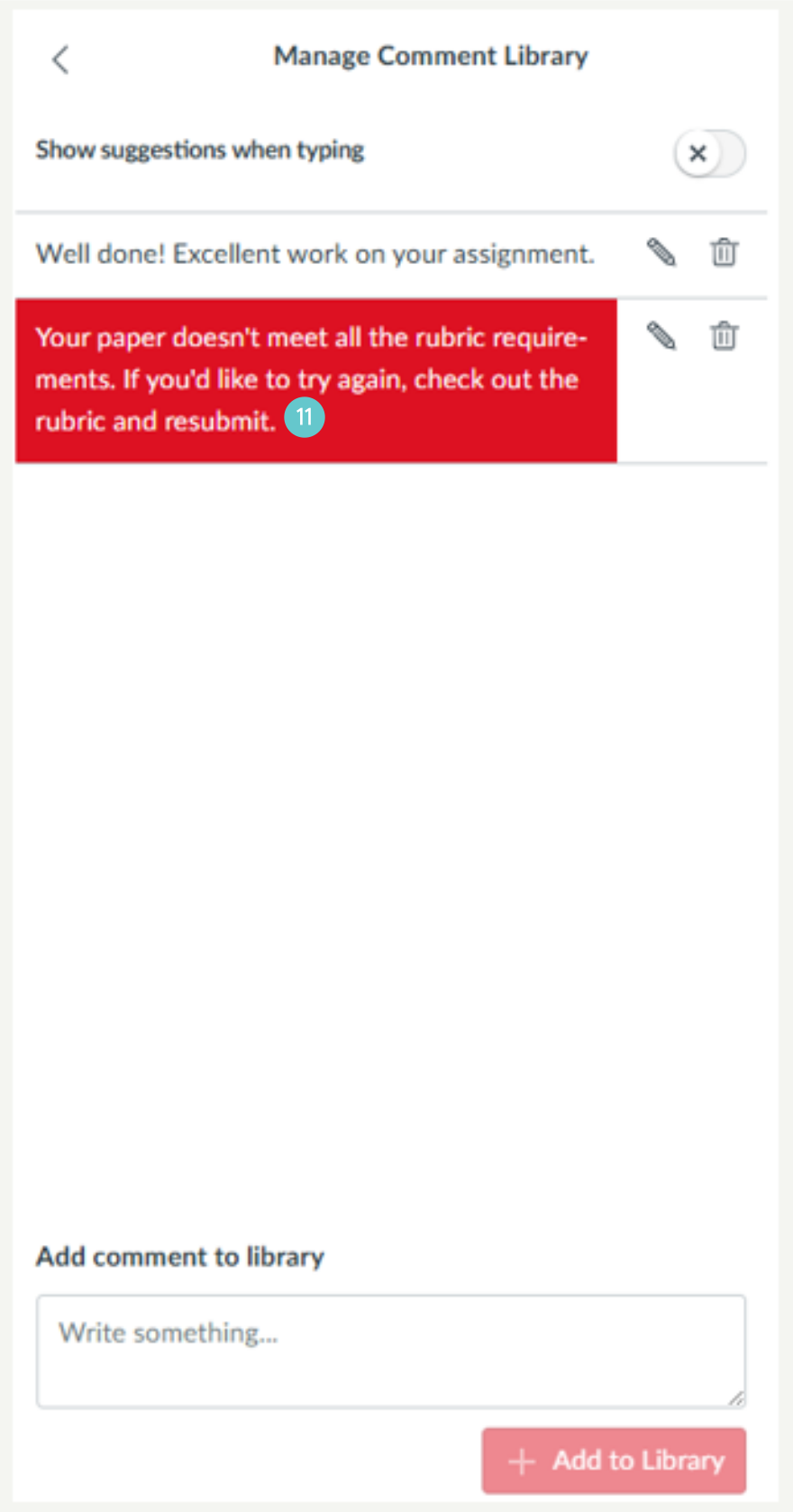
- To edit an existing comment from the Comment Library, click the Edit icon.
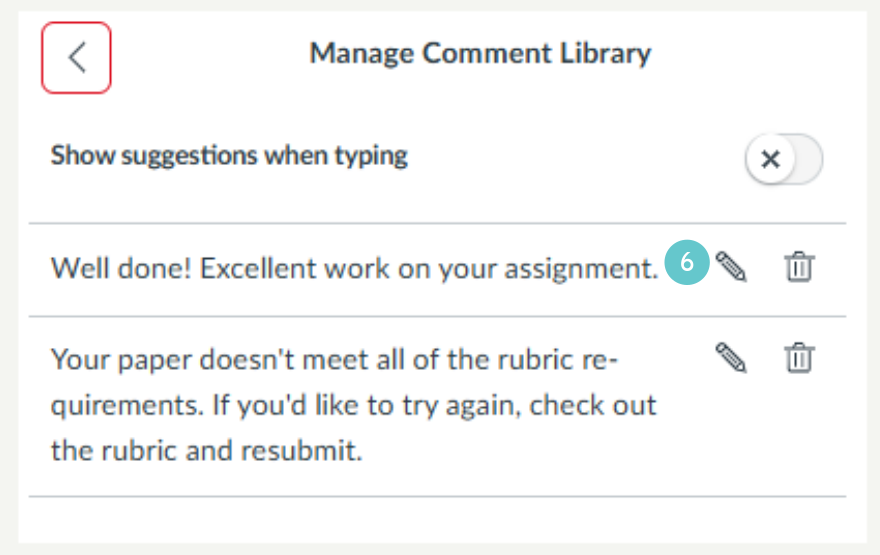
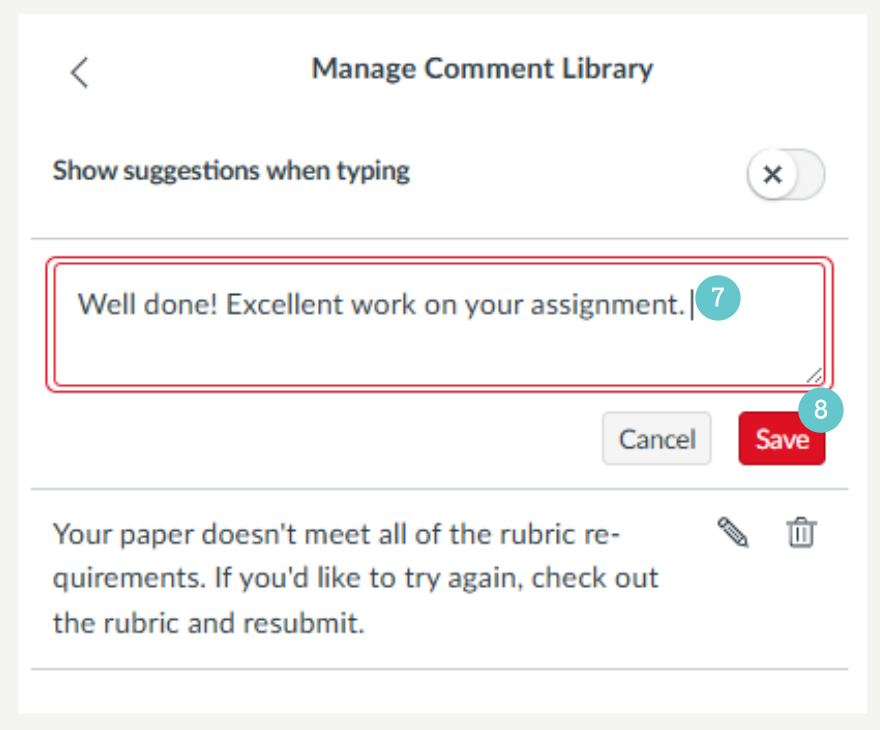
- Make changes using the comment box.
- Click the Save button.
Delete a Comment from your Library
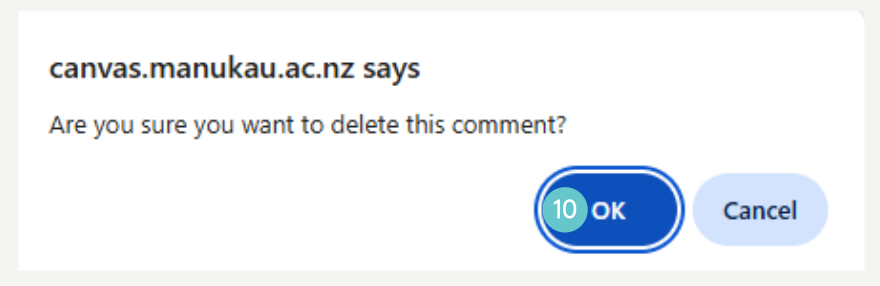
- To delete a comment from your Library, click the Delete icon.

- The box below will appear, click OK. The comment selected will be deleted.
Adding a Comment from your Library
- Select the applicable comment to add it to the student’s submission
Comment Suggestion Setting
- To enable or disable suggestions from appearing when you are typing in the SpeedGrader comments field, use the Show suggestions when typing toggle.

- If you have enabled suggestions, the display will appear when at least the first three characters of a comment are typed in the Assignment Comments box.
- To use the suggested comment, select it from the Insert Comment from Library pop up box.

Where to go next?
3 Adding Comments in SpeedGrader
4 Adding to the Comments Library
5 Marking a Group Assignment in SpeedGrader
6 How do I get the Marks Box to Auto Populate in SpeedGrader?