

Step by step instructions on How to mark a Group Assignment using SpeedGrader.
- To begin, you will need to create a group assessment in Canvas

- In the assessment setup ensure you have selected that this is a Group Assignment.
- Ensure you have selected whether the assignment will be marked for the group, or to each student individually.

- Ensure your rubric has been completed for the assignment

- Students should be assigned to groups before the assignment is published.
- Note: Grades and submissions will be affected for students who are not in a group at the time of assignment submission and get added or removed at a later date.
- It is important to ensure all groups are setup correctly before the assignment is published and students make their submissions

- Students submit their group work into Canvas.
- Open the assignment and select Speed Grader
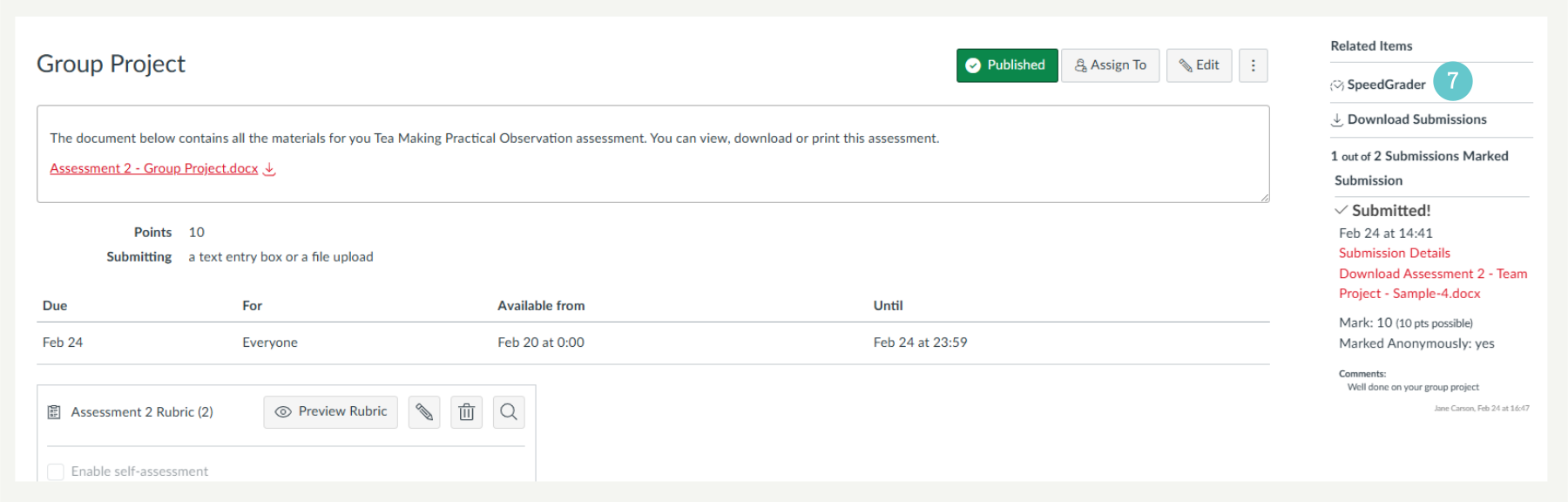
OR
- Select Speed Grader from the Course Markbook
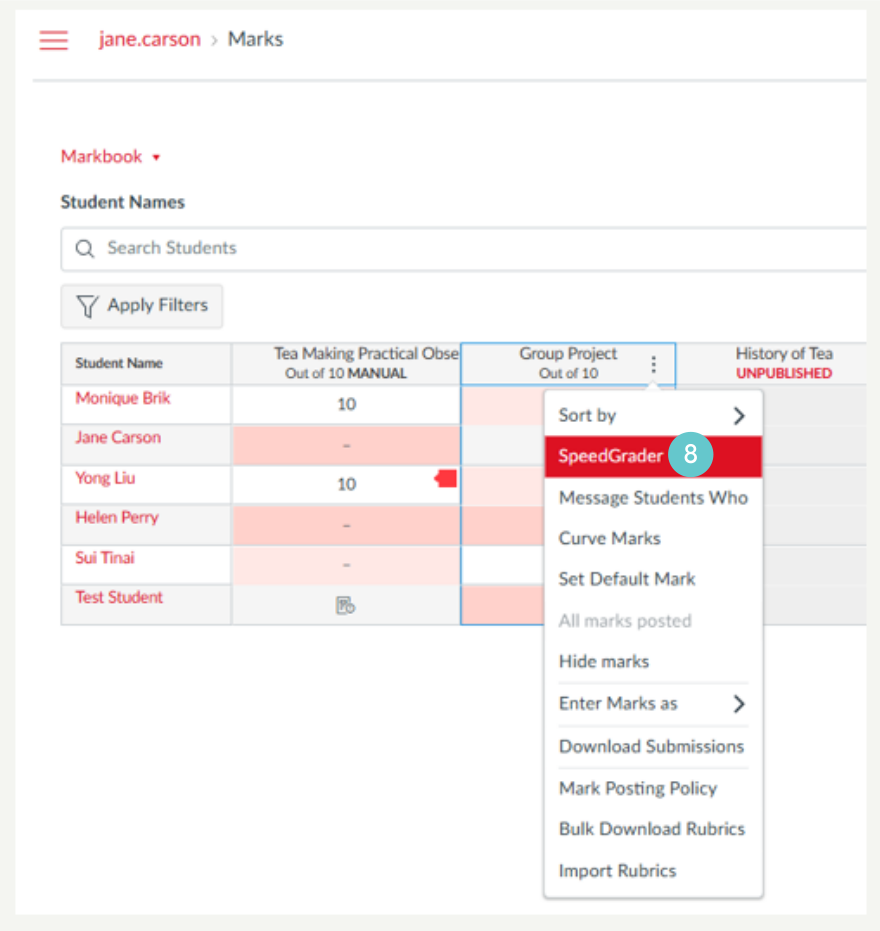
- View Submissions in SpeedGrader
- Depending on the Group settings for the assignment, the drop-down menu either displays the name of each group.

OR
- If the group assignment was set up to assign grades to each student individually, the assignment submission will still apply for each group member, however the drop-down menu displays the name of each individual student.
- Select the name of the group/student whose submission you want to view.
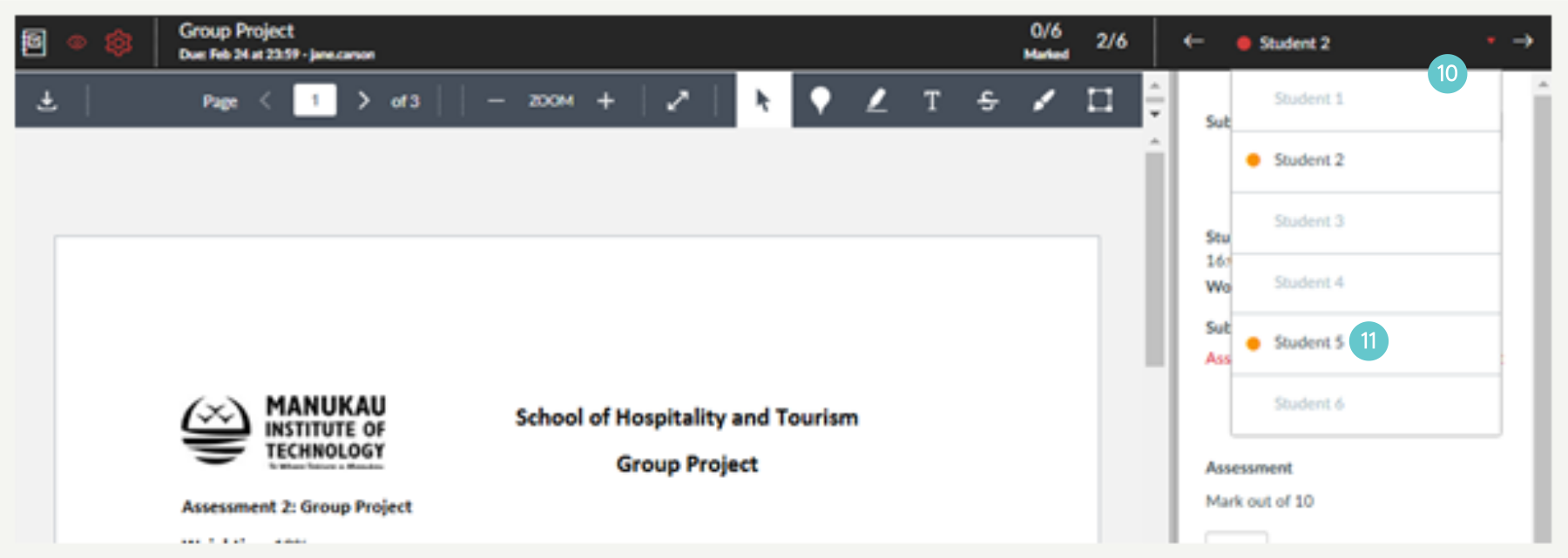
- Review student work the same as you would when “Marking using SpeedGrader”
- View your Rubric by clicking View Rubric.
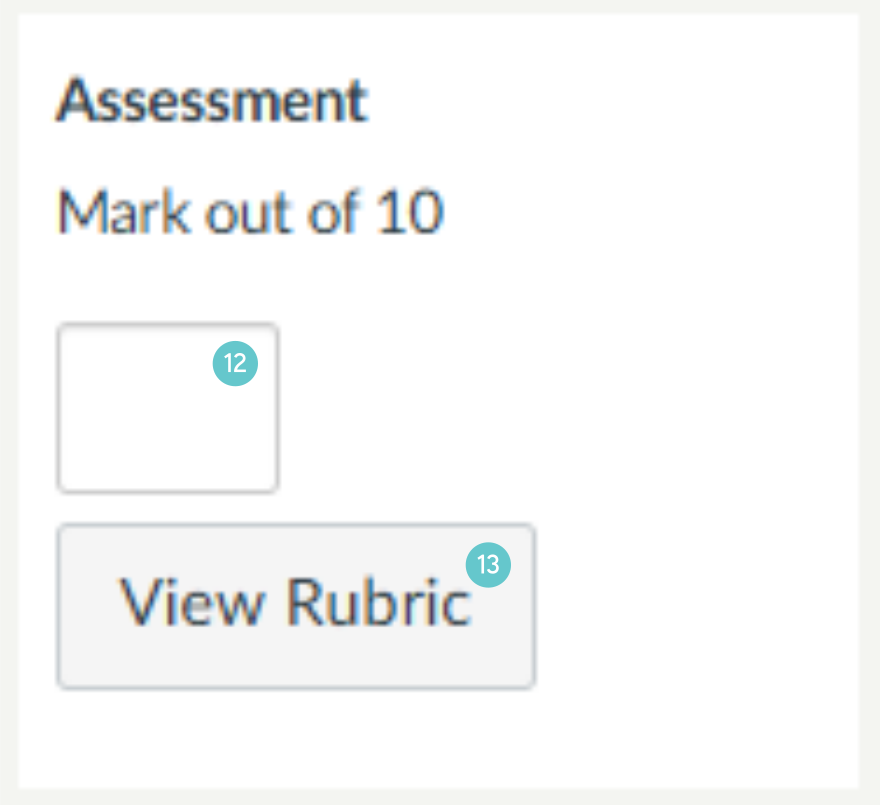

Note: If you have setup grading in the Rubric settings, the Grade field will automatically populate with the rubric grade results.
- Enter the grade in the Grade field.
- Note: When grading an individual submission, the entered grade will only apply for the student whose submission you are viewing.

- Enter your feedback
- Depending on the Group settings for the assignment, the comment will either be sent to the group

OR
- You have the option for individually marked assignments
- Once you have completed your marking and feedback, click Submit

- Comments will appear in the Submission Comments filter in Conversations.

Where to go next?
3 Adding Comments in SpeedGrader
4 Adding to the Comments Library
5 Marking a Group Assignment in SpeedGrader
6 How do I get the Marks Box to Auto Populate in SpeedGrader?