

How to add text comments, images, videos, links, equations and other multimedia elements to provide detailed feedback to your students.
How can this help you?
Using the text editor tool within SpeedGrader you can provide detailed feedback to your students, enhancing communication by allowing you to emphasise key points, organise information more clearly, and include external resources making it easier for students to understand and act on the feedback you have provided.
- To add your feedback, click in the comments box in the right-hand panel and begin typing

You have the following key features available for editing:
- Text Styles
- Bold
- Italic
- Underline
- Font colour
- Insert Hyperlinks
- Upload images
- Bullet points
- Equation Editor
- Verbal feedback
- Record videos and screen captures
- Add attachments
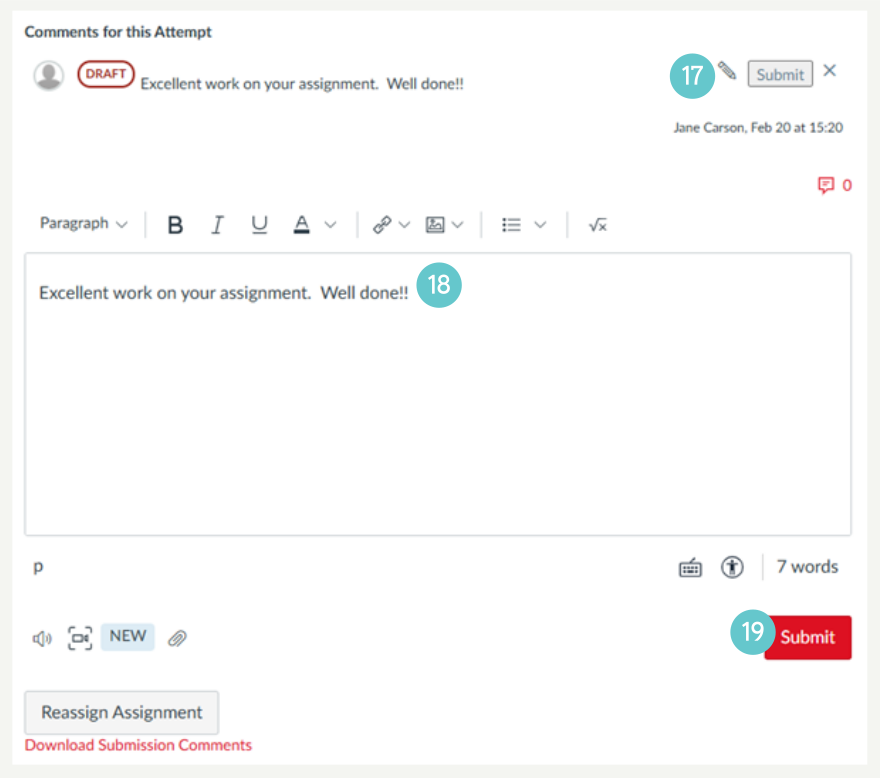
- Once you have finished your feedback, click Submit

Draft Comment Feature
If you draft a comment without submitting, and move on to another student, you will receive the following prompt.
- Click Proceed

- A Draft icon displays clearly indicating that the comment has not been submitted.

- To continue editing a draft comment, click the Edit icon.
- The saved content will then be reloaded for further editing.
- Once you have updated and are satisfied with your comment, click Submit.
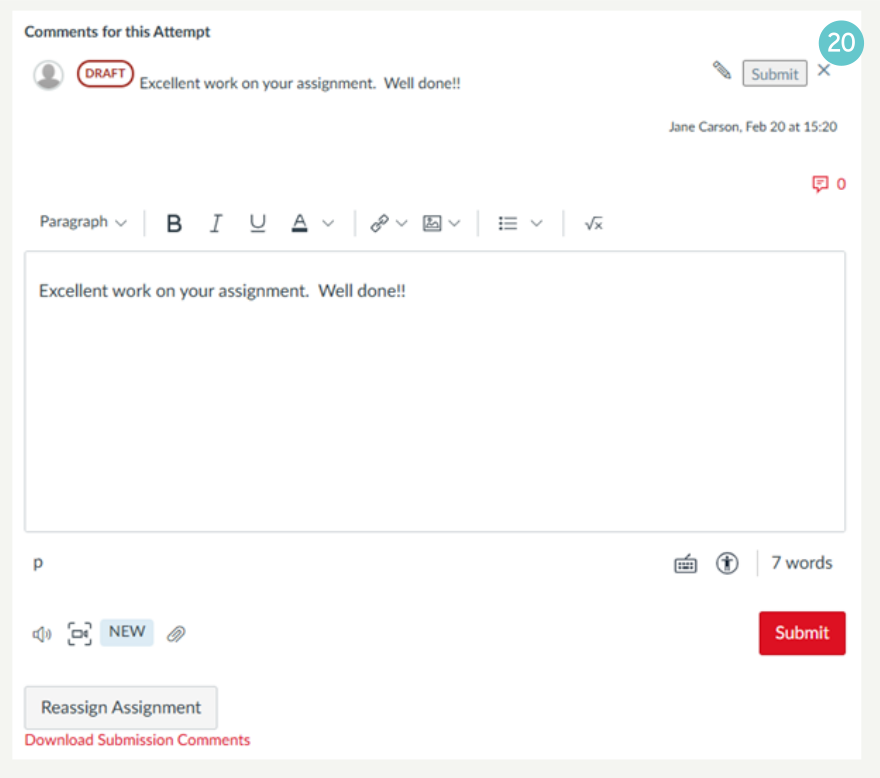
- To delete a draft comment, click the X
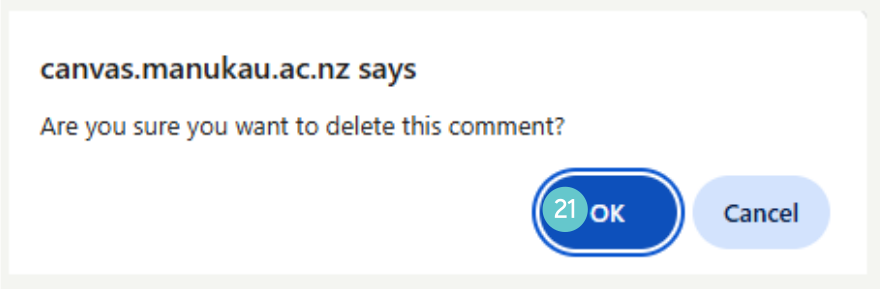
- You will receive the following prompt, click OK
Where to go next?
3 Adding Comments in SpeedGrader
4 Adding to the Comments Library
5 Marking a Group Assignment in SpeedGrader
6 How do I get the Marks Box to Auto Populate in SpeedGrader?