

Have you found that the Marks box in SpeedGrader is not automatically populating with the assignment mark? Find the fix here.
If the Marks box is not automatically populating with the assignment mark?
Find the fix here.
IMPORTANT! Do not edit the rubric criteria, only the settings.
For moderation purposes, do not edit the rubric criteria after it has been pre-moderated or after students have submitted their work.
- Open the Assignment.

- Click the pencil icon (to the right of Preview Rubric).

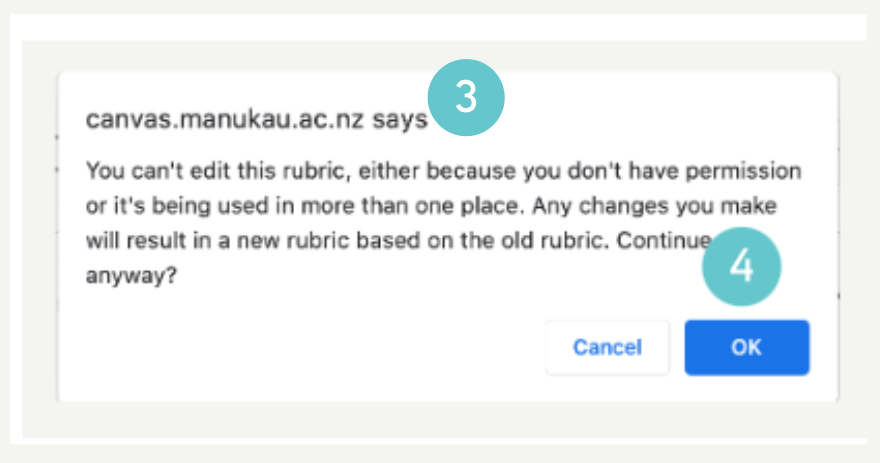
- You may get a pop-up,
- Click OK
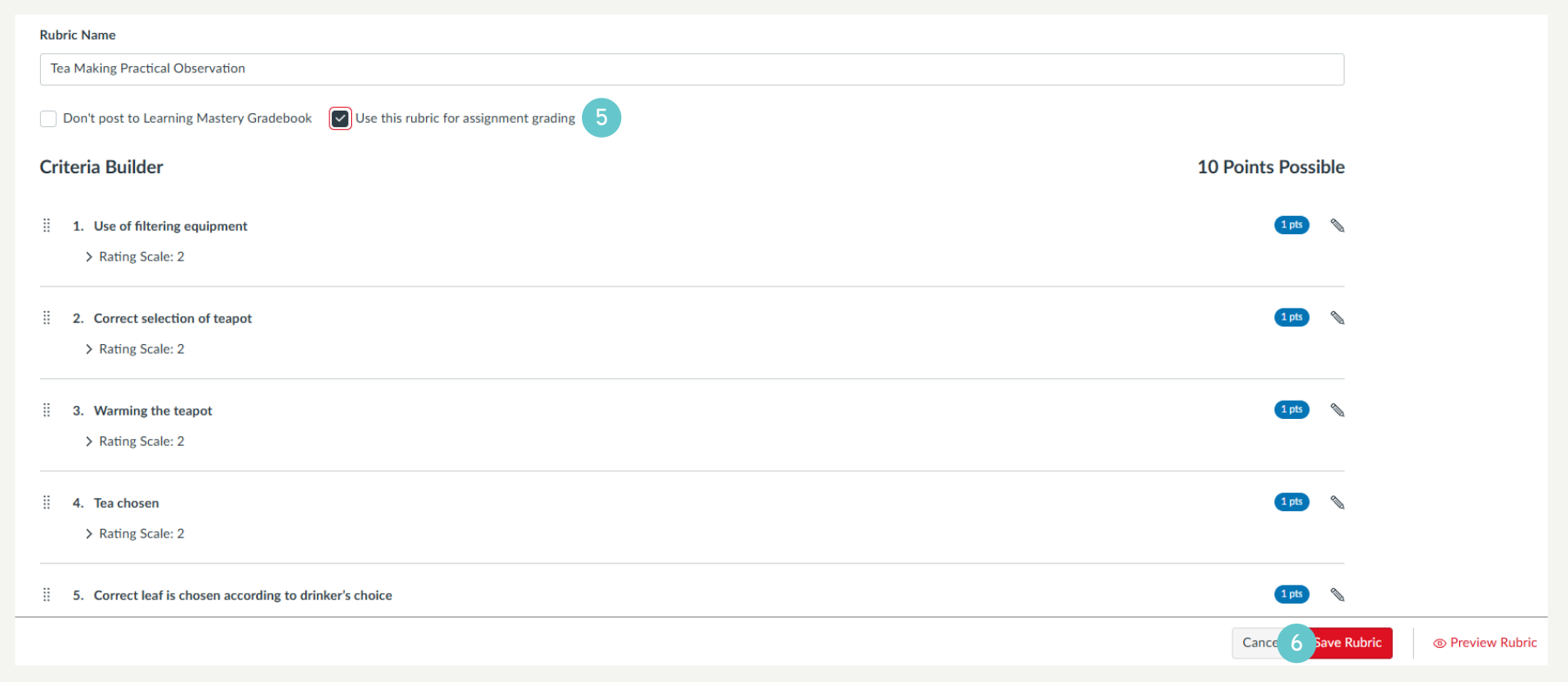
- Tick the box Use this rubric for assignment grading.
- Click Save Rubric
Where to go next?
3 Adding Comments in SpeedGrader
4 Adding to the Comments Library
5 Marking a Group Assignment in SpeedGrader
6 How do I get the Marks Box to Auto Populate in SpeedGrader?